
The Plan Organizer toolbar provides access to Plan Set and Page management.
Plan Organizer toolbars and context menus become active after you click the  button in the bottom right corner.
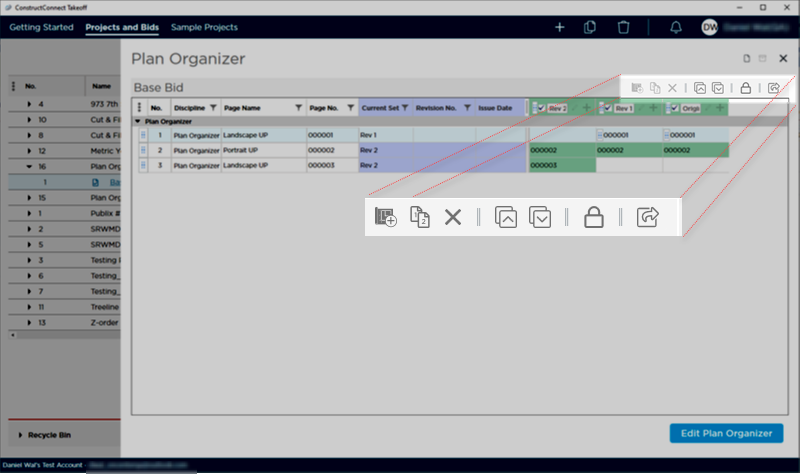
| Button - Control | Description | Keyboard Shortcut | What it does/How it is used... |
|---|---|---|---|
 | Add New Set | Opens the Plan Set Editor where you can add a new Plan Set. | |
 | Duplicate | <CTRL> + <D> | Duplicates the highlighted Page(s). This does not duplicate any takeoff or annotations that exist on the original Page although you can open the original Page and copy and paste everything from it to the duplicate Page. |
 | Delete Page | <DEL> | Deletes a Page.
If takeoff exists on this Page in any Bid within the Project that takeoff is lost if you delete this Page. You are warned about this when attempting to delete a Page. The Plan Organizer although opened from a Bid row on the Projects and Bids List is a set of Shared Plans for all Bids within that Project. Although each Plan Set can be activated/deactivated for each Bid the Plan Sets and the Pages they create are shared between all Bids - deleting a Page "for one Bid" deletes it for all Bids - be sure you know what other users have done in the Project before deleting a Page or causing a Page to be deleted (see Related Articles for more information). Deleting a Page cannot be 'undone' so be careful when deleting any Page from your Project. |
 | Expand All |
When you add multiple Disciplines (when your image files are stored in subfolders of the selected Folder during adding Pages) Pages are automatically grouped by those disciplines. Expands all collapsed disciplines.
| |
 | Collapse All | When you add multiple Disciplines (when your image files are stored in subfolders of the selected Folder during adding Pages) Pages are automatically grouped by those disciplines. Collapses all expanded disciplines. | |
 | Lock/Unlock columns | Toggles between allowing you to re-order/change the Column position or locking them in place. | |
 | Export to Excel | Exports the Plan Organizer grid (the list of Pages) as displayed currently to an Excel (*.xls) file and then opens that exported file in Excel. |
Plan Organizer Context Menu
In the Plan Organizer when you right-click on a Plan Set you see one of two Plan Organizer Context Menus.
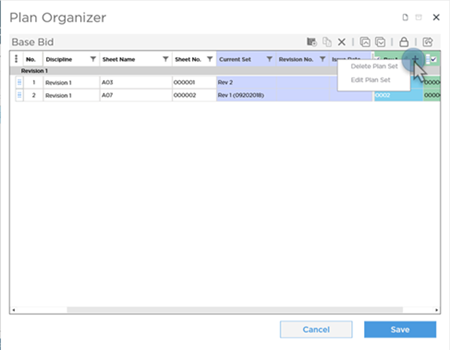
Right-click within a Plan Set column.
This context menu provides the only access for deleting a Plan Set and an alternate method for editing a Plan Set in the Plan Set Editor (you can also click the  button next to the Plan Set name in the column header to open the Plan Set Editor).
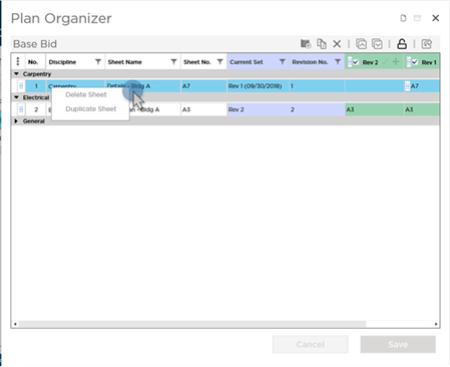
Right-click within a Page's detail columns.
This context menu gives you quick access to duplicate or delete a Pages. Remember the warning above about deleting Pages: you are not just deleting a Page from one Bid; you are deleting the Page and anything stored on it from every Bid in the Project.
When you are working in the Cover Sheet changes to the Plan Organizer are saved only when you click the SAVE button. If you close the Plan Organizer before saving changes you are prompted to save or discard changes.
Related Articles