Adding a Single Plan to an Existing Plan Set
To select a single Plan to add to an existing Plan Set, in the Plan Organizer,
- Click the plus sign button to the right of the Plan Set name
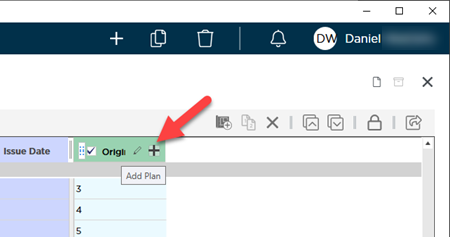
- In the Open dialog, browse to the location where the Plan is stored
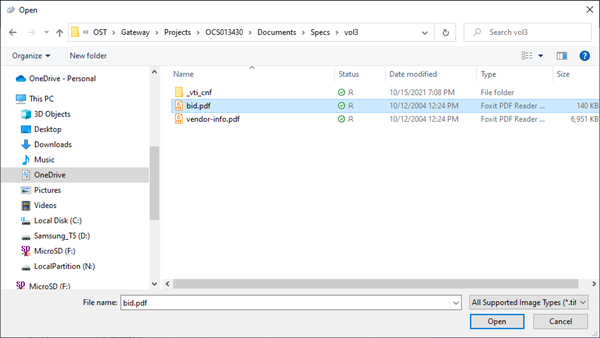
- Select the file and click Open
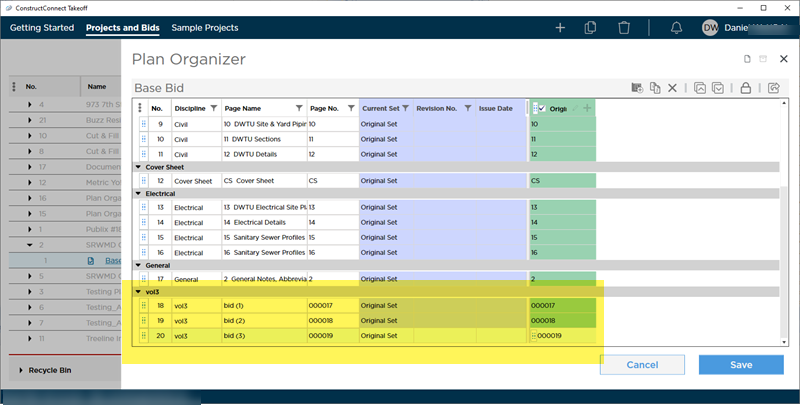
Even though this was a single file it was a multi-page PDF and three new Pages are added.
Adding More Than One Plan to an Existing Plan Set
To add Plans to an existing Plan Set,
- Click the Edit Bid Information button in the bottom right
- Then, click the
 button in the Plan Set's header to open the Plan Set Editor
 - Next, click the
 button to select a folder whose contents you want to add to this Plan Set
If you have already added any of the image files in the selected folder to this Plan Set they are added again as new Plans you must delete them from the Plan Set before saving the Plan Set to avoid creating new Pages in the Plan Organizer. To add a single plan to a Plan Set copy the image file into a new folder on your computer and then add that new folder to the Plan Set. Remember every file in the selected folder and all subfolders that can be added are added to the Plan Set.
We cover adding additional Plan Sets to a project in Related Articles.
Duplicating Pages
You can duplicate a Page in the Plan Organizer. When you duplicate a Page (or Pages) the program creates a copy of that the original Page(s) and adds it to the bottom of the Page list with adds a suffix "_A" to the Sheet No. (remember Sheet Numbers must be unique but Sheet Names do not).
To duplicate a Page or Pages,
- Select the Page(s) you want to duplicate (hold down the Shift key for Pages that are next to each other in the list use Ctrl for those that are not)
- Click the
 button
 - Then, click the
 button in the toolbar or press Ctrl + D
After you click the Duplicate button the new Pages are placed at the bottom of the list in their Discipline group.
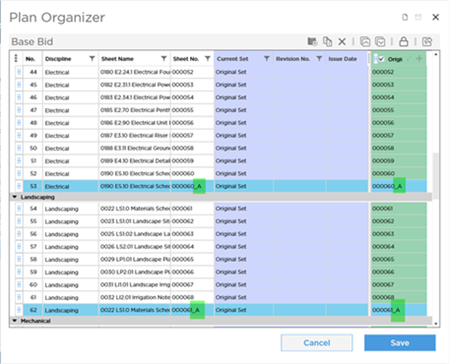
Notice that each Sheet No. had "_A" added to it to distinguish it from the original sheet. The Set information is adjusted accordingly in any set where the Original exists.
Uploading Duplicate Copies
When you Duplicate a Page the Plan itself is duplicated but on your machine first. Copy the Plan(s) associated with the Page(s) you duplicated take a moment or two.

When you save changes to the Plan Organizer the Plan(s) associated with the new Page(s) must be uploaded to the Cloud server this can take up to a few minutes depending on the number of Pages you duplicated.
You can close the Plan Organizer once these are processed. The new Plans upload in the background (if you duplicate only one Page this entire process happens in just a second or two).
 The Difference Between High Resolution/Color Plans and Low Resolution/Greyscale Plans The Difference Between High Resolution/Color Plans and Low Resolution/Greyscale Plans | Deleting Pages, Plans, and Plan Sets  |
Related Articles
