
If you are using ConstructConnect Takeoff, one of the things you probably need to accomplish is completing a "quantity survey" of your plans. We call that "doing takeoff" or "taking off your project". In the Related Articles we covered creating Takeoff Items and Layers now we are going to use those Takeoff Items to measure (takeoff/quantify) the objects on your plans.
Each Takeoff Item Type (Linear Area Count Attachment) includes its own set of tools you'll use to draw takeoff. We cover the exact tools available for each Type in the articles that follow.
By the end of this chapter you should be comfortable setting Scale and using the Takeoff Tools to measure your plans and account for various building objects. Once you are confident in your abilities to draw takeoff you'll be ready to learn about Advanced Takeoff - timesavers that cut the time it takes to complete a takeoff project.
Anytime there are options available on the Context menu (right-click) we let you know about them when they can be used. There are a lot of Context menu options on the Takeoff Tab used while drawing/manipulating takeoff.
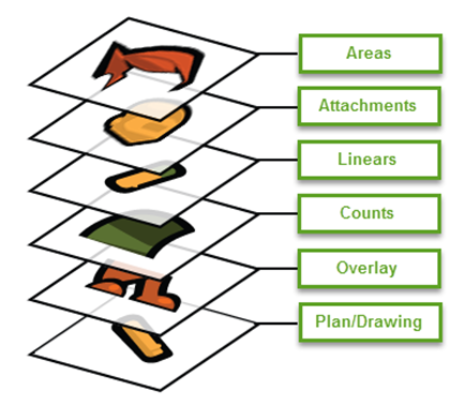
As you draw takeoff the order in which it is 'stacked' on the screen depends on each Takeoff Item's Type from bottom to top:
- Areas
- Attachments
- Linears
- Counts
- Takeoff objects of the same Style are ordered based on when they are drawn (older takeoff toward the bottom)
If It's Colored It's Counted!
As your draw takeoff on your plan it is saved to the Cloud. When you review your plans you can identify objects that have not been accounted for easily and quickly reducing errors and making the measuring process easier and more efficient.
Just like using colored pencils on paper plans you can count on "If it's colored it's counted".
Beyond Basic Takeoff
Beyond simple measurements CC-Takeoff provides ways for you to simplifying drawing takeoff organizing your project results by phase or area analyze your bid's cumulative results and even export. All these advanced concepts are covered in Related Articles.
- You can separate your takeoff into different "Bid Areas" so that you can group quantities together for easy reporting.
- Multi-Condition Takeoff allows you to select a number of related Takeoff Items and draw takeoff once - the program completes everything for you saving you hours and reducing errors.
- You can also use Typical Takeoff such as Typical Groups and Typical Areas to make completing your takeoff easy and fast.
- The Summary Tab allows you to group filter sort and further manipulate your takeoff Results however you like. You can even copy or export to Excel for additional work (such as creating reports or proposals).
- The Worksheet Tab allows you to apply and adjust pricing for each Takeoff Item Result including Material Labor Equipment Subs and Other Costs. You can export the Worksheet Tab to Excel or even On Center's professional estimating program Quick Bid.
Right now we want to explain the basics of drawing takeoff for Linear, Area, Count, and Attachment Takeoff Items.
Before you draw a single piece of takeoff it is critical that you set or calculate and then verify the scale for each Page. Do not trust the scale on the plan (drawing) it may not be accurate. Setting an accurate scale is critical to calculating accurate Results.
Related Articles