
Typical Groups allow you to takeoff repeating regions of takeoff with your bid quickly and efficiently. Typical Groups show the physical takeoff objects on the plans wherever a Typical Group Marker is placed (Typical Areas on the other hand only multiply Takeoff Item Results).
The best way to think about a Typical Group is it is like an old rubber stamp. You set up the template (the stamp) once (the takeoff inside a Typical Group Frame) and then you use it to put a copy of that template anywhere you want. The best thing is if you need to make a change to that template you do not have to re-stamp your plans they are tied back to the takeoff inside the Typical Group Frame so you only have to make a change once.
There are three "parts" to using Typical Groups:
- The Typical Group - similar to a Count Takeoff Item it uses a dialog box similar to the Takeoff Item Properties just fewer fields to fill out
- The Typical Group Frame - this is a box you draw around some takeoff that defines what is included in the Typical Group
- Typical Group Markers - these are similar to a Count object you "Draw" with the Typical Group at each point where place a Marker the program shows whatever takeoff is inside the Typical Group Frame
Typical Takeoff Examples
We are going to use the same example for the rest of this Chapter to demonstration Typical Groups Typical Areas and using both together.
Our example for is a high rise condo and we are acting as a contractor who installs carpeting floors and wall coverings etc. We are being contracted to install carpets and flooring in the suites on each Floor and to tile the floor and install wall coverings in the elevator lobbies.
Floors 1 2 and 3 are unique although the some of the same condo units used on Floors 4-22 occur on each their common areas and the number of units on each is different. Floors 4-22 are identical and also use several of the same units. The elevator lobbies for Floor 4-22 are identical (all 8' deck height) but the elevator lobbies on Floors 1-3 have a deck height of 10'.
We are going use Typical Groups to account for a single instance of each of the suites and then place a Typical Group Marker anywhere each suite occurs throughout the Pages associated with Floors 1-3 to account for those floors unique layouts.
We will use Typical Areas to account for the Elevator lobbies.
And we will use a combination of Typical Groups and Typical Areas to takeoff off Floors 4-22 on the "typical floor plan" Page.
Typical Groups Toolbar and Context Menu
Here's a refresher, in case you forgot how this toolbar and context menu work:
Toolbar & Keyboard Shortcuts
The Typical Groups Pane Toolbar is located along the bottom of the Typical Groups Pane (by default docked on the left side of the application with the Takeoff Items pane) and includes buttons for adding editing and deleting Typical Groups along with a selecting all Typical Group Markers for the selected Typical Group(s).

| Button | Description | Shortcut Key | What it does/How it is used... |
|---|---|---|---|
 | Add Typical Group | Insert or Ins | Opens a new blank Typical Groups Properties window so you can configure a new Typical Group. |
 | Edit | Enter | Opens the Typical Group Properties window for the selected Typical Group (you can also double-click on a Typical Group in the Pane to open its Properties). |
 | Delete | Delete or Del | Deletes the selected Typical Group(s). This permanently deletes the Typical Group(s) and all Typical Group Frames and Markers from the current Bid. This action cannot be 'undone'. |
 | Select Objects | Ctrl + T | Selects all Typical Group Markers for the selected Typical Group(s) on the current/active Takeoff Window. |
| Go To Frame | Ctrl + G | Opens the Page on which the Typical Group Frame exists selects it then zooms to fit the Typical Group Frame. (No button on the toolbar) |
Context Menu
The Context Menu provides access to two options that are not available on the Toolbar or using keyboard shortcuts.
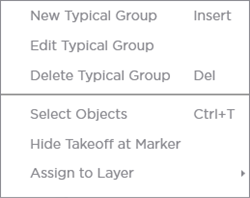
| Option | What it does/How it is used... |
|---|---|
| Hide Takeoff at Marker | The program typically shows the takeoff inside the Typical Group Frame wherever a Marker is placed. Showing or Hiding this takeoff has no effect on calculations or results only what you see at the point where you are placing Typical Group Markers. |
| Assign to Layer > | Assigns the Typical Group Markers to a custom Layer. The Typical Group Frame is always assigned to the Typical Groups Layer (that cannot be changed) and the takeoff inside the Typical Group Frame can be assigned to any number of Layers. Hiding the Layer on which the Typical Group (the Markers...) is assigned hides everything at the point where a Marker is placed including the takeoff. |
Related Articles