
Textbox annotation allows you to place a visual note right on your plans visible to anyone accessing the bid.
For example we want to call attention to something on the Plan (explaining why we took off something a certain way for example). We add a Textbox right on the plan and anytime other users open this Page they will see our notes.
Adding a Textbox
- Click the
 button from the Annotation toolbar
 - Click the upper left corner where you want to start your textbox and drag down and to the right to set the size of your textbox.
- As soon as you release the mouse button the Text Annotation Editor pops up where you can enter your text and format it.
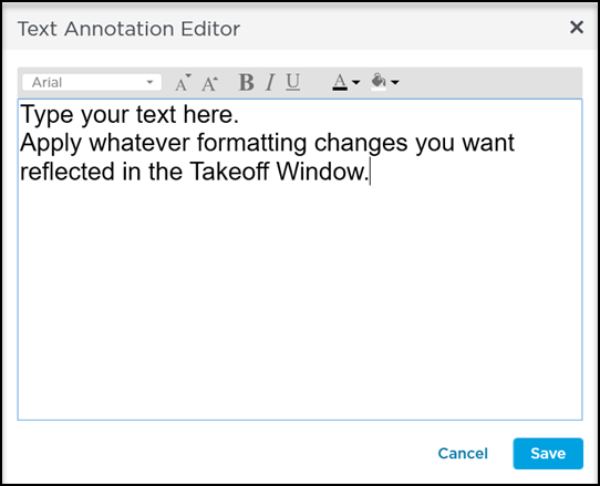
The toolbar includes options for select font size effects and color for the text and for the background of the textbox.
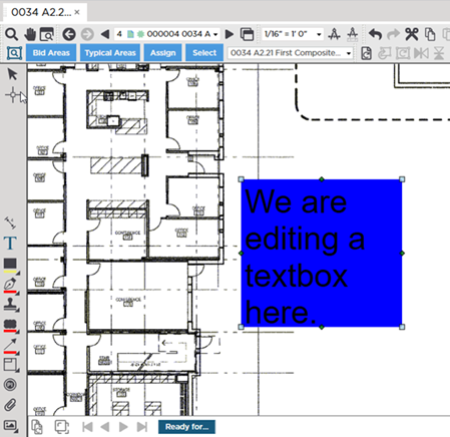
On your plan the Textbox automatically resizes/adjusts to fit the text you type (and the font size you set).
Adjusting an Existing Textbox
To edit what is inside a textbox (content font size etc.) or the textbox's fill (the color of the background of the textbox) double-click on the textbox to bring up the Text Annotation Editor.
You can choose from a variety of fonts; additional fonts cannot be installed or added.
Related Articles