
The Highlighter Tool it is used to place a colorful highlight on your plans - usually to draw emphasis to something but if you select a White highlight it can even be used to block out part of your plan/plan.
Drawing Highlighter Annotation
Click the  button from the Annotation toolbar
Select the shape (rectangular (default) circular or 'ink' (freeform)) for your highlight and what color you want your highlight to be (default is yellow).
Click the expand triangle and choose the shape and color you need (if you just click on the button no worries the default highlighter tool is a yellow rectangular which is the most popular). You can edit the color and opacity after drawing Highlighter annotation also.
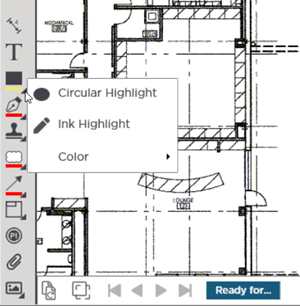
If you choose "Ink" you can select Line Thickness...
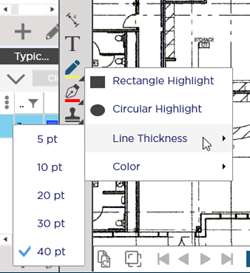
Now that you've specified how the highlighter annotation will look draw highlights on the plans wherever you need them.
Notice the cursor changes to match the tool you are using.
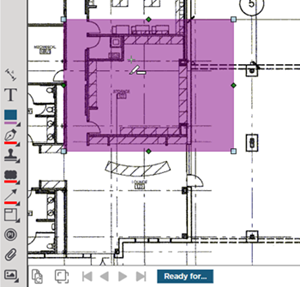
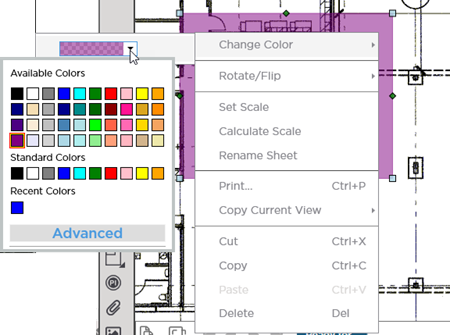
You can right-click on the highlighting once drawn and change the color (or opacity) however you see fit.
Related Articles