
The Worksheet Tab can be used for generating a basic estimate of bid costs associated with Labor Materials Equipment Other and Subs based on the measurements drawn on the Takeoff Tab.
In this article and the articles that follow, we discuss adding pricing to Takeoff Items, adding and pricing Manual Results, exporting the Worksheet Tab to Excel®, and exporting bid data to Quick Bid®.
The Worksheet Tab's grid is comprised of Results with a checkmark in the "W" column in the Takeoff Item's "Results" tab (in the Takeoff Item Properties dialog box). See Related Articles for more information on setting up your Takeoff Items and selecting which Results to show in the Worksheet Tab.
Pricing the Worksheet Tab
You can add Material Labor Equipment Subs and Other expenses to each Takeoff Item or Manual Result in the grid.
You can enter costs for Takeoff Items even if you have not done the takeoff for your bid yet. You could setup a template job this way with all the Takeoff Items required for a certain Project Type and your rough estimate would be done as soon as you finish your takeoff. You can also store pricing in your Takeoff Item Templates which we discuss in Related Articles.
For each Result you enter in the Unit Cost for each expense type. You supply this information based on past estimates it is not built into ConstructConnect Takeoff. For each Result you enter in the Unit Cost based on the UOM for that Result. For example for a Linear Takeoff Item you may have a linear Result (LF) but you also may have area results (SF) and count Results (EA). You can price each Result uniquely to account for different materials and labor (for example framing would typically be based on a linear result where finishing would be based on an area result - each would have different unit prices).
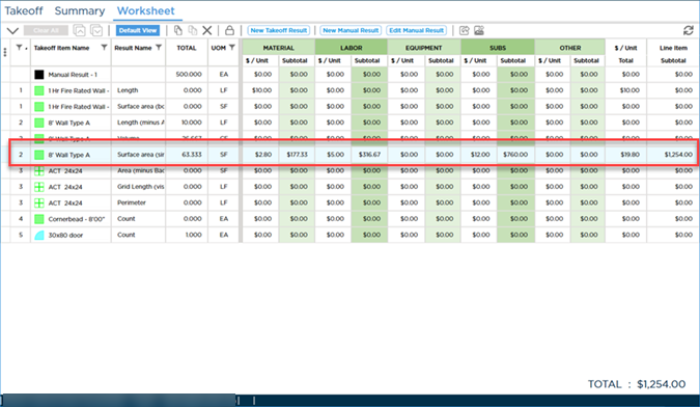
If you needed to price two instances of the same Result for a Takeoff Item you would add a Custom Formula to 'duplicate' that Result with a unique name. See Related articles for information on Custom Formulas.
The articles that follow cover all the advanced functionality of the Worksheet Tab including how its pricing is connected to the pricing you see in Takeoff Item Properties how to filter and group the Worksheet Tab how to add different Takeoff Item Results to the Tab to use them for pricing and even how to export to Excel and Quick Bid.
Related Articles