
The Live Link Add-in has been discontinued by ConstructConnect effective 6/1/2023 and can no longer be downloaded or installed. If you are already using Live Link it will continue to function for some time although we no longer provide support for this feature.
When enabled (in CC-Takeoff Settings and if necessary Excel's Add-in options see Related Articles for details on enabling the Add-in) the ConstructConnect tab shows in Excel.
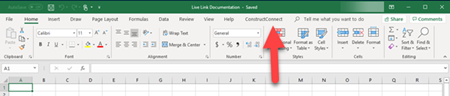
There are two small icons that may appear next to the words "ConstructConnect" in Excel:
- An asterisk (*) means there are unsaved changes in your workbook (newer versions of Excel typically come with "AutoSave" enabled so you may never see this icon but just in case you do you know what it means).
- The bi-directional arrows (
 ) indicate this workbook is linked to a Takeoff bid and actively syncing data (has not been paused).
Ribbon Bar
Click on the tab to open the ConstructConnect Live Link Ribbon Bar.

There are four buttons on this Ribbon Bar:
- Connect (Disconnect) - there are three uses for this button:
- Connect - the very first time you connect a bid to this workbook clicking "Connect" opens the Takeoff Projects and Bids list (covered in next article).
- Disconnect - when you are connected to a Takeoff bid this allows you to pause active synchronization between Excel and Takeoff. The spreadsheet and bid remain linked on the back-end Excel simply is not pulling fresh data from the Cloud temporarily.
- Connect - if you previously disconnected Excel from Takeoff (clicked "Disconnect") clicking "Connect" again reestablishes the active syncing between Excel and the Cloud. All changes to the bid's Takeoff Items and Results (done in CC Takeoff) are retrieved - this may take a few moments to complete.
- Open Results - when you are using Live Link you can close the Live Link panel to maximize your Excel spreadsheet's workspace. This button reopens that panel.
- Unlink Cell(s) - this removes the Live Link between a cell (or cells) and the project. See Related Articles for more information about unlinking.
- Help - opens this user guide.
Context Menu
When you right-click on any cell in Excel you'll see the ConstructConnect context menu within Excel's normal context menu.
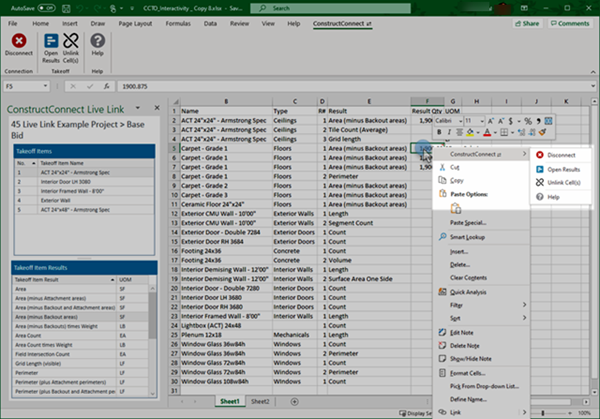
This context menu contains the same options as the Ribbon Bar and works the same.
Related Articles