
The Live Link Add-in has been discontinued by ConstructConnect effective 6/1/2023 and can no longer be downloaded or installed. If you are already using Live Link it will continue to function for some time although we no longer provide support for this feature.
Once connected to a Takeoff bid a workbook remains linked to that Bid. You can link the workbook to a different Takeoff Bid only if you click "Save As" in Excel to create a copy of the workbook (which prompts you to remove the Live Link).
Connecting to a Takeoff Bid
If Excel is not open go ahead and open it and open the workbook to which you want to link a Takeoff bid. ConstructConnect Takeoff opens automatically when you click the "Connect" button.
Click on the ConstructConnect tab in the Excel ribbon, this opens the Excel Live Link toolbar.

Click the green  button.
After a few seconds the "ConstructConnect Projects and Bids" list opens. This is a list of every project in your Organization to which you have at least "Read/View" access.
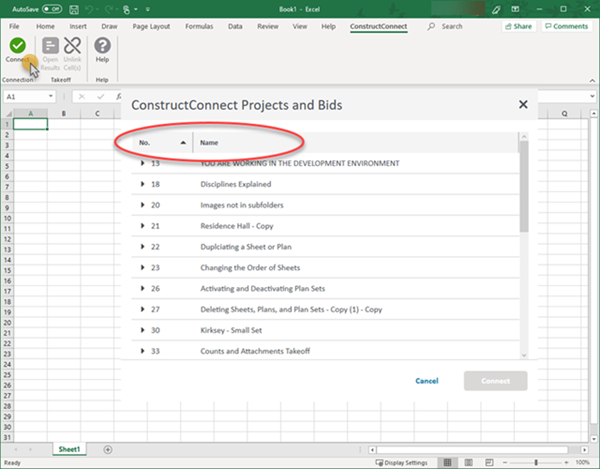
You can sort by either column - click the column header to sort ascending click again to sort descending.
To see the bids within a project click the arrow to the left of the Project No.
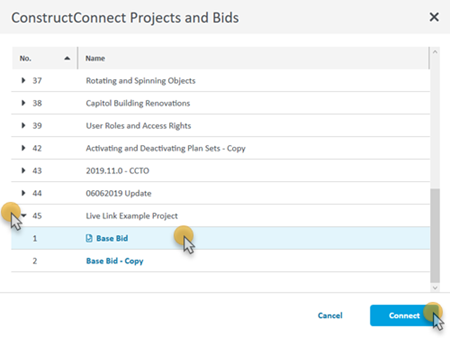
Once you have located the bid to which you want to link the active workbook highlight the bid and click the  button.
The Live Link panel is added to Excel.
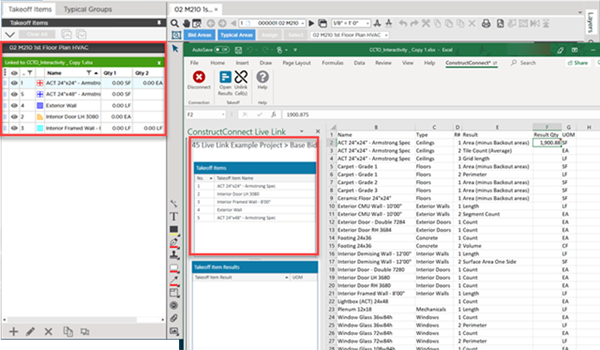
After connecting
- The banner at the top of the Conditions panel in Takeoff indicates the workbook (Excel file) to which this bid is connected.
- The connected project and bid names are shown at the top of the Excel Live Link panel.
- All Conditions from Takeoff are shown in the Takeoff Items section even if they have not been used to perform takeoff.
- There is an indicator next to the words "ConstructConnect" in the menu bar in Excel to indicate the workbook is now connected to a Takeoff bid.

Congratulations! You have now connected Excel to your Takeoff bid. Next up let's take a look at that Live Link panel.
Related Articles