
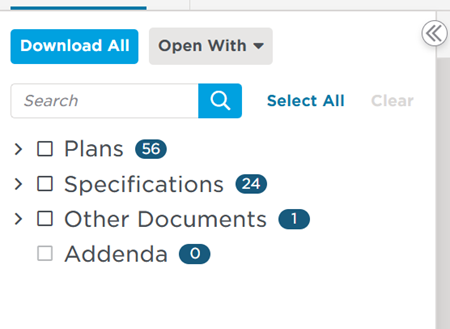
The Document Tree, on the left side of the Document Viewer window, displays a menu with four categories of documents and the total number of pages in each category.
- Plans
- Specifications
- Other
- Addenda
Clicking the arrow to the left of any category will expand that section and show all individual pages in that category:
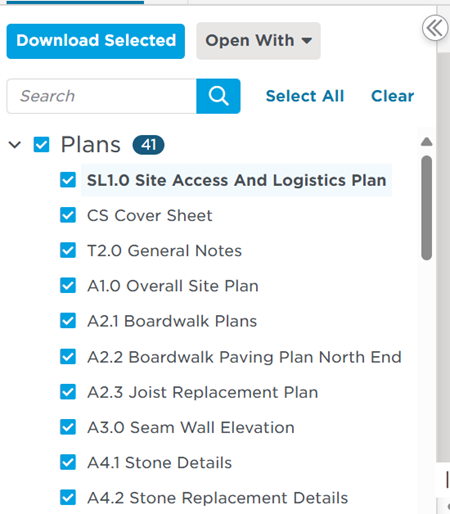
You can view any individual page through the viewing pane by clicking directly on the document:

There are two ways to access the Document Viewer. Through the Project Details Page or directly from your search results.
Project Details Page
On the Project Details Page, you can access the Document Viewer by clicking the View/Download Documents on the right side of the page (below):
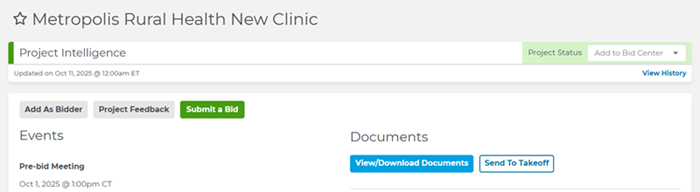
This method to access the Document Viewer will bring you to the Document Tree menu at the top of this article.
Search Results
You can also access the Document Viewer by selecting Documents in the Search Within drop-down directly to the left of the search bar.

After checking the box next to Documents, type in the specific search terms or trades you’re looking for. Your search results will update to show only projects that have those terms within their documents.
A column called Matching Docs will show the number of documents attached to each project that match your search term(s).

Clicking on that number will take you directly to the first document containing that search term in the Document Viewer.
When viewing a multipage document (such as a Spec sheet), each page that includes the search term(s) is highlighted with a yellow flag.

You can also click on the project title from this view will bring you straight to the Project Details Page for that project:
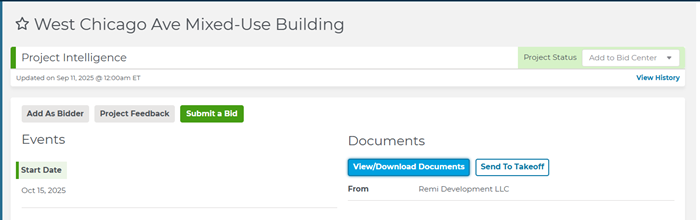
However, this time, when you click on the View/Download Documents button, the Document Tree will show you only pages that contain your matching search term(s):

In the viewing pane, all mentions of your chosen search term will appear highlighted in the document(s) where it/they appear.

From this view, if you want to switch from looking at only documents that match your search terms to all documents on the project, simply un-click Matching Documents and click All Documents.

Simply clearing the search box will also remove all highlights and return your results to All Documents.
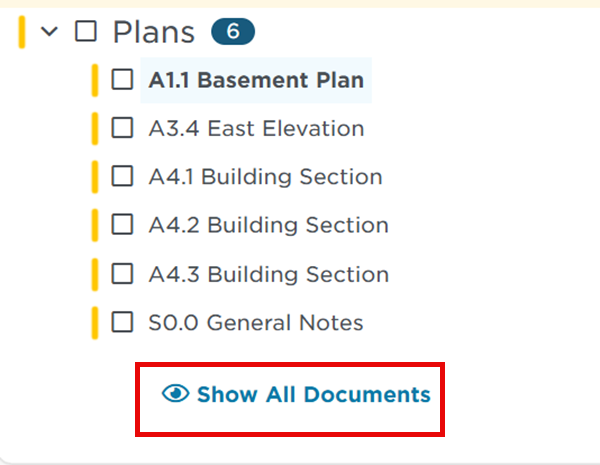
You can also click the Show All Documents link at the bottom of the Document Tree.
If you’re in the All Documents view, you can easily enter the Matching Documents view by typing specific terms or trades into the search bar within the Document Tree.

Related Articles