Issue
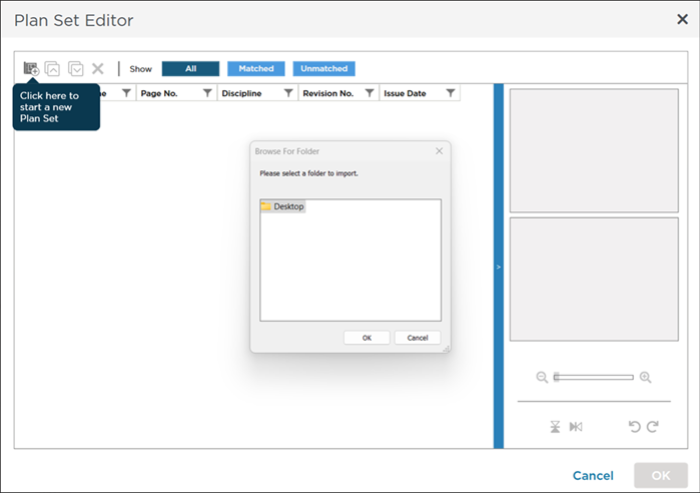
When you create a Plan Set and open the "Browse to" dialog box it is blank and you cannot browse anywhere to locate the plans you want to add to your Project.
Discussion
With Build 22h1 of Windows® 11 Microsoft automatically backups up your Windows Desktop to OneDrive™ leaving only a "marker" of sorts on your Desktop. Most "browse to..." dialog boxes do not show shortcuts or links only real files and folders. This causes the CCTO Browser for Folder dialog to appear blank.
Resolution
So far, the only resolution we've found is to disable "Desktop Backup" in Microsoft's OneDrive settings.
This changes some default Windows behavior - please check with your IT department first.
- First right-click on the OneDrive icon in your taskbar.
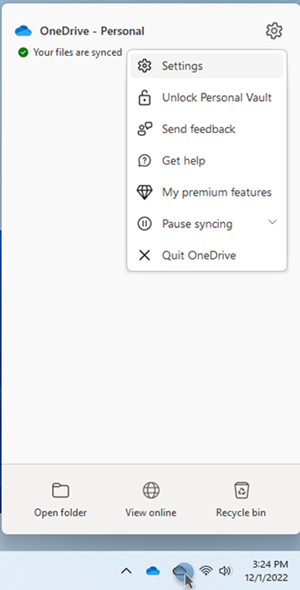
- Next click the gear in the upper-right corner and select "Settings".
- In the Microsoft OneDrive Settings dialog box click the Backup tab.
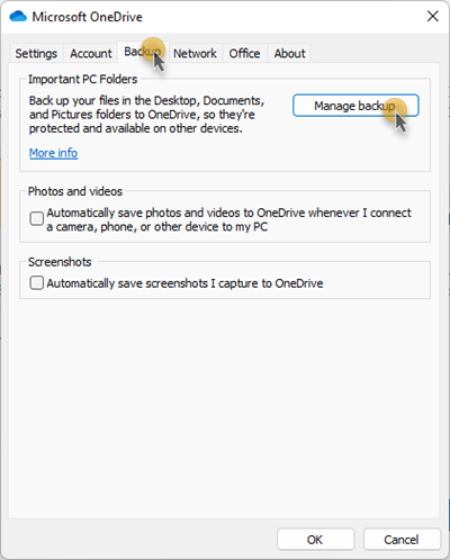
- Next click the Manage Backups button.
- In the Manage folder backup dialog box click Stop backup under Desktop. You can leave Documents and Pictures.
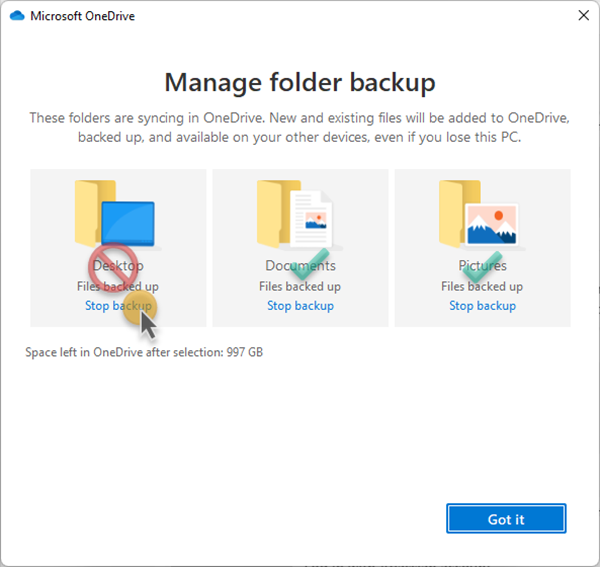
This should immediately correct the issue.
You can re-enable Desktop Backup after you've loaded your Plans into CCTO.
Related Articles
