Issue
Text is too small.
Discussion
With the advent of high-resolution screens, text can appear very small in PlanSwift.
You cannot adjust the font size from within PlanSwift, you make changes to font size/screen resolution in the Windows Display Settings and the application's compatibility settings.
Before making any text size or scaling adjustments, close PlanSwift.
Resolution
Adjust Compatibility Settings
This is the simplest way to fix the resolution, so we suggest trying this first.
These instructions apply to Windows 10 and higher, only.
- On your desktop, right-click on the PlanSwift icon;
- Select Properties
- Click on the Compatibility tab
- Click Change high DPI settings
- Click on "Override high DPI scaling behavior..."
- Select System from the Scaling performed by drop down

Note: You may need to restart your computer to apply this setting correctly.
If this doesn't work, then the next step, is to adjust your Display Settings.
Change Resolution and Scaling
Next, you can do a little trial-and-error on your Display Resolution and Scaling settings to achieve better display results.
- Right-click on your desktop
- Select Display Settings
Note, in this dialog box, you can change the size of text, apps, and other others. Usually, this is going to be set at 100%, but that may not be ideal with a higher resolution monitor (especially 4K monitors).
You can also adjust the Display Resolution - try to maintain the same aspect ratio as the default.
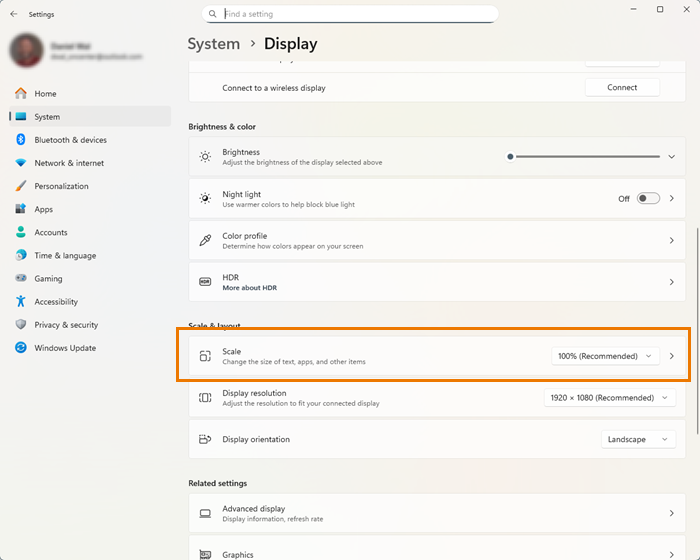
After each adjustment, log out of your computer (you don't need to restart with Windows 10 and higher), but the changes may not affect PlanSwift until you log out.
Every monitor/display adapter provides different results for changes to Scaling and Display Resolution - find a setting that works best for you.
Adjust Your Computer's Theme
If some text is still not of legible size, you may need to adjust one more advanced visual settings in Windows.
- Right-click on the Start Button
- Select Settings
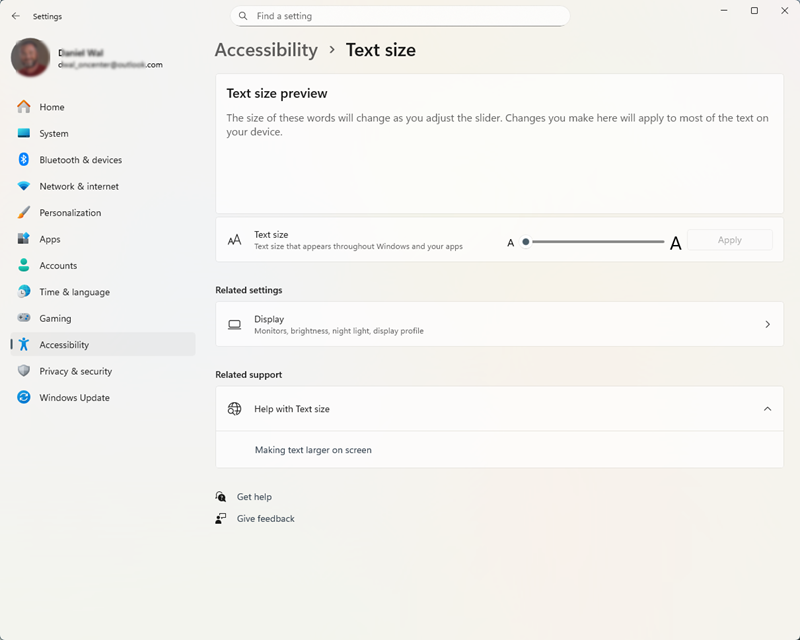
- Click Accessibility
- Then click Text size
- Slide the adjuster for Text Size to a position that provides easy-to-read text for you
Related Articles
