Question
How do I account for the first and last studs when building out a Condition for a Wall with "on center" spacing?
Discussion
Let's look at a very simple bit of takeoff and its associated pricing in Quick Bid:
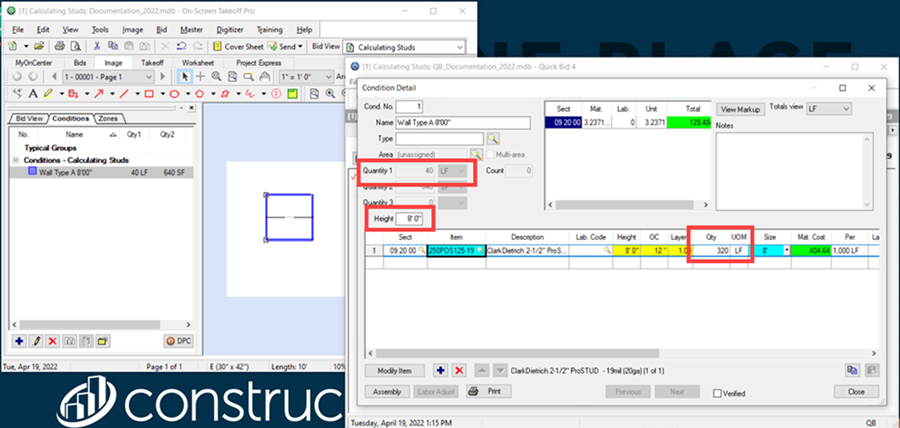
We've manually set the sides of our takeoff to exactly 10'00" and the height to 8'00" for this example (in OST, of course).
In Quick Bid, we set our on center measurement to 12" and our Waste Factor to 0, just for this example.
You can see that Quick Bid calculates exactly 320LF of studs required.
On the Materials Tab, we see that Quick Bid has (correctly) calculated 40 pieces (studs).
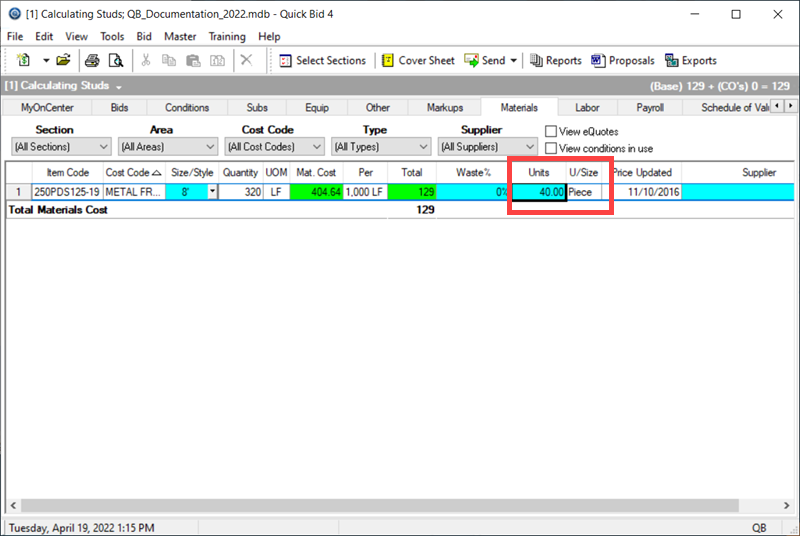
The way Quick Bid calculates for studs is dividing the total LF of stud (320LF) by the stud length (8LF). So, the result is 40 studs. However, this does not account for the beginning stud.
If we use a Count object in OST, we can see that for a 10'00" long wall (8'00 height), we actually need 11 studs if they are 12" on center.
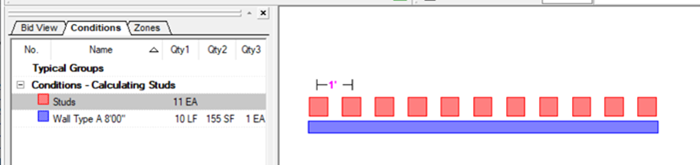
This means, for our square room, we are four studs short. Now, by default, most stud Items include 10% Waste Factor, but if you don't account for Waste in this manner, we have an alternative way of accounting for these “missed” studs.
Resolution
Assuming you are using On-Screen Takeoff and Quick Bid interactively, we're going to set the Condition Qty 3 to "Segment Count" in On-Screen Takeoff.
If you are not using OST, you'll have to ask whoever provided your quantity survey to provide you with segment count.
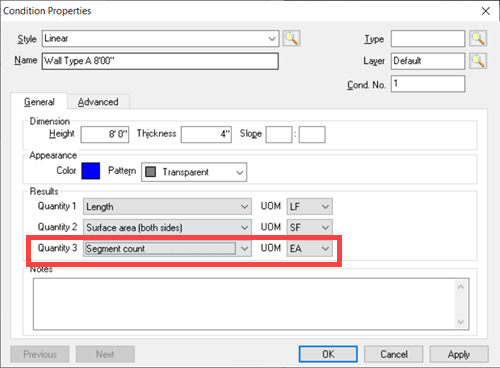
We can see that there are four (4) segments in our very simple example:
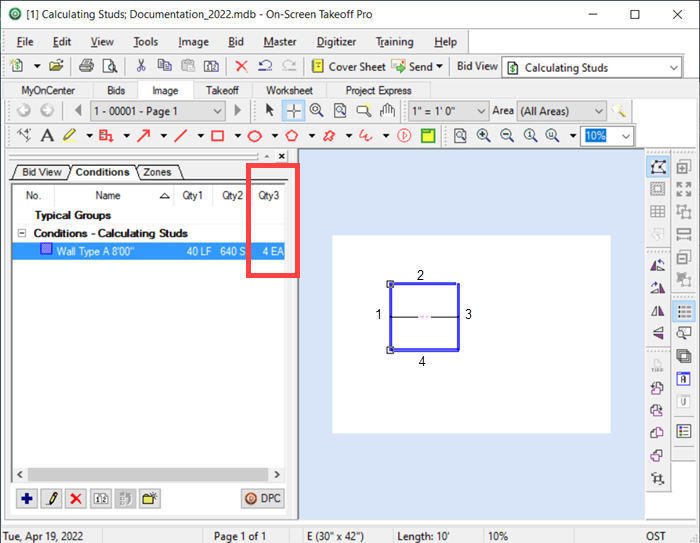
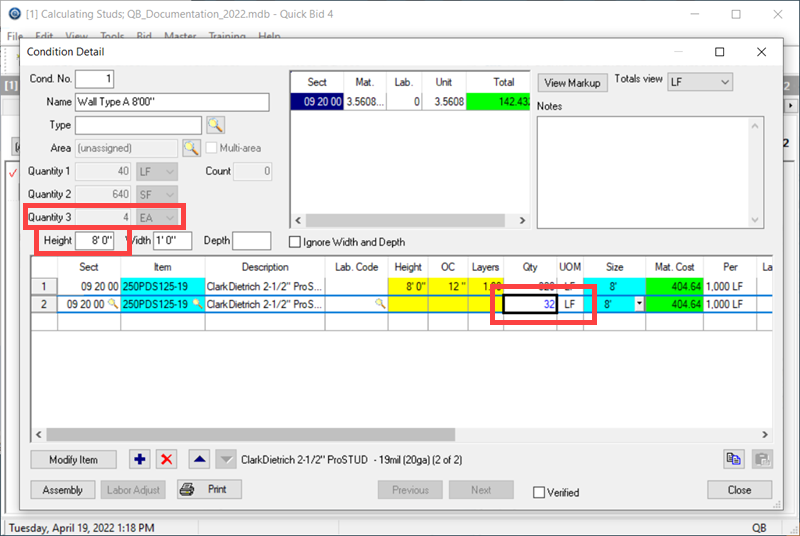
Then, in Quick Bid, add your stud Item to your Condition a second time and override its calculated value with the segment count multiplied by the height of the wall.
This adds one (8') stud for each segment of wall taken off in OST.
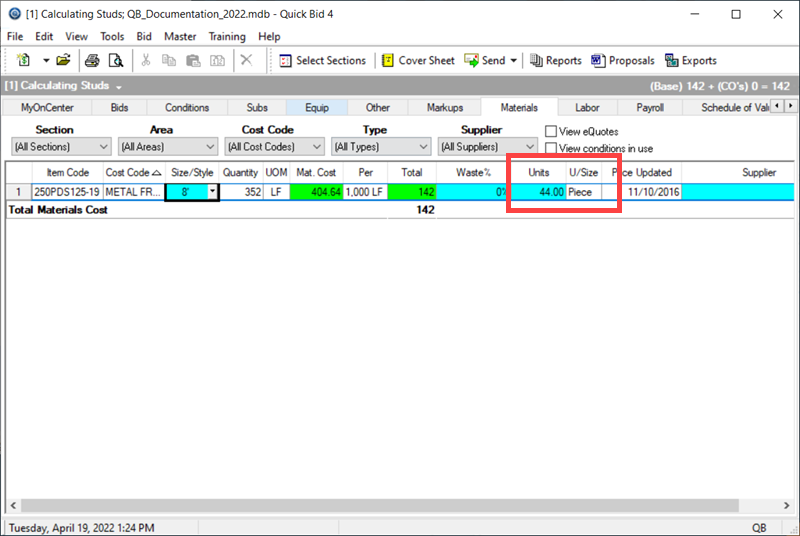
Now, on the Materials Tab, we see that Quick Bid has calculated 44 pieces (studs).
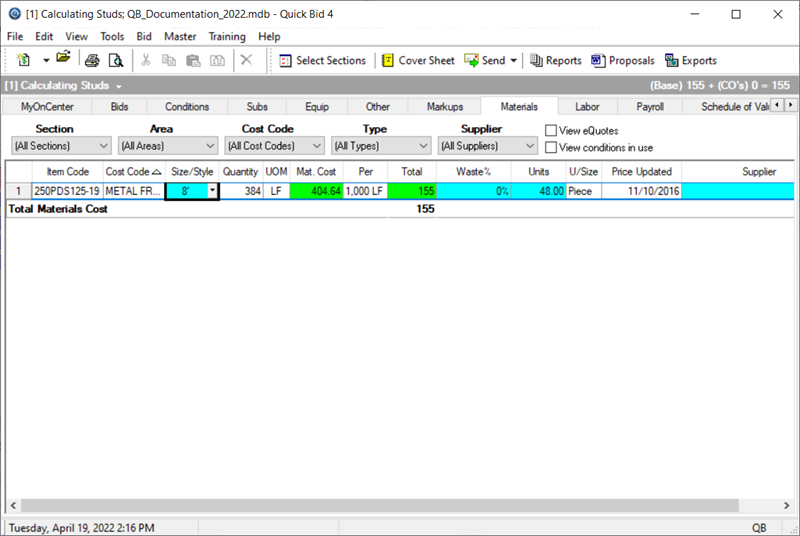
Taking this just a bit further, if you want to ensure you account for the finishing stud (the one at the end of the wall), you can double your segment times height value:
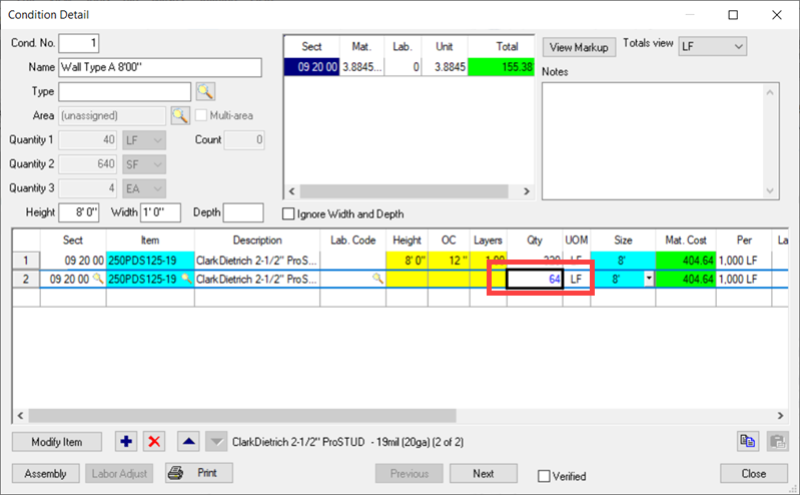
Now, on the Materials Tab, we see that Quick Bid has calculated 48 pieces (studs).
Is this perfect? No, of course not. You need to use the Waste Factor in your Item to account for the 'unknown' (damage, bad cuts, bad materials, extra bracing needed, etc.). This is just an example of how you can accomplish things in Quick Bid and On-Screen Takeoff with a little creativity.
Related Articles
