

You’ll spend most of your time on the Takeoff Tab, so it’s good to understand all the tools available.
The Takeoff Tab Toolbar
The Toolbar floats above your Document viewer at the top of the screen and contains several functions:
| Button | Name | Shortcut Key | What it does/How it’s used... |
|---|---|---|---|
 | Pan tool | Space * | Hold down to temporarily switch from Select to Pan |
 | Select tool | Used to select takeoff and annotation objects on the document in view. | |
 | Highlighter tool | H * | Used to draw a highlighter box on the document in view. |
 | Dimension line tool | D * | Used to draw a measured line on the document in view. Used for verifying Page Scale. |
 | Textbox tool | T | Used to draw a textbox on the document in view. |
 | Scale drop-down | Select Page Scale from a drop-down list or access the Calculate Scale tool to use a known-length linear to set scale. |
* Not yet implemented
User Menu
At the far top-right of your screen, you'll see a little circle with your initials in it, that's the User Menu.
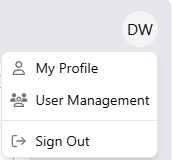
- My Profile - Opens your ConstructConnect account page.
- User Management - if you are an Admin for your Organization, you see this option to open the User Management Portal.
 Getting to Know ConstructConnect Takeoff Getting to Know ConstructConnect Takeoff | What are Projects?  |
Related Articles
