

Before you draw any measurements on your plan, you must set Scale. Also, if a plan image needs rotating or leveling, this needs to be done before the image is scaled.
This feature uses Artificial Intelligence to provide results. It is your responsibility to verify results to ensure accuracy.
Use of Takeoff Boost™ tools requires uploading of some or all of your project plans. Ensure you have the legal right to do so. Please see the following Master Service Agreement for more information.
Takeoff Boost’s AI-Powered tools are only available to users on an Essential or Core subscription.
At this time, Takeoff Boost tools support Imperial measurements only.
Although you can set the Page Scale manually on each Page, why not let our AI-Powered Auto Scale tool do it for you in seconds?
Using Auto Scale
You'll find the Auto Scale tool on the Tools ribbon bar, in the Takeoff Boost section.

- Click the Auto Scale button
 .
.
It takes a moment for PlanSwift to display the Page Selection list.

- Select which Pages you want Auto Scale to process, use the Select All button if you want.
- Click Run Auto Scale - processing takes a minute or two, depending on how many Pages you selected.
When Auto Scale is done, you’ll see a confirmation and the scale indicator in the Pages list.
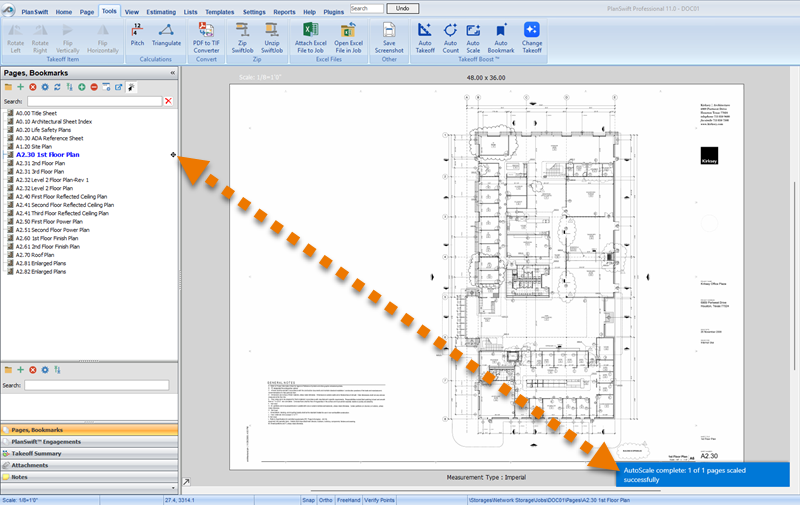
Before drawing takeoff, use the Dimension tool to verify the page is scaled correctly, see Related Article for details.
 Introduction to Takeoff Boost™ Introduction to Takeoff Boost™ | Using Auto Takeoff  |
Related Articles
