
While the program is uploading plans you see an upload indicator next to the project's Name.
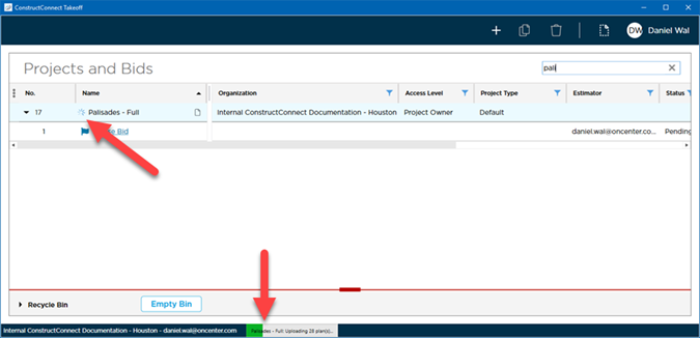
If you close out of the program right now you are notified that you are interrupting an upload in progress:
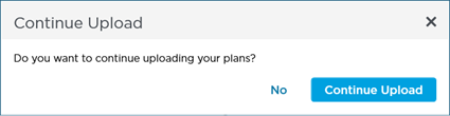
If you click No the upload is interrupted. At this time the project Plans are only stored on your computer's hard drive - other users cannot see them.
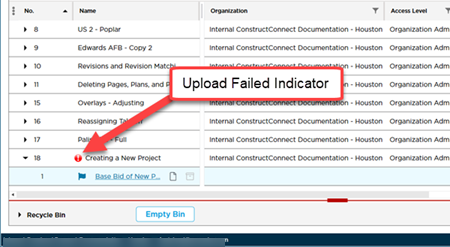
Typically if the processing is disrupted you simply start over from the beginning by adding the Plan Set to the Plan Organizer. If the upload process fails, ConstructConnect Takeoff attempts to correct this automatically for you and resumes the process. If you see the upload failed indicator and it does not automatically clear the next time you log into ConstructConnect Takeoff, contact Support (see Related Articles).
Upload Failed Indicator (Projects and Bids List)
If you interrupt uploading a Plan Set or the upload process is interrupted (you lose internet connection or power or the program or Windows crashes) the user who added the Plan Set sees the "Resume Upload" notification icon the next time he or she starts the program. Only this user sees the Resume Upload indicator and only this user has the ability to upload the Plans to the cloud.
Resuming an Interrupted Upload
Click the Failed Upload Indicator to resume uploading the plans where you left off.
We encourage you to not interrupt the upload process if you can avoid it.
Incomplete Upload Banner - Takeoff Tab
If you access a project and see a screen like the one below whoever created the Plan Set may not have finished uploading the Sheets. The person who created/added the Plan Set must click the "Resume Upload" button before any other users can see the plans within that Plan Set.
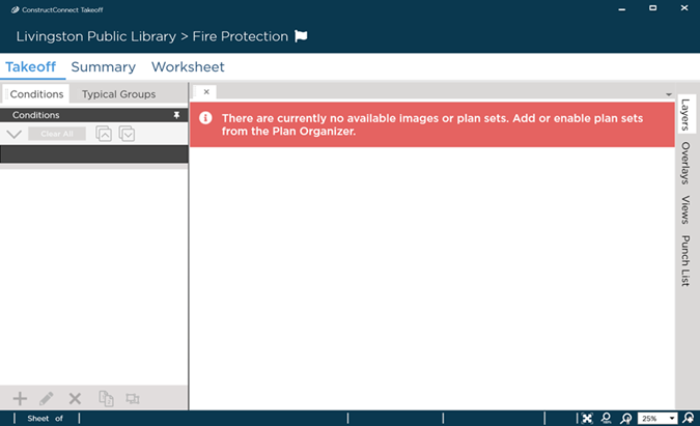
Only the user who added the Plan Set has the files on his or her computer that need to be uploaded. That user needs to return to the Projects and Bids List and click the "Resume Uploads" button to finish uploading the Plan Set.
No other user can correct this only that user who added the Plan Set originally. If he or she is not available delete the Plan Set and start over.
We cover Plan Organization in detail in the chapters that follow for now it is just important to know that you have to add a Plan Set to use the program and you have to allow time for that Plan Set to upload to the Cloud before you close the program.
 Creating a Project Manually - Add Your Initial Plan Set Creating a Project Manually - Add Your Initial Plan Set | The Project Cover Sheet  |
Related Articles
