
If you are a Project Owner for a project you can invite people outside your organization to collaborate on a project.
If you're looking to add members of your Organization to a project see Manage Project Access Level for ConstructConnect Takeoff Users.
You do not have to invite a user to join your organization to grant him or her access to collaborate on a project. If you invite a user from a different organization to collaborate with you on a Takeoff Project they will be able to Accept or Decline the invitation.
Managing your Organization's users is covered in the Related Articles. Only Organization Admins can invite a person to join an organization and allocate licenses to him or her.
Inviting an External User to Collaborate
To invite someone outside your organization to collaborate on a project
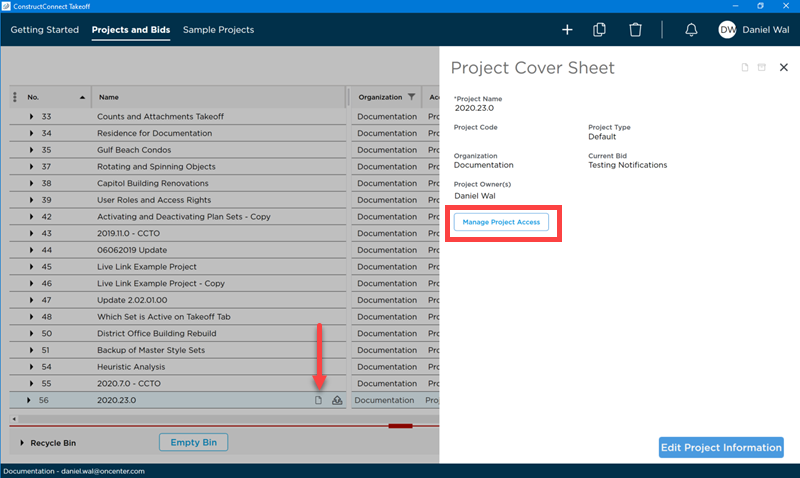
- Open the Project Cover Sheet by clicking the Cover Sheet button
 next to the project's name in the Projects and Bids List (make sure you click the Project's Cover Sheet button not the Bid's)
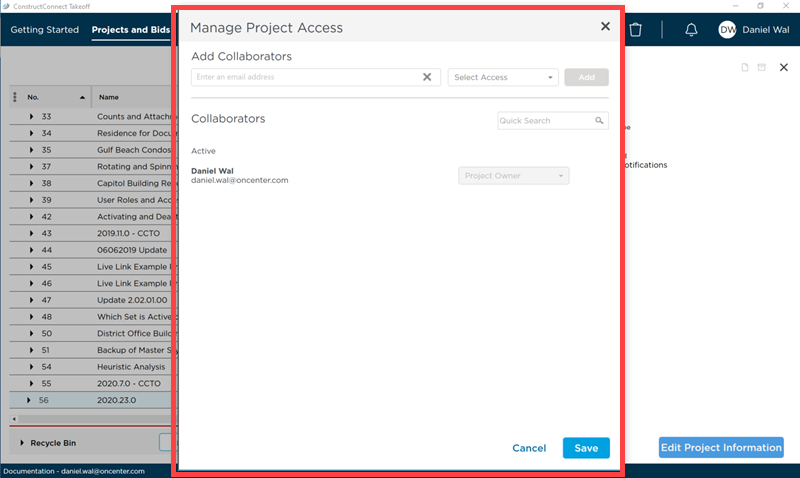
 - Click Manage Project Access
The Manage Project Access dialog lists all users in your Organization and all external collaborators and their Project Access Level for this project.
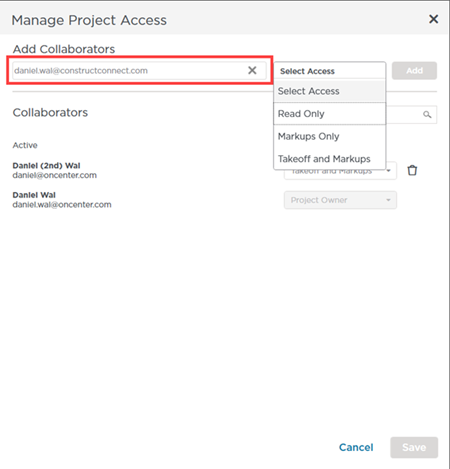
- Type in the e-mail address for the person you want to invite to collaborate and then set the Access Level you want to assign them (see Available Access Levels below)
Collaborators are not immediately added to the "Active" users list instead you see them in the Pending section until they accept or decline the invitation to collaborate.
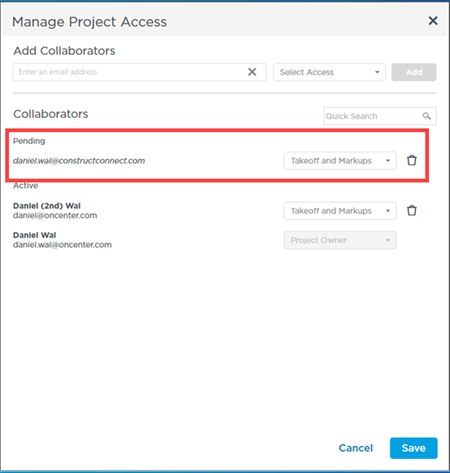
At this point the collaborator does not have access to the project nor has he or she been notified of anything.
- Click Save
Once you save your changes
- The collaborator is added to the "Pending" section.
- The collaborator receives a notification in ConstructConnect Takeoff where they can accept or decline this invitation to collaborate. See Related Articles for more information on Notifications and the next article for how the invited users handles that notification. At this time there is no other notification to the invited party.
Accepted/Declined Invitation
If the user accepts your invitation to collaborate they are moved to the "Active" section in the Manage Project Access dialog box.
If they decline your invitation they are removed from the Manage Project Access dialog box. You can invite them again after discussing the project with them so they know to Accept the next invitation to collaborate.
If they do not accept or decline the invitation within five (5) days (from the date you invite them) the notification is cleared from their machine and they are removed from the Manage Project Access dialog box. Again you are welcome to invite them again however we recommend talking to them first so they are aware you are inviting them to collaborate.
You can edit an Active user's access level or delete their access altogether at any time. If they are working in the project and you restrict or remove their access the program closes to disconnect them from the project - their new rights are applied next time they log in.
You are responsible for managing access to your projects. If you grant a access to projects in your organization you must revoke that access from each project to which you granted access or they will retain some access to your organization's data.
Available Access Levels
There are three access levels available for you to assign to users outside your organization:
| Role/Access Level | What They Can Do | What They Cannot Do (Restrictions) |
|---|---|---|
| Takeoff and Markups | You can add modify and delete takeoff and annotations and can export information. You can duplicate this project and create bids within the project. | Cannot add edit or delete any Plan Sets but can activate/deactivate Plan Sets within a bid. |
| Markups Only | User can create and edit Annotations only. | Cannot add edit or delete any bids or Plan Sets. Cannot duplicate this project or any bids within. |
| Read Only | User can view the project and bids including viewing plans takeoffs annotations and cumulative totals on the Summary Tab and Worksheet Tab. | Cannot add edit or delete any bids Plan Sets takeoff or annotation. |
For external collaborators you cannot make them Project Owners - this is to prevent anyone outside your organization from:
- Duplicating this project
- Inviting other people to collaborate on this project
- Modify any Plan Sets in this project
- Access your organization's Masters
 Access Levels and Permissions Detailed Access Levels and Permissions Detailed | Collaborating on a Takeoff Project Outside Your Organization  |
Related Articles
