

There are several toolbars used on the Takeoff Tab when working on plans and takeoff in the Image Window.
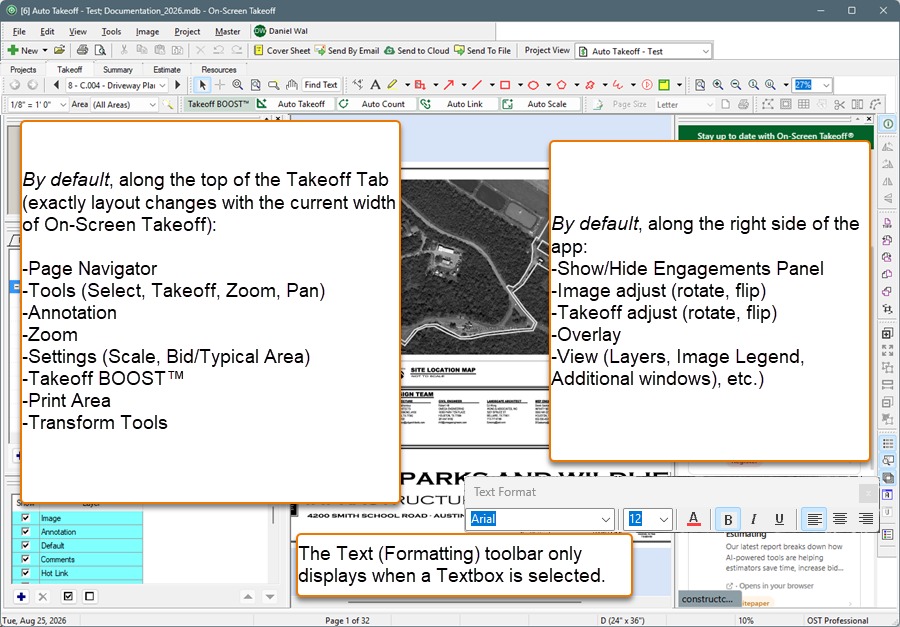
You can show/hide Toolbars by clicking View > Toolbars and placing or removing the check next to the toolbar name.
We detail each toolbar in the articles that follow.
- The Work Date toolbar is only visible/used in "DPC Mode" - see the DPC User Guide for an explanation of this toolbar.
- The Quick Takeoff toolbar is only visible/used in PlanViewer (unlicensed) mode. Quick Takeoff measurements are not saved; they are cleared as soon as you change tools or navigate to a different Page.
The articles that follow detail each toolbar on the Takeoff Tab and lists the keyboard shortcuts available to access functions on each toolbar. There are smaller control bars (such as the Condition Window toolbar, the Layers Window toolbar, and others) that are not considered "Takeoff Tab toolbars" and are explained when that function is covered, later in the user guide.
Many toolbar functions are repeated on the File, Edit, View, Tools, Image, and Bid menus and some are repeated/accessible on Context Menus. See Related Articles more information about Menus and Context Menus.
Tooltips
Wondering what a button does/means?
Hover your mouse pointer over any button to see a tool tip identifying its function.

OK, so let’s dive in and get started with the Page Navigation Toolbar.
 Image Window Context Menu Image Window Context Menu | Page Navigation Toolbar  |
Related Articles
