

You can assign a Condition to a Layer two ways. (Don't worry, the very next article talks about how to create a Condition, you didn't miss anything!)
From the Condition Properties
To assign a Condition to a Layer from the Condition Properties dialog box, type in a Layer name in the Condition Properties Layer field.
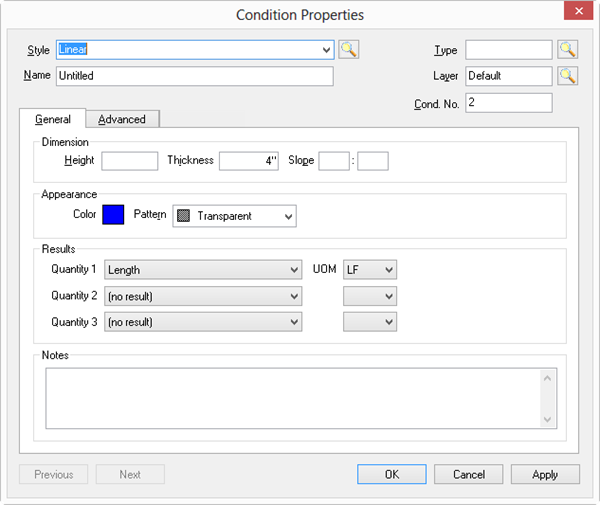
By default, all new Conditions are assigned to the "Default" Layer. If you type in the name of a Layer that doesn't exist, you'll be prompted to add it.
Using the Conditions List Context Menu
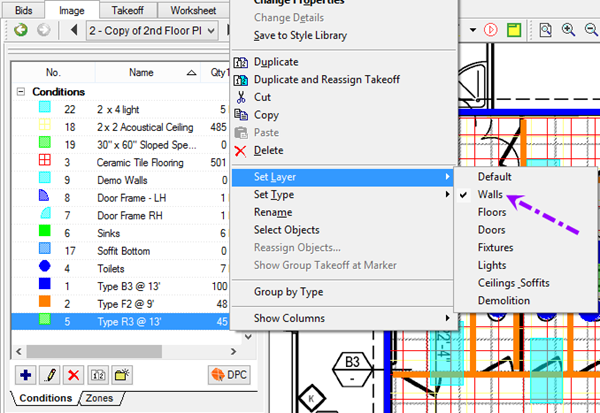
To assign multiple Conditions to a Layer, you could open the Condition Properties dialog box for each Condition, but it is easier to do it right from the Conditions List, and you can assign more than one Condition at a time this way...
Right-click on the Condition(s) in the Condition List. Select multiple Conditions to assign all to the same Layer and then right-click. Use the <Ctrl> and/or <Shift> keys to select multiple Conditions.
Select Set Layer.
Put a check next to the Layer to which this Condition(s) is to be assigned.
Showing/Hiding Layers affects the Image Legend and Printing. For Example, to print only the takeoff associated with Flooring, turn off the other Layers. See Related article for more information.
Now it's time that for us to explain what Conditions are and how to create them.
 Adding Bid Layers Adding Bid Layers | How to Build a Condition (from scratch)  |
Related Articles
