
You may be asking yourself "Why should I set up Layers if each Takeoff Item is its own Layer?". That is a great question.
Cleaner Workspace
To make it easier to work with takeoff for a specific Group of Takeoff Items you could turn off each individual Takeoff Item's "layer" but it's faster and easier to assign like Takeoff Items to a Custom Layer (for example if we assigned all our flooring to a Layer called "Floors" we could turn off all the other takeoff to make it easier to work with our ceramic floor takeoff.
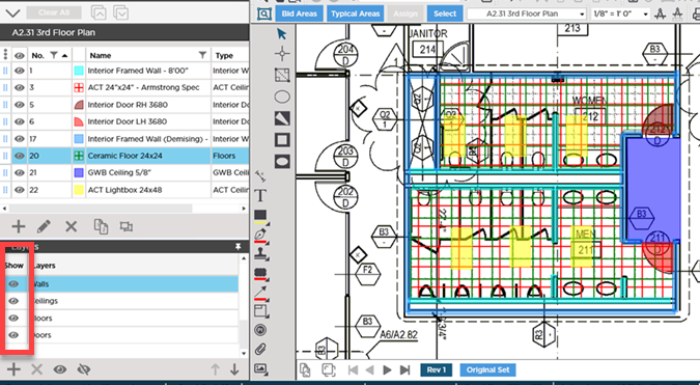
Look at this very simplified takeoff example. We drew takeoff for only eight Takeoff Items and just a small region of the Plan but it is already difficult to tell the difference between the takeoff for the Ceramic Floor (so we can align it to the grid) and the ceiling.
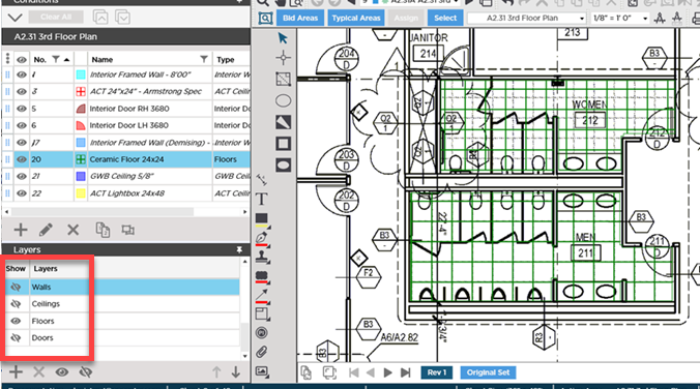
Now on that same Page if we assign like Takeoff Items to Custom Layers we can simply turn-off a few layers and the program hides the takeoff for all Takeoff Items assigned to those Layers. In our example below we are "hiding" the Ceilings Walls and Doors Layers and now we can see the takeoff for our Flooring Takeoff Item easily. This makes it easier to select and manipulate that takeoff - for example aligning it to a grid.
Selective Printing
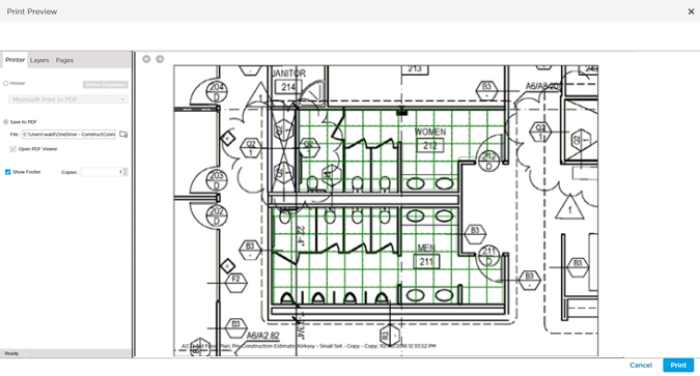
Notice that when we print this Page because we are hiding those Layers it is easy to see the Flooring takeoff on the Print Preview. This is great if you want to send printed takeoff for different Divisions or Trade to different people.
So what Layers should you add? Well that is up to you and how you want to control what you see and print.
 Creating Custom Layers Creating Custom Layers | Adding a Custom Layer to a Bid  |
Related Articles
