
After you specify the details about what your Takeoff Item is how takeoff drawn with it should work and the measurements and options needed to calculate Results it is time to tell the program just what Results you want to see.
On the Results Tab you find a list of Results available for Areas.
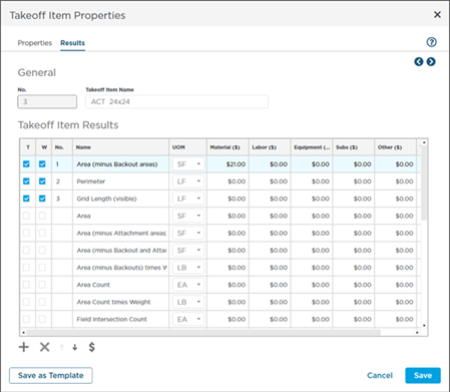
What do the "T" and "W" Check Boxes Do?
The T and W columns control which Results are shown in the Takeoff Items Pane and the Worksheet Tab.
- When you put a check mark in a Result's "T" column the Result is shown in the Takeoff Items Pane (remember "T" for "Takeoff Item") and the Result is moved up in the list (below the other checked Results). You can adjust the order of the Results that are set to show in the Takeoff Items Pane by using the
 and
and  buttons at the bottom of the Results tab.
 - When you put a check mark in a Result's "W" column the Result is shown on the Worksheet Tab (remember "W" for "Worksheet") but its position does not change.
When you click on "T" "W" is selected automatically but you can remove the check mark for "W" if you do not want to see the Result on the Worksheet.
The "W" check box is an indicator to show which Results are displayed on the Worksheet Tab or those that are being displayed on the Worksheet Tab. See Related Articles for more information on the Worksheet Tab.
The Results Toolbar

The results toolbar includes options to add a Result move a Result up or down delete a Result you previously added and toggle on or off the pricing columns.
| Button | Description | What it Does or How It it is Used |
|---|---|---|
 | Add Result | You can add Results from the list of Linear Formulas (System and Custom). |
 | Delete Result | You can delete a Result you previously added you cannot delete the default Results. |
| Move Up | Moves a Resulted marked with "T" up through the list of Results marked with "T". The order shown in the Results tab affects the order of columns shown in the Takeoff Items Pane. |
| Move Down | Moves a Resulted marked with "T" down through the list of Results marked with "T". The order shown in the Results tab affects the order of columns shown in the Takeoff Items Pane. |
 | Price Results | The Price Results or Price Takeoff Item toggle shows or hides the Results Pricing columns. When toggled on you can apply Labor Material Equipment Subs and Other costs to the Takeoff Item. See Related Articles for more information on Adding Pricing to Takeoff Items and Takeoff Item Templates. |
Results
There are many Results the program can show you for each Takeoff Item(we say "show" because all these Results are calculated in the Cloud so selecting every Result would not slow down the program it would just take up a lot of space in the Takeoff Items Pane). You can select as many or as few Results to display in the Takeoff Items Pane as you need.
A typical Area Takeoff Item could show a variety of Results based on the trades you are estimating. You probably want to see the total square footage (or square meters) for the takeoff on the Page (that is the first or primary Result we selected).You may also want to see the total perimeter length tile counts or even volume. There are several options for each type of results many depend on how you set up your Area Takeoff Item and how you use Attachments.
Check as many Results as you like. As you select Results to show they are moved to the top of the list (below previously selected results). Once selected to show in the Takeoff Items Pane (the "T" box is checked) you can reorder the results using the and buttons at the bottom of the list.
For each Result select the Unit of Measure (UOM) you want to use - for example area results can be shown in SF SI (square inch) or SY (or in a metric database mm2 or m2).
Adding Results
Click the button to open the Area Formulas dialog box.
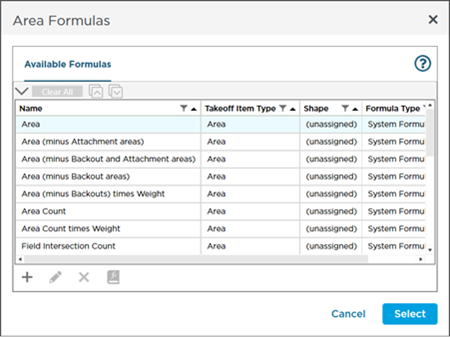
If you want to show the same Result twice maybe for different pricing purposes you can add the same Result more than once by selecting the appropriate Result from the list of Available Formulas - these include System Formulas (those that come with ConstructConnect Takeoff) and any Area-based Custom Formulas you already created.
The included Results list is pretty extensive but if you find you need to calculate a Result other than one of the defaults you can use the Custom Formula builder. We cover Custom Formulas much later in this User Guide see Related Articles if you want to jump ahead.
Only Custom Formulas can be deleted from the list of Results.
 Creating an Area Takeoff Item: Defining its Properties Creating an Area Takeoff Item: Defining its Properties | Creating a Count Takeoff Item: Defining its Properties  |
Related Articles