
You can duplicate one or more Takeoff Items to make an exact copy of them (well "exact" except for the Takeoff Item's Number and color). As an example let's say you're taking off interior walls for an office building. Floors 1 - 3 have a 10' deck 4 - 8 have an 8' deck and the 9th floor has a 12' deck. Although you need three separate Takeoff Items to account for the changing Heights you don't need to create each Takeoff Item from scratch - just create the first Takeoff Item fill out all the details (including the 8' height) and save it.
First select the Takeoff Item or Items you want to duplicate.
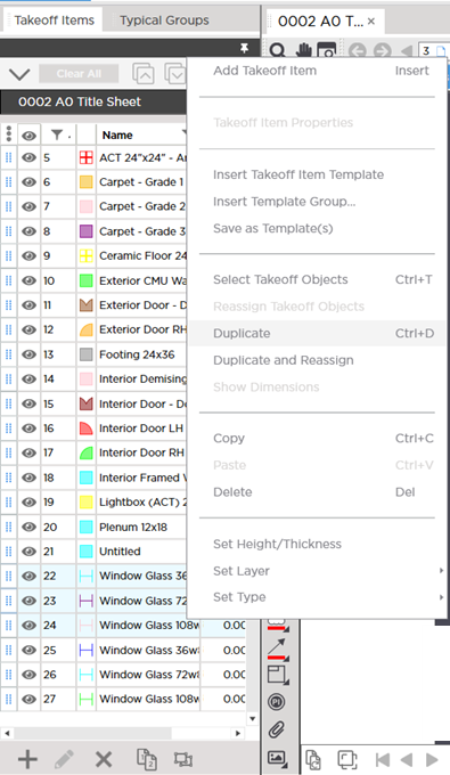
Next,
- In the Takeoff Item pane right-click on the selected Takeoff Item(s) and select "Duplicate" or
- Click the "Duplicate" button
 on the Takeoff Item window toolbar
It takes just a few seconds and you see the duplicate copies at the bottom of the list (assuming the list is sorted by Takeoff Item Number of course).
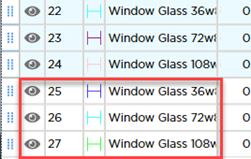
Notice that the color assigned to the duplicates is different from the original Takeoff Items'. The numbers are also different but they'll be in the same order as the original Takeoff Items.
See Related Articles for information on duplicating one or more Takeoff Items and automatically re-assigning the takeoff on the current Page for those Takeoff Items to the duplicate(s). This is very handy if you copy an entire floor's takeoff from an 8' deck plan to a 10' deck plan - you can save a lot of time by just duplicating and reassigning Takeoff Items after pasting.
 Copying and Pasting Takeoff Items Copying and Pasting Takeoff Items | Deleting Takeoff Items  |
Related Articles
