
As we learned in the previous articles Takeoff Item Templates are Takeoff Items that have been saved for re-use. Template Groups are exactly what they sound like: groups of Takeoff Item Templates that you can drop into a bid all at once.
Template Groups are especially handy if you routinely estimate different types of jobs (you can group your Templates by Takeoff Item Group (formerly "Type") for example "plumbing" "ceilings" "flooring" "roofing" etc.). You can create Template Groups for each of those trades and when you are estimating a project that includes plumbing and flooring for example you just drop those two Groups into the Takeoff Item Pane.
A Takeoff Item Template can be included in more than one Template Group so you could build Groups of Templates that include: "plumbing" "plumbing and flooring" "plumbing ceilings and roofing" Takeoff Items. It is up to you the Templates you include in your Template Groups.
You create Template Groups in the Masters see Related Articles for more information.
As a reminder only users assigned the role of Organization Admin or Editor can create new Template Groups. Users assigned the role of "User" can see and use the existing Takeoff Item Template Groups but they cannot add new ones.
Using a Template Group
- Right-click in the Takeoff Item Pane
- Click "Insert Template Group..."
- In the "Select Takeoff Item Template Group" dialog click on a Template Group - the Templates contained in that Group are shown in the right-side panel (if you have only one Template Group selected of course)
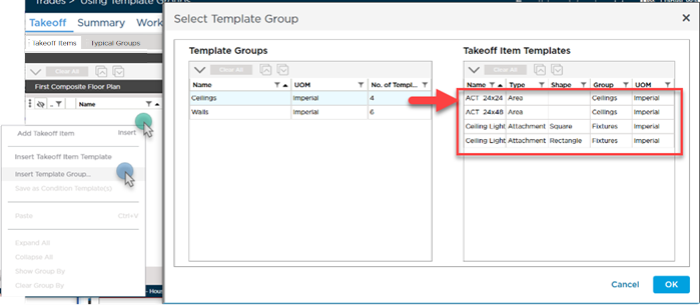
Selecting a different Template Group shows what Takeoff Item Templates are included in it.
- Select the Template Group(s) you want to add to your Bid (use Ctrl (adjacent) and Shift (not adjacent) to select multiple Groups)
- Click OK
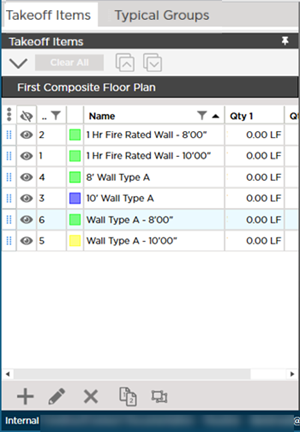
The program creates a new Takeoff Item for each Takeoff Item Template included in the Group(s) you selected.
You can add multiple Template Groups to a Bid at once - this is a very efficient way of creating 10 20 or 100 Takeoff Items (or more) with just a few clicks.
 Setting up multiple Takeoff Items using Templates Setting up multiple Takeoff Items using Templates | Takeoff and Scale Overview  |
Related Articles
