

On-Screen Takeoff 4.0.0.982 adds Auto Scale functionality to Takeoff BOOST’s suite of AI-Powered tools. In seconds, Auto Scale can detect and set the scale on your entire plan set.
Takeoff BOOST™’s tools use Artificial Intelligence to provide results. It is your responsibility to verify results to ensure accuracy.
Use of Auto Scale requires uploading of some or all of your project plans. Ensure you have the legal right to do so. Please see the End User License Agreement and Master Service Agreement for more information.
Using Auto Scale
Auto Scale makes setting scale on your Pages as easy as clicking a button.
You can run Auto Scale from a Project’s Cover Sheet or from the Takeoff Tab.
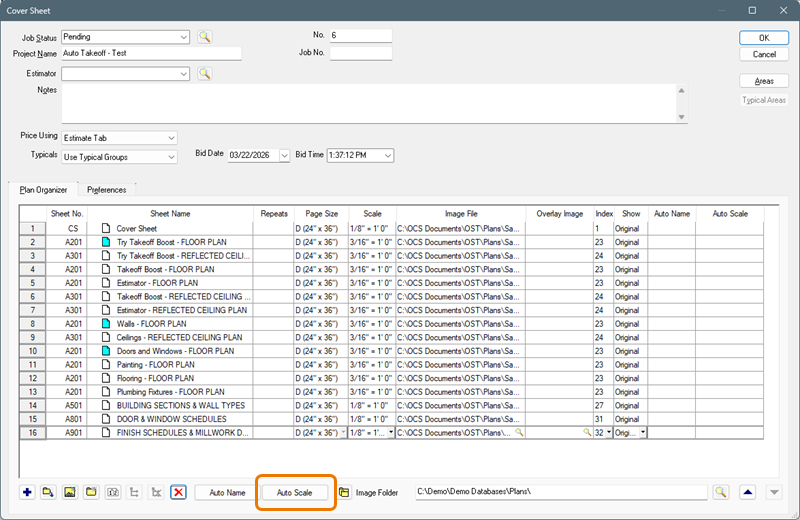
On-Screen Takeoff Project Cover Sheet
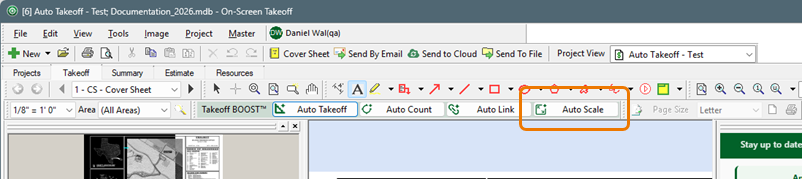
Takeoff BOOST toolbar
Click the Auto Scale button
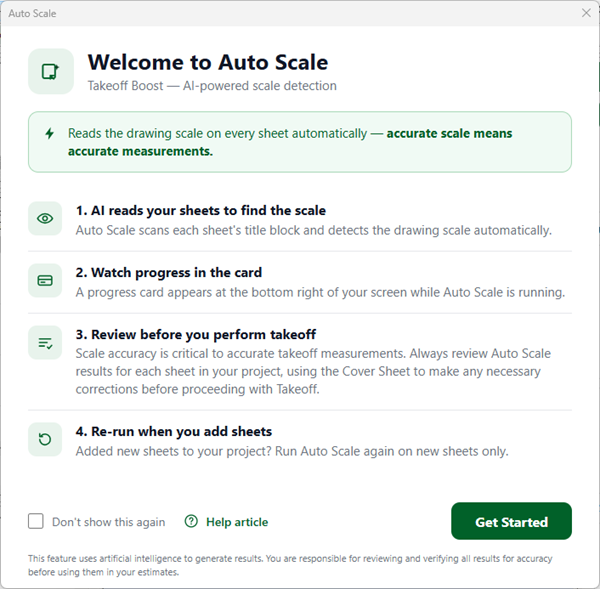
This welcome dialog box is informational only. There is literally nothing you need to do except sit back and let Auto Scale do its thing.
- Click Get Started to run Auto Scale
- Click “Don’t show this again” to skip this Welcome screen in the future.
While Auto Scale is processing, you’ll see a progress indicator in the bottom-right of the application.

When Auto Scale is done, you’ll see another pop-up.
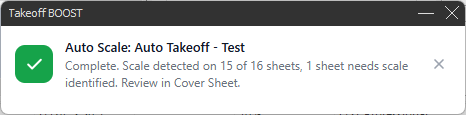
Remember, you must verify scale before doing any takeoff on a Page (see Related Articles). (Even the best AI can get it wrong from time-to-time.)
 What is Scale? What is Scale? | Setting Page Scale Manually  |
Related Articles
