

You likely use Hot Links and Named Views regularly to make navigating your plans and details faster and easier. But creating Hot Links and Named View for a large project could take hours, if not days. Auto Link can create them for your entire Project in minutes!
The new Takeoff Boost powered Auto Link requires the latest version of On-Screen Takeoff that uses your e-mail address and a password to apply licensing. If your company is still using a version that uses License Keys and/or a Server Code to license On-Screen Takeoff, do not install this version until your account has been migrated to the new subscription model system.
Takeoff Boost’s tools use Artificial Intelligence to provide results. It is your responsibility to verify results to ensure accuracy.
Use of Takeoff Boost™ tools requires uploading of some or all of your project plans. Ensure you have the legal right to do so. Please see the following Master Service Agreement for more information.
Auto Link Requirements
There aren’t many rules around Auto Link, but they are important:
- You must have an active, high-speed internet connection (for the AI-powered option)
- You must be under an On-Screen Takeoff Essential, Core, Professional, or Plus subscription
- You must have write-access to the Project
- The Project must contain at least two Pages
Using Auto Link
Our AI-powered cloud service analyzes your Project’s plans to create Hot Links and Named Views. For the time being, link symbols must be circles.
You’ll find Auto Link on the Takeoff Boost™ toolbar.
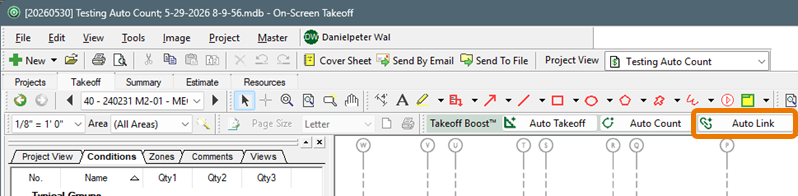
- Click Auto Link
The Welcome screen displays.

- Click Get Started to run Auto Link.
- Click “Don’t show this again” to skip this step next time
- Click the X in the upper-right corner to close this Welcome screen without running Auto Link
This process could take up to 20-30 minutes depending on the number of Architectural and Structural plans and details in your Project. You can continue to use this or any other Project in On-Screen Takeoff during processing. Keep an eye on the Status pop-up in the lower-right corner of the application for progress.
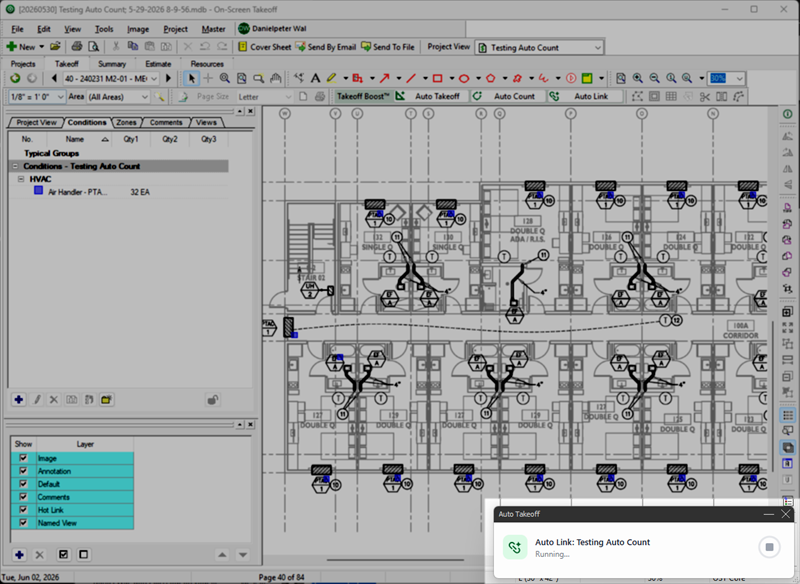
Review Auto Link Results
When Auto Link is done, you’ll see a list of all Named Views Auto Link created on the Takeoff Tab, in the Conditions Window, in a new “Views” sub tab.
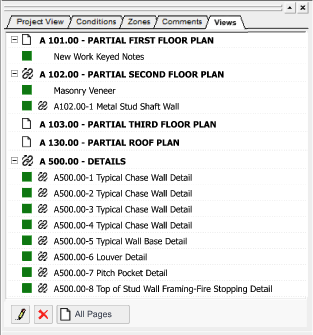
The Views tab defaults to showing you only the Pages on which Named Views exist, manually created and those created by Auto Link.
If you double-click on a Named View in the Views tab, the Annotation and View window opens displaying your Named View.
Re-running Auto Link
You may want to re-run Auto Link when you add additional or updated Plans to your Project. There are a few things to keep in mind when running Auto Link on a Project on which you’ve previously ran it.
When you re-run Auto Link, any previously created Hot Links/Named Views created by Auto Link are deleted and new ones built.
Revision plans have some limitations when it comes to Auto Link. We continue to work on our AI sheet detection so it can identify revision pages (denoted with .1, .2, .3 on sheet numbers).
The built-in links may not correctly reference the updated revision sheets.
Also, revision symbols often aren't updated to reference the new revision page numbers, which prevents the AI from matching them correctly.
If you upload revision plans and click Auto Link, we'll show a popup explaining that we've detected revision plans. We can attempt to link them if they are Architectural or Structural (AI method) or if built-in links are available, but Auto Link may not be able to build the links correctly to the new pages.
 Annotations - Shapes (Callouts, Arrows, Lines, Rectangles, Ovals, Polygons, Clouds, and Ink) Annotations - Shapes (Callouts, Arrows, Lines, Rectangles, Ovals, Polygons, Clouds, and Ink) | Creating, Using, and Deleting Named Views Manually  |
Related Articles
