
Click the  button on the Areas Toolbar (previous article) to open the Bid Areas Dialog Box.
Bid Areas Dialog Box
The Bid Areas Dialog Box is where you setup and manage all your Bid Areas.
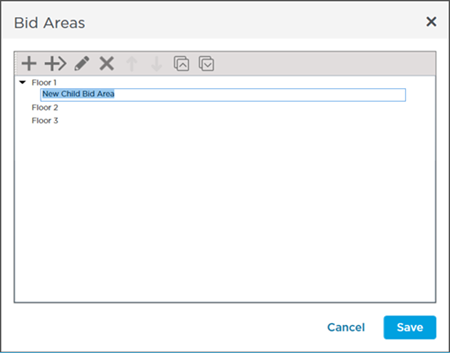
We already added a few Bid Areas and Child Bid Areas so you can see how the dialog box looks.
Not much to show right now because we have not set up any Bid Areas we will get to that in the next article.
Bid Areas Dialog Box Toolbar

The Bid Areas Dialog Box Toolbar includes buttons for adding Bid Areas Child Areas (when you already have a Bid Area such as "Building A" and want to add "Floors 1 - 10" under that Bid Area you use a "Child Area" edit and Delete Bid and Child Areas move Bid and Child Areas up and down in their current "level" and expand and collapse all Bid Areas with Child Areas below them.
| Button | Keyboard Shortcut | Description | What it does/How it is used... |
|---|---|---|---|
 | Insert or INS | Add Area | Adds a Bid Area below the selected area at the same level (not a child area) |
 | CTRL + I | Add Sub Area (child of higher Area) | Inserts a Child Bid Area under the selected Area |
 | F2 | Edit | Edits the Bid Area name |
 | Delete or DEL | Delete Area | Deletes the current selected Area(s) and any Sub-Areas |
 | Move Area Up | Moves the Bid Area up in the list at the same Level (To promote or demote a Bid Area (to change its level) you use drag-n-drop we will cover this in the articles that follow) | |
 | Move Area Down | Moves the Bid Area down in the list (at the same Level) | |
 | Expand All | If your Bid Areas includes sub-areas shows all sub-areas under their parents | |
 | Collapse All | If your Bid Areas includes sub-areas collapses all sub-areas and only the top tier (parents) display |
Now it is time to create some Bid Areas.
 The Bid Areas and Typical Areas Toolbar on the Main Toolbar The Bid Areas and Typical Areas Toolbar on the Main Toolbar | Adding (or Creating) Bid Areas  |
Related Articles
