
After you have gone through all the Pages in your Bid and assigned takeoff to Bid Areas (or Typical Areas) you want to review the Summary Tab to see if anything is left assigned to a Page Area.
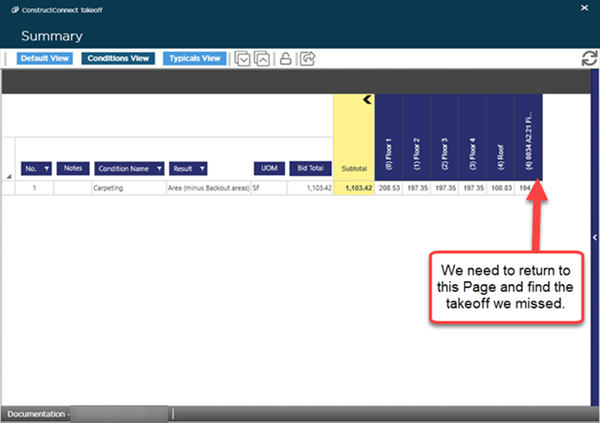
As you can see there is still some takeoff that remains assigned to a Page Area. The Summary Tab shows you which Page that takeoff is on so return to the Takeoff Tab and navigate to that Page.
On that Page select the Page Area as your Active Area and then click the "Color Takeoff Toggle" to turn on the Filter. This way only takeoff assigned to the Page Area is displayed in color everything that has already been assigned to a Bid Area will be muted (greyed-out). For more information on using the filter see Related Articles.
We drew this piece of takeoff after we had assigned the takeoff to Bid Areas but we forgot to set our Active Area to "Floor 1" when we drew the takeoff so it got assigned to the Page Area.
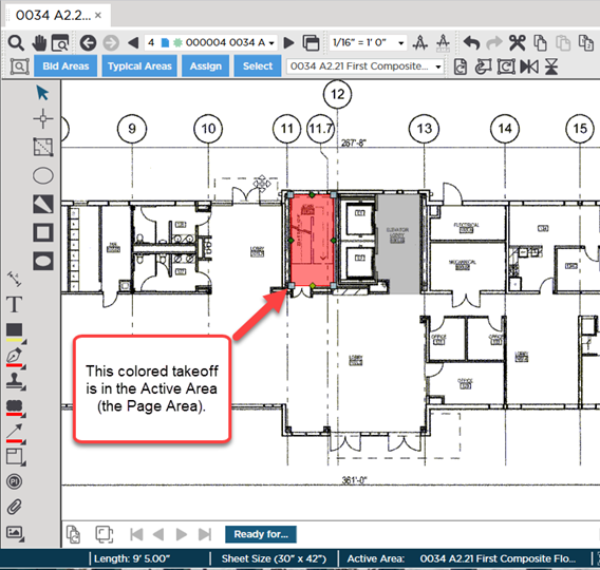
Now that we have identified the takeoff that was not assigned to the Bid Area properly we can assign it to "Floor 1".
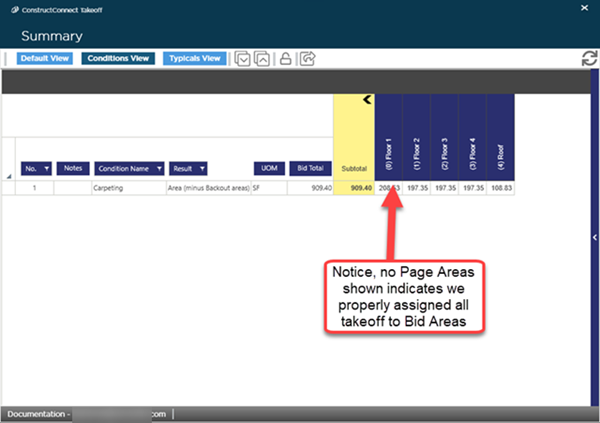
When we are done we can return to the Summary Tab refresh our results and then we will see that there is no takeoff remaining in a Page Area.
Now that you have the hang of drawing takeoff and using Bid Areas it is time to move on to more advanced tools and concepts starting with Multi-Condition Takeoff (patent pending) and Typical Takeoff.
 Assigning Selected (Some) Takeoff on a Page to a Bid Area Assigning Selected (Some) Takeoff on a Page to a Bid Area | Advanced Takeoff: Multi-Condition Takeoff (patented) and Typical Takeoff  |
Related Articles
