
The Punch List Pane lists every Punch Item created in the bid. By default the Punch List list is docked in the right dockbar which is slid-in (hidden) by default.
Click on "Punch List" to open the pane.
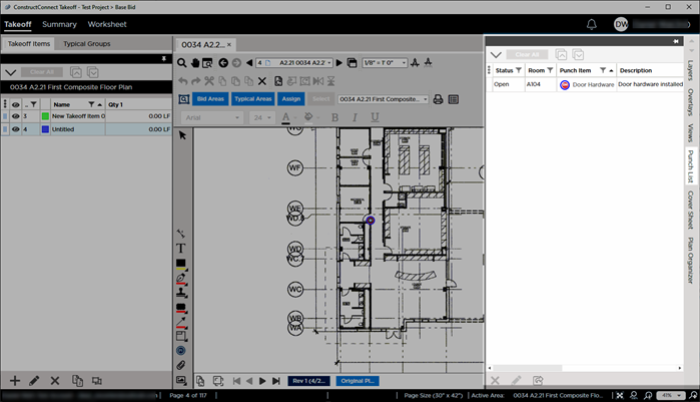
The Punch List list is fairly wide so to make it easier to use we recommend undocking it (see Related Articles for more information on undocking a Pane).
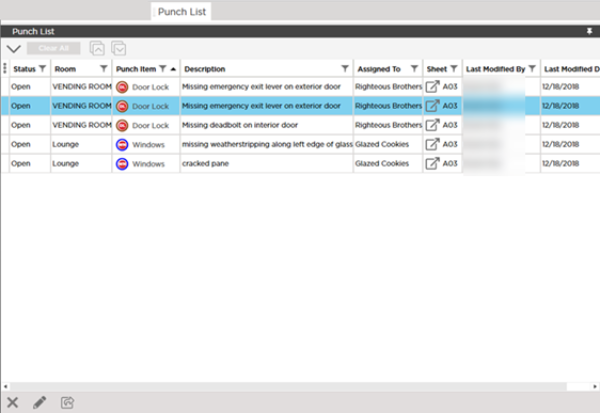
Once undocked (or if you make the dockbar wider) you can see all the columns in the Punch List.
To edit a Punch Item double-click it in the Punch List to open the Punch Item (properties) dialog box.
The Punch List shows you many important details about each Punch Item including:
- Status - get to learn the Status colors (previous article) so you can quickly get a feel of your Punch List
- Where the work needs to be done - the Room you entered on the details screen
- The Type - you can see if a particular trade is causing a lot of last minute work
- Who should be working on it - the "Assigned to" field
- What Page the Punch Item is on - click the
 button to jump to that Page
 - The last time the Punch Item was modified and the person who modified it
You can export the Punch List to send it to people who do not have access to ConstructConnect Takeoff.
 Creating a Punch Item Creating a Punch Item | Exporting the Punch List  |
Related Articles
