
When you show the Image Legend by default it appears in the top left corner of the page (or pages).

This is only the default location you can move the legend anywhere on the Page.
Relocating the Legend
You can move the legend from its default position if it's covering something important on that page.
To move the Image Legend:
- Click on the Select tool

- Click once on the Image Legend to select it; you will see the outline around it change color
- Drag and drop it anywhere else on the page
You may place the Image Legend anywhere on the image canvas or the surrounding gray border. However it must be on the canvas to be visible from Print Preview.
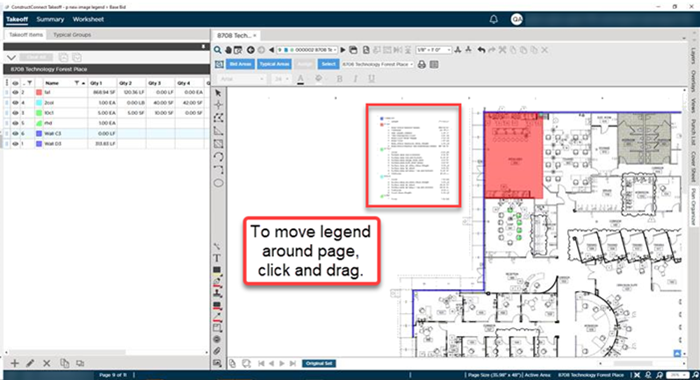
If you move the legend and leave that page or close the bid when you return to that page or reopen the bid the legend will be in the same place.
In other words its position will persist until you move it again or reset it.
Resetting the Legend
If at any time you want to return the legend to its default position/appearance:
- Click the Image Legend icon
 on the main toolbar
 - In the Bid Image Settings dialog click Reset in the bottom right corner

The Legend will move to the top left corner of the page. Its appearance will reset to the default preferences saved in Settings for the application.
See Related Articles for more on setting Image Legend preferences at the application level.
When you show the Image Legend by default it appears in the top left corner of the page (or pages).
This is only the default location you can move the legend anywhere on the Page.
Relocating the Legend
You can move the legend from its default position if it's covering something important on that page.
To move the Image Legend:
- Click on the Select tool
- Click once on the Image Legend to select it; you will see the outline around it change color
- Drag and drop it anywhere else on the page
You may place the Image Legend anywhere on the image canvas or the surrounding gray border. However it must be on the canvas to be visible from Print Preview.
If you move the legend and leave that page or close the bid when you return to that page or reopen the bid the legend will be in the same place.
In other words its position will persist until you move it again or reset it.
Resetting the Legend
If at any time you want to return the legend to its default position/appearance:
- Click the Image Legend icon on the main toolbar
- In the Bid Image Settings dialog click Reset in the bottom right corner
The Legend will move to the top left corner of the page. Its appearance will reset to the default preferences saved in Settings for the application.
See Related Articles for more on setting Image Legend preferences at the application level.
 The Image Legend Toolbar The Image Legend Toolbar | Hiding the Image Legend  |
Related Articles
