
Saving you time and improving efficiency is a hallmark of ConstructConnect Takeoff. When you are taking off a project we encourage you to use as many shortcuts as possible so you can get more estimates done with better accuracy. Why recreate the wheel every time you need to build a cart right? In addition to Takeoff Item Templates Typical Takeoff and other time-savers the program of course supports copying and pasting. In fact ConstructConnect Takeoff provides several tools to make copying and pasting easier than ever.
Starting with the most basic task of copying and pasting takeoff (or other objects) from one location on a Page to another.
Copying and Pasting Takeoff Between Differently Scaled Pages
We do not recommend copying and pasting takeoff between Pages that are not scaled the same. When you attempt to paste onto a Page that is a different scale objects may not fit or may become distorted. This is one of those rare times that we encourage you not to take a shortcut but to re-draw all the takeoff on the differently-scaled Page.
Copying Takeoff
Let us look at a common plan an acoustical grid. Notice there are two halves to the room. Why spend the extra time it takes to draw takeoff on both sides of the room (even though the program makes drawing takeoff super-fast it still takes longer than reusing what you already did)? Draw the takeoff in one of half of the room then copy and paste it to the second half.
Because our ceiling includes Attachments (light boxes) how you select the object prior to copying is important. To select the Area object and the Attachments you need to use "Roping" - see previous articles for details on the various methods of selecting takeoff and other objects.
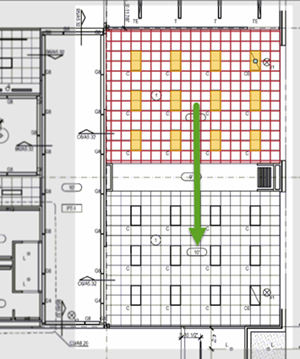
Once the first half is done including dropping the Attachments on the grid use the Select tool  to draw a box (rope) around that entire block of takeoff (see previous articles for more information on selecting objects and roping).
Click on the Copy button  on the Takeoff toolbar (or press Ctrl + C on your keyboard).
ConstructConnect Takeoff includes several intelligent and time-saving ways of pasting objects - we cover them in detail in the next few articles.
Why Not Use “Cut”
When you cut takeoff (rather than copy it) it is immediately removed from the original location. (If you change your mind press Undo  (Ctrl+Z) to restore the cut takeoff, as long as you haven’t navigated away from the Page.)
We recommend that you always use Copy and Paste rather than Cut and Paste. After pasting and adjusting the pasted objects at their destination and your are satisfied that everything is correct return to the original objects and delete them.
Now that you have your takeoff or annotation objects copied, you have a variety of ways to paste; all covered in the next few articles.
 Selecting Objects - How to Use Vertices and Grab Handles to Adjust Objects Selecting Objects - How to Use Vertices and Grab Handles to Adjust Objects | Pasting Objects Using Ctrl+V (Keyboard Shortcut)  |
Related Articles
