
Using the Paste button pastes a little differently than using Ctrl+V or the context menu.
Before pasting verify that the destination Page is set to the same Scale as the origin - if you paste onto a Page that is a different scale the objects may not fit or may become distorted.
See Related Articles for details on setting Page scale.
Pasting on the Same Page
After you copy objects if you immediately click the  button on the same Page the objects are pasted slightly offset below and to the right of the original objects (just like using Ctrl + V).
Pasting onto a Different Page
If you navigate to a different Page and do not click within the Plan but click the button immediately the objects are pasted in the same place they existed on the source Page.
If you navigate to a different Page and click within the Takeoff Window then click the button the objects are pasted at the location where you clicked.
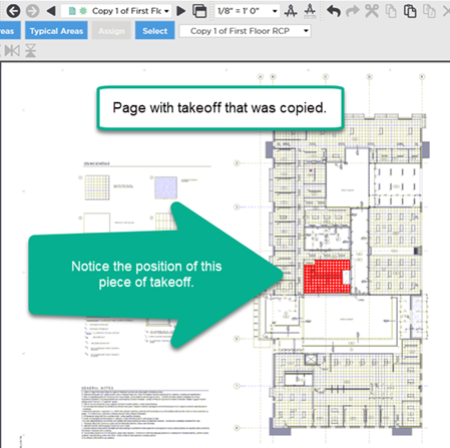
Original (source) Page from where the takeoff is copied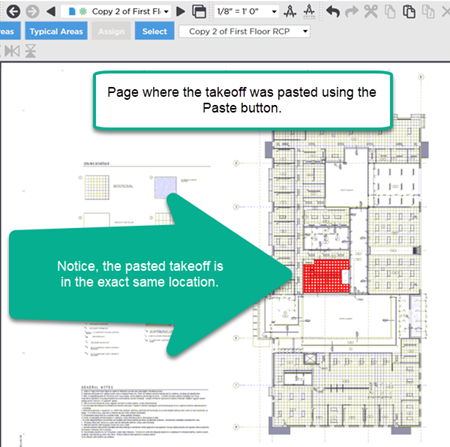
Destination Page to where the takeoff is pasted
If you navigate to a different Page and click on the Plan (before pasting) you set the point where the program is to paste your objects.
If you want your takeoff pasted in the same location as it existed on the "source page" do not to click on the Plan before pasting (use the keyboard shortcut Ctrl+V or the toolbar button to paste the takeoff don't right-click because that is just like clicking on the Plan then pasting).
Additional Notes on Pasting
Always be sure the Scale is the same between the origin and destination Pages. Scale is especially important if you are using Attachments or if the takeoff is near the edge of the Page.
When you paste into a different Bid/Project the program creates any Custom Layers and Takeoff Item Types in the destination required to recreate the Takeoff Items as they were in the originating bid (if they do not already exist).
 Pasting Objects Using Ctrl+V (Keyboard Shortcut) Pasting Objects Using Ctrl+V (Keyboard Shortcut) | Pasting Takeoff Objects Using Paste Preview (Ctrl + D)  |
Related Articles
