
Another way you can copy and paste takeoff is what we call Paste Preview (also known as "Paste at Click"). When you use Paste Preview the mouse cursor includes a preview of the copied takeoff and allows you to paste it exactly where you want it.
Before pasting verify that the destination Page is set to the same scale as the source (origin) Page. If you paste onto a Page that is a different scale the objects may not fit or may become distorted.
See Related Articles for details on setting Page scale.
If we look at a region of our RCP we already took-off the first office (toward the top of this screenshot - you can see the red grid). Notice the offices highlighted in yellow are the exact same as the grid we already took off. We cannot takeoff these offices as one large area because there are walls between them and perimeter measurements we need to calculate. Although the various takeoff tools make it relatively easy to takeoff a lot of small areas it is simpler and more efficient if we copy that first office's ceiling and paste it on the other offices.
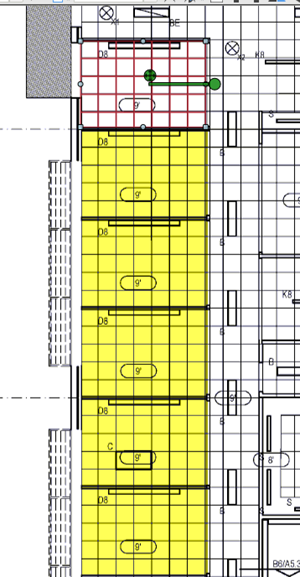
Rather than using Ctrl+V or the Paste button and then having to move each 'block' of takeoff we are going to make quick work of these offices by selecting our takeoff to copy (using the Select tool)) and then holding down Ctrl+D.
Now while holding down Ctrl+D notice the cursor changes to indicate a preview of what we copied (a grey sort of like a shadow of the original copied takeoff). Keep holding down Ctrl+D and line up that preview exactly where you want the takeoff copied and click the left mouse button.
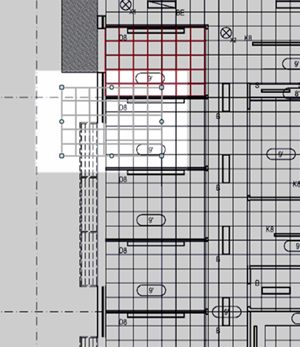
Align and click on each office.
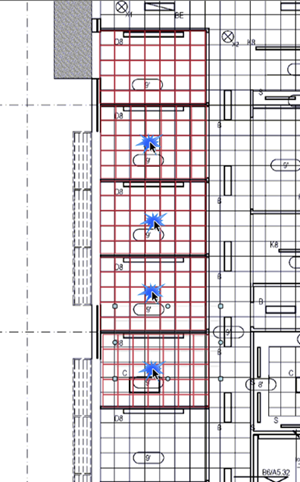
When you are done release Ctrl+D. If necessary you can go back and make minor adjustments to position or alignment.
Notes on Pasting
Always be sure the Scale is the same between the origin and destination. Scale is especially important if you are using Attachments or the takeoff is near the edge of the Page.
When you paste into a different Bid/Project the program creates any Custom Layers and Takeoff Item Types in the destination necessary to recreate the Takeoff Items as they were in the originating bid (if they do not already exist).
 Pasting Objects Using the Paste Button in Edit Toolbar Pasting Objects Using the Paste Button in Edit Toolbar | Pasting Objects Using the Context Menu  |
Related Articles
