
You can paste previously copied takeoff onto the current Page (be it the original Page, a different Page in the same Bid, or even a Page in a different Bid or Project) using the context menu.
When you right-click (or "alternate click") on your plan and select "Paste" from the context menu the program pastes the takeoff object(s) or annotation centered on the point where the right-click occurred.
You must set and verify Page scale before performing any takeoff operations. See Related Articles for details.
Check out the Paste Preview function explained in the previous article. It can make pasting objects faster and more accurate! Especially if you are going to paste the copied takeoff objects more than once.
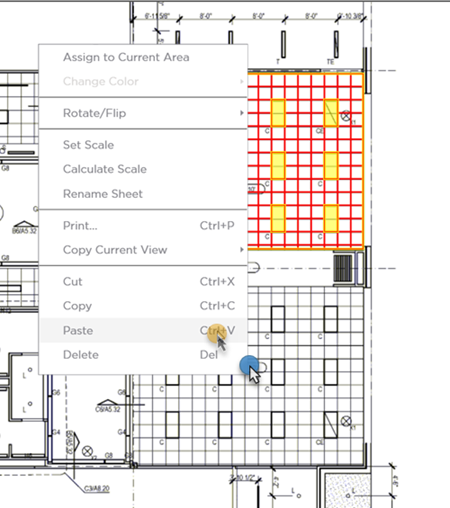
Right-click (alternate-click) and select Paste
The takeoff objects and/or Annotation remains selected after you paste it.
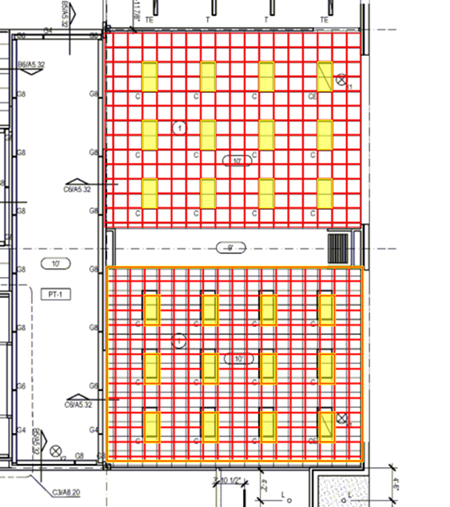
You may need to align or make other minor adjustments after pasting objects.
Notes on Pasting
Always be sure the Scale is the same between the origin Page and destination Page. Scale is especially important if you are using Attachments or the takeoff is near the edge of the Page.
When you paste into a different Bid/Project the program creates any Custom Layers and Takeoff Item Types in the destination necessary to recreate the Takeoff Items as they were in the originating bid (if they do not already exist).
After you paste your takeoff or annotation to a new location you may need to adjust it a bit (for rotation as an example) or assign it to a different Area. See Related Articles for more information about adjusting existing takeoff and annotation.
 Pasting Takeoff Objects Using Paste Preview (Ctrl + D) Pasting Takeoff Objects Using Paste Preview (Ctrl + D) | Copying and Pasting Area Takeoff Objects with Backouts  |
Related Articles
