
Resizing an Area takeoff object is a little different than resizing a Linear object because each segment or an Area takeoff object is connected to other segments, so when you adjust one segment, it 'pulls' the other two segments - sometimes unexpected results occur.
Example
We start with the following piece of takeoff:
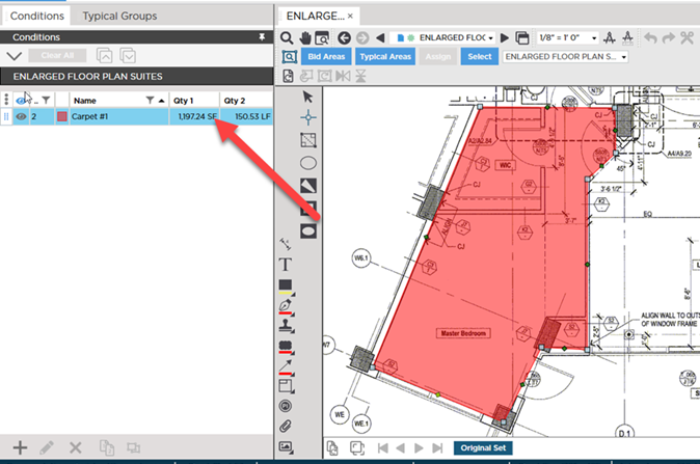
When we drew it originally we were in a hurry and did not account for some of the detail (that is acceptable for a rough estimate but not a finished bid).
When we zoom in we see the places we need to make corrections - the first is an easy fix we just have to adjust a segment near the S2 marker to align with the wall.
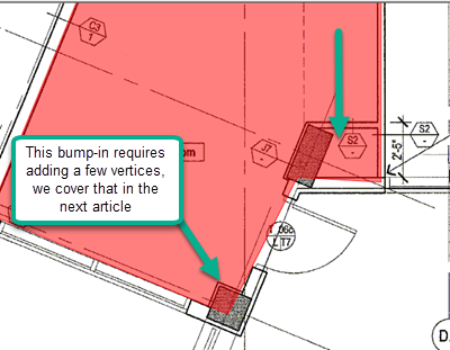
(That little "bump in" for the column requires adding a couple vertices so we can make new segments which we cover in the next article.)
Select the takeoff object - notice each segment now includes controls to resize and move it.
As we stated at the top of this article when you resize (end points) or move (mid-point) a segment it pulls or adjusts the segments to which it is attached.
Click on the move handle in the center of the highlighted segment and drag it up.
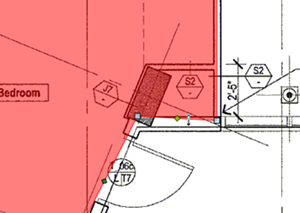
You can see when we move that segment the connected segment on the left is lengthen and the connected segment on the right is shortened.
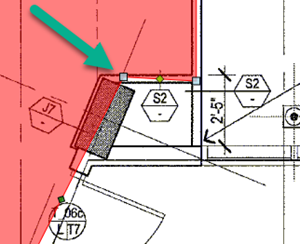
As we move this segment's endpoint to the left our takeoff starts to match up to the Plans more precisely.
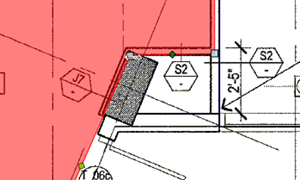
We also grabbed the endpoint for the intersection on the left and nudged the corner up a little.
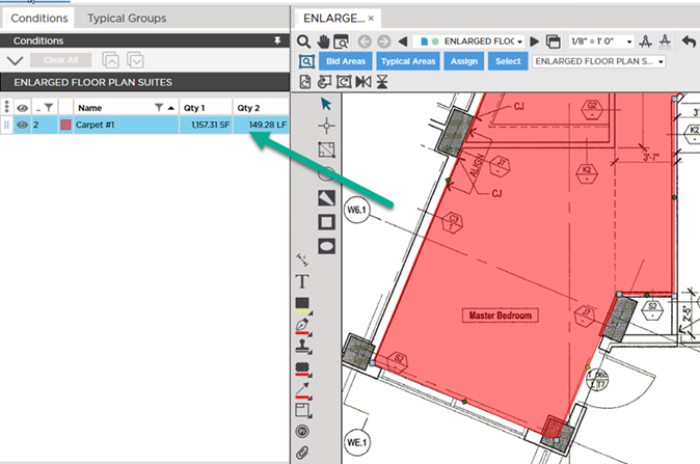
Although these are seemingly minor changes to takeoff quantities because this piece of takeoff is part of a Typical Group that is used dozens of times throughout our Bid we had inflate our Takeoff Results significantly.
Difficulties Adjusting Takeoff
Cannot Adjust
If the program determines it is unable to move the adjacent segments properly it may restrict you from resizing or moving a segment. This typically affects complex polygon shapes. You may be able to compensate for this by adding vertices as explained in the next article.
Jumping Cursor
The next issue you may encounter is a "jumping cursor". The cursor is jumping because the program's "Snap-Angle" settings are dictating where the endpoint can be placed.
- You can override your Snap-Angle settings once by holding down the <Shift> key on your keyboard as you are drawing or adjusting takeoff.
- You can disable Snap-Angle completely in your user Settings see Related Articles for more information.
 Splitting a Linear Takeoff Object into Multiple Segments Splitting a Linear Takeoff Object into Multiple Segments | Adding Vertices (Joints) to an Area Takeoff Object (Splitting a Segment)  |
Related Articles
