
When you create a bid you activate one or more Plans Sets - this creates Pages for that bid. Later if you go back and deactivate a Plan Set if there are Plans in that Plan Set that are Unique Plans (see below) for any Pages those Pages will no longer have a Plan associated with them and the "Current Set" field is blank. Although the Page is not removed from the Project because it has no entry for "Current Set" the Page does not exist for the bid from which you launched the Plan Organizer.
We do not do this often but we are starting this article with a Warning...
You are always prompted if your actions are going to remove a Page from a project if you are not absolutely certain that you are the only person using this project and that there is nothing on this Page in any bid in this project do not confirm your action. Find out who is working in this project and ensure that they (and you of course) have not drawn any takeoff annotation or created any Named Views Punch Items or Typical Groups on this Page. If you are unsure if a Page is used leave it in the Plan Organizer .
Activating a Plan Set (adding Pages)
For our example we consider the project's Plan Organizer screenshot below. We have not activated any Plan Sets so the "Current Set" is blank. No Pages "exist" in this bid yet (because a Page cannot exist if it doesn't have a Plan associated with it).
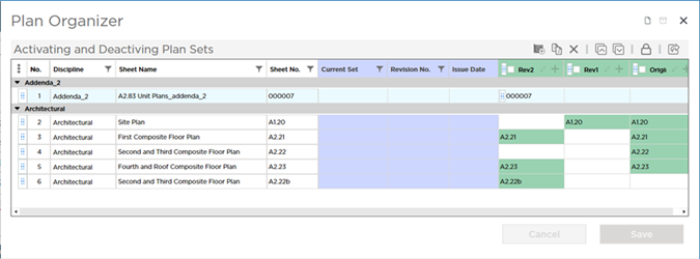
So, we activate all three Plan Sets (Original, Rev 1, and Rev 2).
- The Original Set creates Pages (Sheets) A1.20 A2.21 A2.22 and A2.23.
- The 2nd Set (Rev 1) is an update to A1.20 so it does not create any additional Pages (Sheets).
- The 3rd Set (Rev 2) is an update to A2.21 and A2.23, but also creates Pages (Sheets 000007) and A2.22b. A2.22b is really an update to Page 4 (A2.22) but the estimator made a mistake and did not match it correctly when he or she created the Plan Set - we touched on what happens when you revision match after saving a Plan Set in a previous article but we cover it in more detail in the articles that follow.
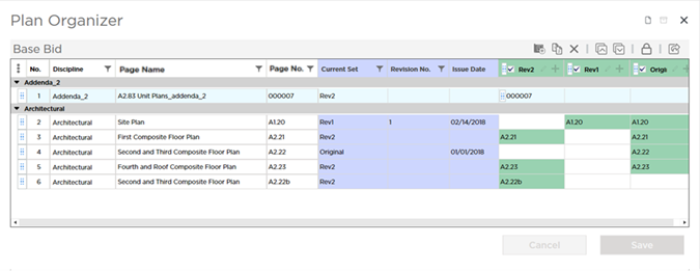
There are a total of 6 Pages (Sheets) in our Plan Organizer built from a total of 9 Plans.
Deactivating a Plan Set
Pages with Unique Plans
In our example there are three Pages with "Unique Plans" meaning there is only one Plan or drawing associated with the Page .
- Page 1 (Sheet No. 000007) exists because it was created from a plan in Rev 2 - it does not exist in Rev 1 or the Original Set. Addendum 2 is the only Plan Set in which a plan exists for this Page (Sheet)
- Page 4 (Sheet No. A2.22) exists because it was created from a plan in the Original Set. Again the Original Set is the only Plan Set that contains a Plan associated with this Page.
- Page 6 (Sheet No. A2.22b) exists because it was not matched to Page 4 (Sheet No. A2.22) when the Plan Set "Rev 2" was added. It should be a Revision of Sheet No. A2.22 but as it stands it is a separate Page with a Unique Plan.
- All other Pages have at least 2 Plans associated with them. For example - Page 2 (Sheet No. A1.20) - if we deleted Rev 1 we would still have at least one Plan associated with that Page so deleting the Plan would not cause the Page to be removed.
In the Plan Organizer we are going to deactivate Plan Set "Rev2" (which created Page 1 (Sheet No. 000007) and Page 6 (Sheet No. A2.22B).
In the column headers uncheck the box next to "Rev2" .
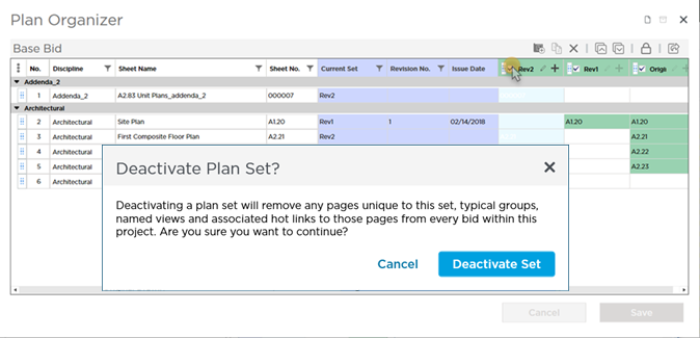
You are required to confirm the action.
If you proceed:
- There will no longer be a Plan for Page 1 and Page 6 in the Current Set.
- Because Pages 1 and 6 do not have a Plan in the Current Set, they are removed from this bid. You can see this on the Takeoff Tab in the Page Navigation drop-down.
- Any takeoff or annotations you or any other user has drawn on that Page are deleted.
- Any Named Views or Punch Items that exist on this Page are deleted (Punch List history and photos are deleted as well).
- All File Attachments on this Page are deleted.
If you are certain you want to deactivate the Plan Set click Deactivate Set.
Even after confirming this action you have one last chance to change your mind. The Pages are not removed until you click Save in the Plan Organizer window.
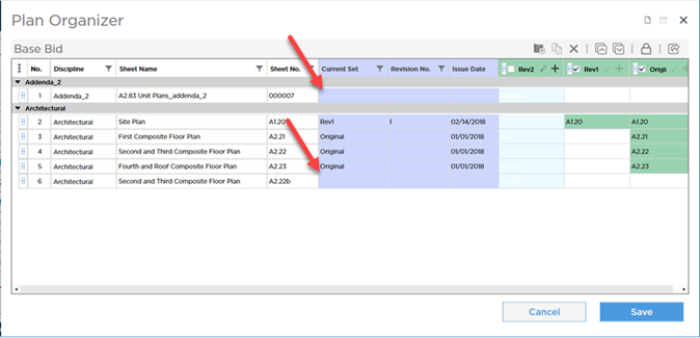
When you click Save the Pages that no longer have a Plan associated with them and everything on those Pages is removed from this bid only (other bids within the same project are unaffected by activating/deactivate sets in this bid). There is no recovering the objects stored on the Pages that are to be removed - even if you re-activate the Plan Set in the future.
On the Takeoff Tab we can see the new Plans inventory.
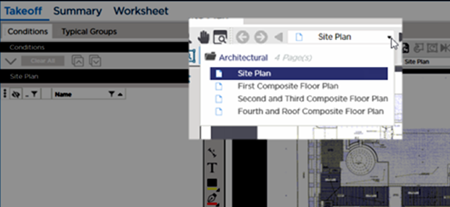
In our example notice that the original Page 1 (Sheet No. 000007) and the original Page 6 (Sheet A2.22b) are gone from the Page Navigator.
Final Warning
Anything that exists on the Pages you cause to be removed is deleted immediately and irretrievably. If you are not absolutely sure that neither you nor any other user has used this Page click Cancel, and then:
- Return to the Takeoff Tab and navigate to the Page(s) that you are going to cause to be deleted. Make sure there is nothing on them. If there is move it to another Page.
- Return to the Plan Organizer and proceed with deactivating the Plan Set.
 Unintentionally Deleting a Page by Deleting a Plan Set Unintentionally Deleting a Page by Deleting a Plan Set | What is Overlay?  |
Related Articles
