You can group the Worksheet Tab by Takeoff Item Group (the type of Takeoff Item each is assigned in their Properties dialog box see Related Articles for details).
Grouping the Worksheet Tab
Click the  button in the main toolbar to open the grouping control.
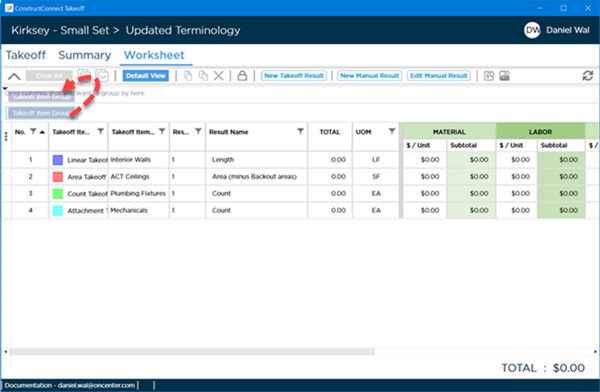
You can group the Worksheet Tab by "Takeoff Item Group" - drag the "Takeoff Item Group" box up into the Grouping Control.
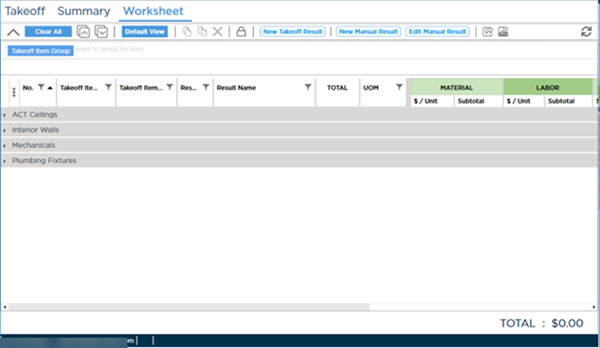
After dragging Takeoff Item Group into the Grouping Control Takeoff Item are grouped by their Takeoff Item Group assigned in Takeoff Item Properties and all groupings are collapsed...
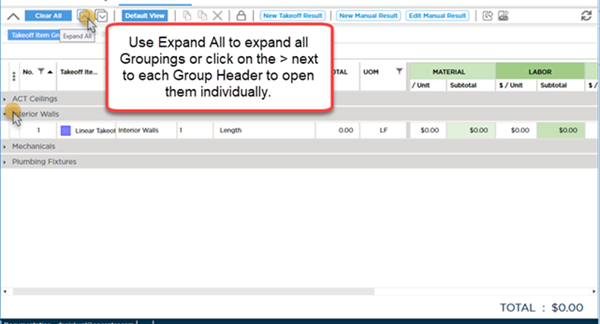
You can use the Expand All ( ) button and Collapse All (
 ) button to show/hide the details under each grouping.
Removing Grouping
Unlike the Summary Tab, Grouping persists (is retained) when you leave the Worksheet Tab, close the Bid, close the program, or even when you click the  button.
Any column filtering you applied also remains in place and must be cleared manually
To remove grouping:
Click the  button.
 Worksheet Tab: Filtering Worksheet Tab: Filtering | Worksheet Tab: Adding and Deleting Takeoff Item Results  |
Related Articles
