

When you add a new Takeoff Item (or open an existing Takeoff Item) after you select the "Type" (assuming you have not disabled the New Takeoff Item Wizard) the Takeoff Item Properties dialog box opens in our example we selected "Linear" in the New Takeoff Item Wizard and so our Takeoff Item Type is set to "Linear". If you select the incorrect Type from the New Takeoff Item Wizard, you can change it to Area, Count, or Attachment before you save the Takeoff Item. Once you use a Takeoff Item to draw takeoff its Type is locked. If you have disabled the New Takeoff Item Wizard new Takeoff Items default to "Linear".
The Takeoff Item Properties dialog box is similar for each Type although the fields and Results vary a little for each Type. There is always a Properties tab and a Results tab for any Takeoff Item.
On the far right of the dialog box toward the top there are previous  and next
  buttons so you can cycle through existing Takeoff Items without closing the Properties dialog box. When you click the previous or next buttons whatever changes you made tot he current Takeoff Item are saved automatically.
The Takeoff Item No. is a sequential number that you cannot change.
There are two tabs in every Takeoff Item Properties dialog box:
Properties
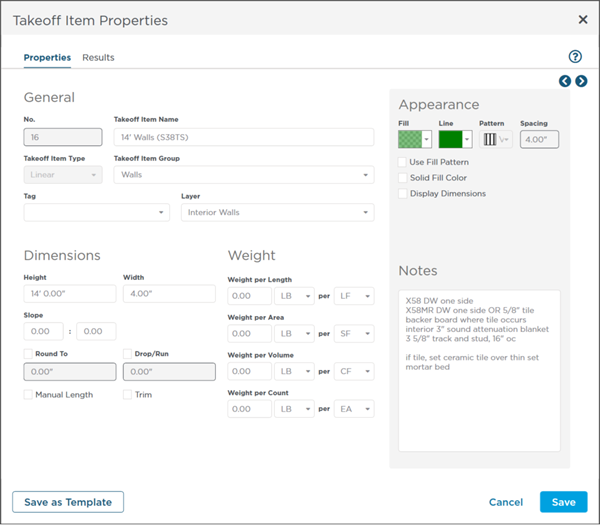
Properties define the Takeoff Item: what is it its Group on what Layer does its takeoff reside how does that takeoff appear etc.
Results
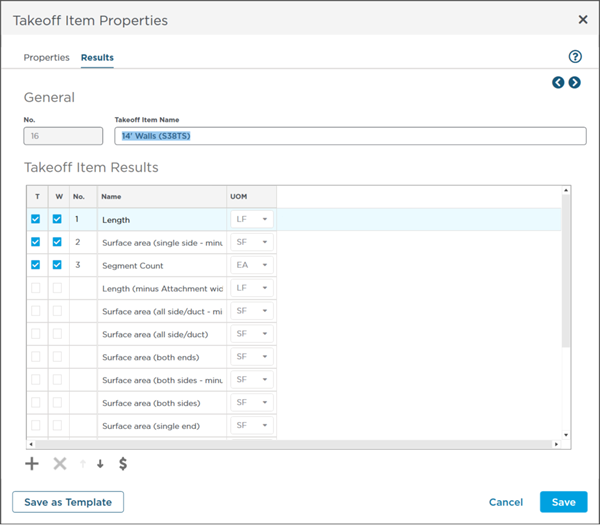
Results vary based on the Type of Takeoff Item you are creating (linear area count or attachment).
You select which Results you want to see in the Takeoff Items Pane and Summary Tab (those with a checkmark in the "T" column) and which Results you want to see on the Worksheet Tab (those with a checkmark in the "W" column).
ConstructConnect Takeoff can calculate custom Results if the System Results don't meet your needs - these are called Custom Formulas see Related Articles for details.
There are pricing columns that are not shown by default available to add Labor Material Subs Equipment and Other costs to a Takeoff Item.
Click the  button to display the Pricing columns...
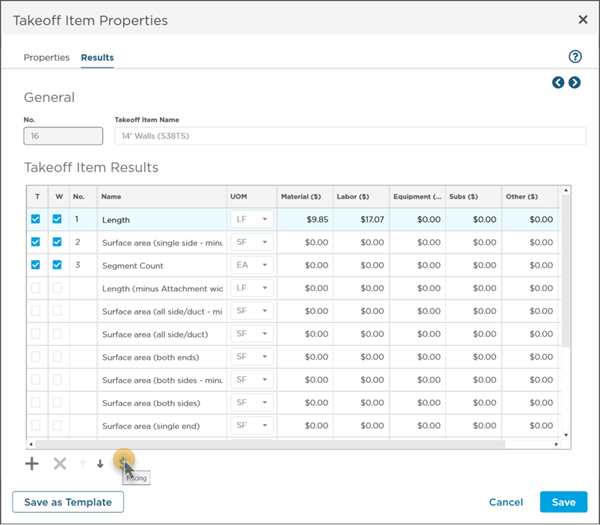
Adding/modifying pricing within the Takeoff Item Properties dialog box transfers to the Worksheet Tab. See Related Articles for more information about the Worksheet Tab and Pricing.
In the articles that follow we cover the Takeoff Item Properties for each Type in detail.
 Adding a New Takeoff Item to a Bid Adding a New Takeoff Item to a Bid | Setting a Takeoff Item's Group, Layer, and Tag  |
Related Articles
