
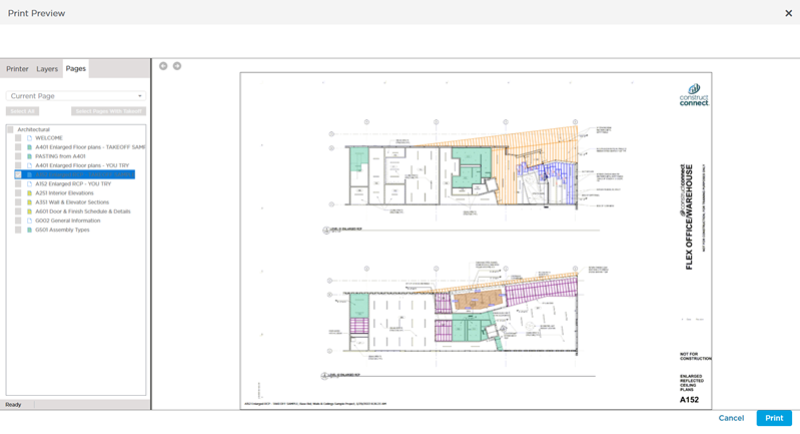
The Current Page is the Page that is active in the Takeoff window from which you opened Print Preview, including all takeoff and annotation (unless you've hidden some or all of it using the Layers tab - see Related Articles).
To print the Current Page, select "Current Page" from the Pages tab in the Print Preview window.
The Print Preview adjusts to fit the entire Page on the screen.
Printing to Scale
To print this Page to "full-size" (to scale), select "Current Page" from the drop-down and then use your Printer Properties to select the Page Size that matches your Plan's dimensions (for example, an Architectural Page Size such as "Arch E").
Your printer must support the same page size as the Plan - meaning, if the Plan is 36x48 (Arch E), your printer must support that page size. If necessary, consult the documentation for your printer to setup a "Custom Page" size that matches the Plans you want to print. You can see the Page's dimensions in the Status Bar on the Takeoff Tab, see Related Articles for more information.
When you select "Current Page", you cannot select other Pages, only the current, active Page (in the Takeoff window from where the Print Preview was opened) is available. The next two articles explain how to print more than one Page.
 Printing the Current View Printing the Current View | Printing Multiple Pages and Entire Plan Sets  |
Related Articles
