

If you have an existing Project Express account but have not logged into Project Express on your current computer, you just need to enter your login credentials to access that account on your new machine.
In the Welcome dialog,
- Click the Use an Existing Account button
The Project Express Account Information dialog appears.
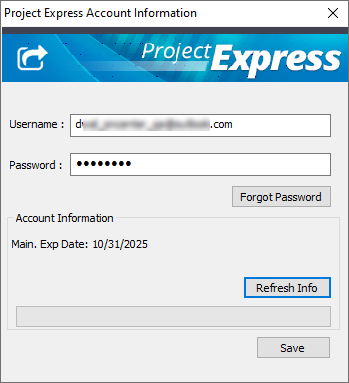
- Enter your Username (your e-mail address) and Password
- Click Refresh Info
Your Account Information is verified and your Maintenance Subscription checked. Your account is added to this computer. If you are using an un-licensed version of On-Screen Takeoff (PlanViewer) or have allowed your maintenance subscription to lapse, you will see an "Account Expiration" date. If you are a licensed user under a current maintenance subscription, you will see a "Maintenance Expires" field.
If you lose or forgot your Project Express password, you can retrieve it by clicking the Account Information button and choosing "Forgot Password". Follow the instructions for resetting a Project Express password. You will need to verify that the e-mail address is yours.
Even though your username is your e-mail address, files are not sent through e-mail, they are only accessible through the Project Express interface.
On Center Software personnel cannot verify if you have a Project Express account or provide your login credentials.
Signing Out (Removing a Saved Project Express Login/Password)
If you'd like to sign out of a saved Project Express account,
- Click the "Account Info" button to bring up the login screen
- Clear both Username and Password fields
- Click Save
 Registering for a New Project Express Account Registering for a New Project Express Account | Sending Projects and Project Updates using Project Express  |
Related Articles
