
These settings are user preferences that affect how you work with the program.
Snap Angle
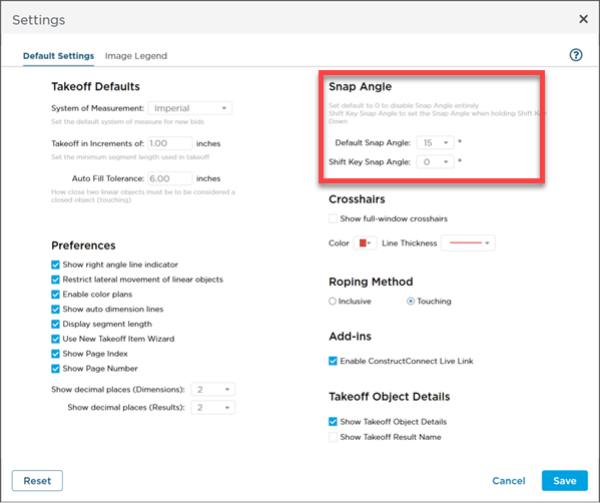
By default when you draw takeoff the program 'snaps' lines and segments in 15u00b0 increments. This usually makes it easier to draw takeoff that matches Architectural plans. Sometimes however you need to override this "Snap Angle" and draw a line or segment at something other than 15 30 45 or 90 degrees.
- Disabling Per-Use
- You can override the snap angle as you draw takeoff by holding down the <SHIFT> key. This allows you to draw a line or a segment at any angle you want. When you release the <SHIFT> key the Snap Angle will be turned back on.
- Disabling Always
- If you want the program to allow you to draw lines and segments at any angle by default change the "Default Snap Angle" value to "0". This disables the Snap Angle entirely.
- Enabling Per-Use
- If you've set "Default Snap Angle" to "0" it is a good idea to set "Shift Key Snap Angle" to "15" - this way if you need the program to snap a line or segment you can invoke 'Snap Angle' by pressing <SHIFT>.
Crosshairs
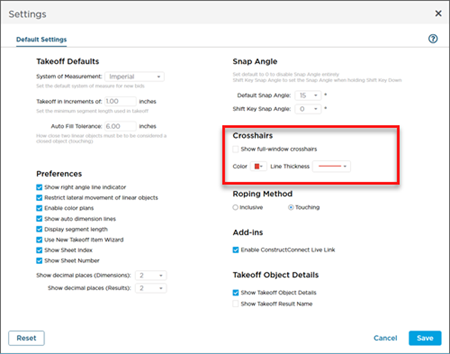
Some users prefer to see full-window crosshairs when drawing takeoff. To enable full-window crosshairs check the box.
You can choose the color and thickness of the crosshairs as well for example if you select "full screen" and choose thickest and green for your crosshairs this is how they would appear in the Takeoff Window...
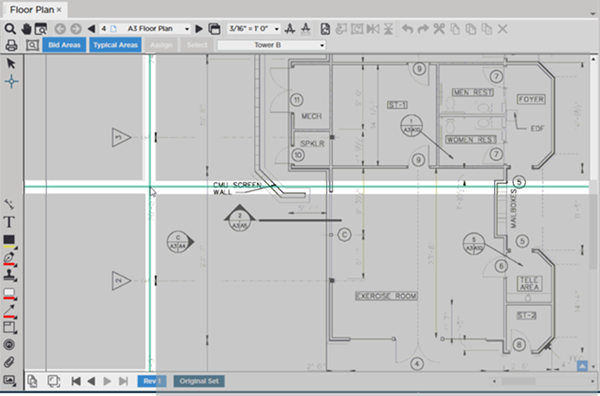
example of think green full-screen crosshairs
Default: Unchecked Red
Roping Method
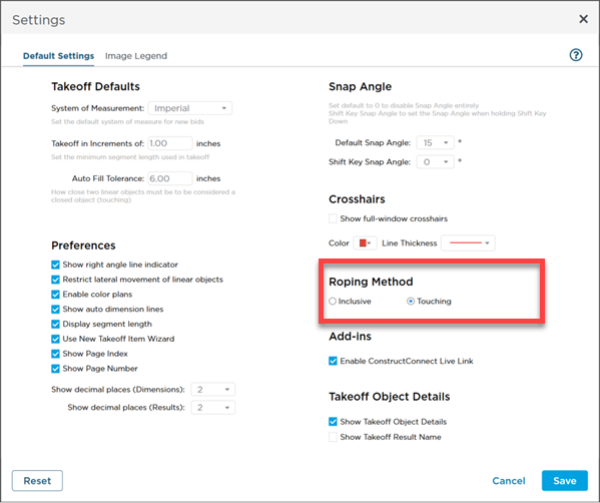
Roping Method affects how objects (such as takeoff or annotations) are selected when you draw a selection box around them.
By default the Roping Method is set to "Touching" - this means anything touching or inside a selection box you draw is considered selected. If you prefer you can set to "Inclusive" which requires any piece of takeoff to be fully within a selection box you draw to be considered selected. For more information on selecting objects see the Related articles.
- Touching - takeoff objects that are inside the box you draw or touch it are selected.
- Inclusive - only takeoff objects that are completely inside the box your draw are selected.
Touching (default)
By default if you draw a selection box and it touches a takeoff object that takeoff object is considered 'selected'.
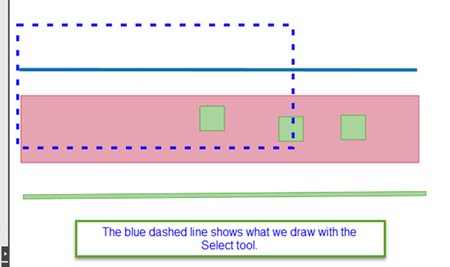
Box drawn over takeoff objects.
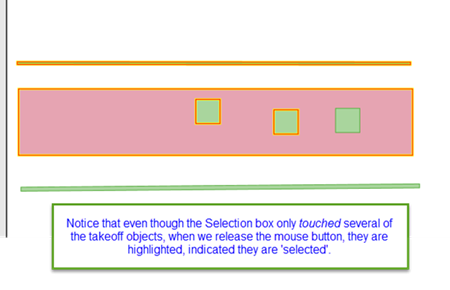
All objects within the box or touching the box are selected.
Inclusive
If you prefer you can require objects be entirely encompassed by the Selection box to be considered 'selected'. This is called "Inclusive" Roping.
For example...
Box drawn over takeoff objects.
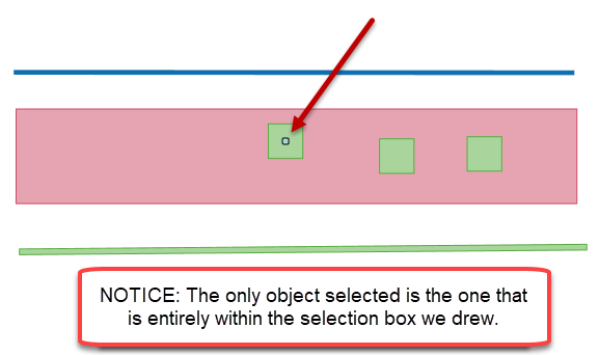
Only objects entirely within the box the box are selected.
Add-ins
ConstructConnect Live Link Add-in has been discontinued by ConstructConnect effective 6/1/2023 and can no longer be downloaded or installed. If you are already using Live Link it will continue to function for some time, although we no longer provide support for this feature.
Takeoff Object Details Pop-up
Takeoff Object Details are the small pop-ups that shows up next to a single piece of takeoff when you click on it (in the Takeoff Windows). Takeoff Object Details are not shown when you select multiple takeoff objects.
You can set various options for the pop-ups.
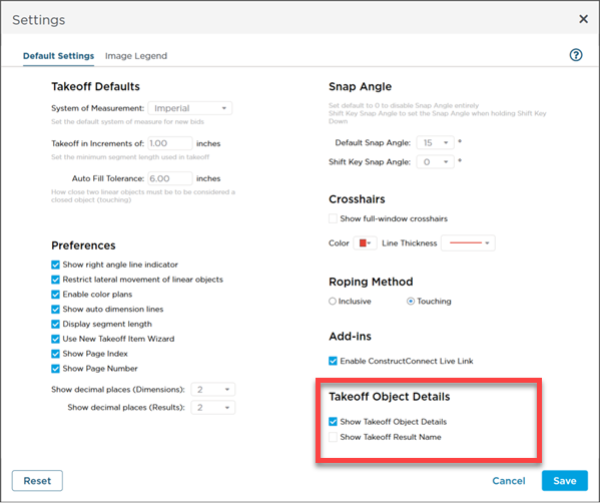
| Option | What it does/How it is used... |
|---|---|
| Show Takeoff Object Details | When you click on a single piece of takeoff the program shows you the Takeoff Item Name and Number the Page Area Bid Area or Typical Area to which the object is assigned and every Result that has been set to show in the Takeoff Items Panel. Default: Checked |
| Show Takeoff Result Name | Adds each Result's Name to the pop-up. |
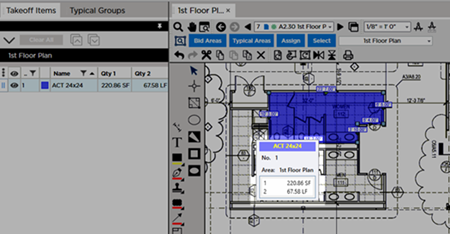
Example of Takeoff Item Card without Result Names
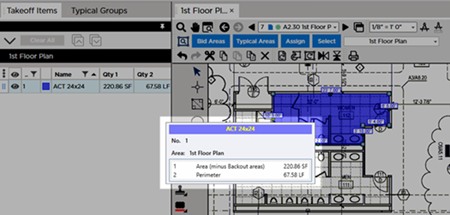
Example of Takeoff Item Card showing Result Names
 Settings: Preferences Settings: Preferences | Settings: Image Legend  |
Related Articles
