
Before you can use many of the functions of Quick Bid (creating Conditions, adding pricing, pretty much anything), you must activate a license.
If you have any problems activating your software, review Troubleshooting Licensing Issues. If you still are unable to license your software, please contact Support. Have your customer information and Activation code(s) handy.
Licensing Quick Bid
There are two ways for your company to distribute the product licenses it owns:
- A License Key looks like this: "QB+a0fe3-d4848-3840b-6a6c8-fe068" (25 characters, separated by hyphens, with a Product Prefix and a plus sign (+)). License Keys can be single-seat (one Key per person) or multi-count (one Key for multiple people). Each Product/Feature you own would have a separate License Key issued (if you own 10 On-Screen Takeoff, 10 Quick Bid, and 10 Digital Production Control PM licenses, you may be issued three keys, or thirty, depending on how you choose to setup your licenses).
- A Server Code looks like this: "QB@98A8PGZA493Z" (shorter, no spaces or hyphens, with a Product prefix and an "@" symbol). A Server Code is a cloud-based license manager for a single product. All your licenses for a single Product/Feature are set up under one Server Code - so if you own three products, we issue your company three Server Codes so you can control who is able to license which Products/Features.
When Quick Bid is not authorized, a message in the bottom right corner of the program shows "no license". After activating a license, this area shows which licenses have been applied (QB).
Activating Your License
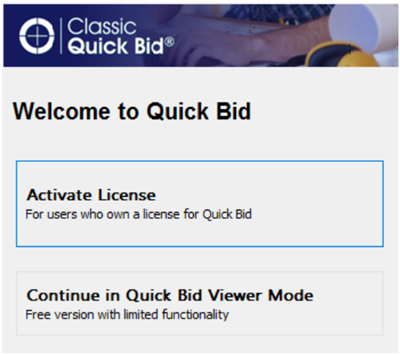
Anytime you open the product when it doesn't have a license, you will be greeted by the Welcome prompt
Quick Bid
- Select Activate License or,
- If the program is already open, click File > Check Authorization to open the licensing screen
See On-Screen Takeoff, Quick Bid, and Digital Production Control: Activating a License for detailed instructions.
Common Reasons for Authorization Failure
- Incorrect License Key or Server Code (we recommend you copy/paste - rather than trying to type these in - if possible)
- No Internet connection (always required to activate License Keys or Server Codes)
- Firewall blocking network communication (see Related articles for more information on configuring your firewall)
- Attempting to activate a License Key for a different product (you cannot activate a Quick Bid license through On-Screen Takeoff and vice versa)
- Attempting to activate an old "Activation Key" for versions released prior to 12/31/2017 - check MyOnCenter.com for your up-to-date keys
If you open an "interactive" Bid while one or both products is unlicensed, you will break the interactive connection. Please see Related Articles for instructions on reconnecting.
Once you've licensed the program, continue on to the next article to start a tour of Quick Bid.
Data Analytics or Registration Screen
The first time you launch Quick Bid 4.99.05 and newer, you are prompted to opt into Data Analytics.
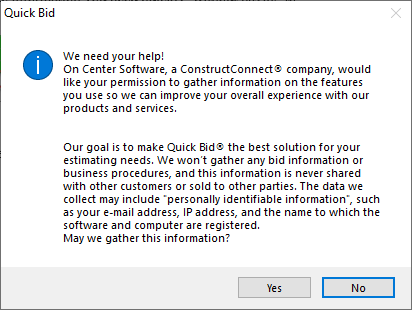
If you click Yes, you'll be asked a couple additional questions. At this time, if you are a resident of California or a citizen of the European Union, we automatically opt you out of data gathering. This may change in the future, but for now, to comply with the GDPR and CCPA, we want to ensure our software meets those privacy requirements.
If you click No, and then later change your mind, you can change your opt-in settings anytime in Tools > Options > Analytics.
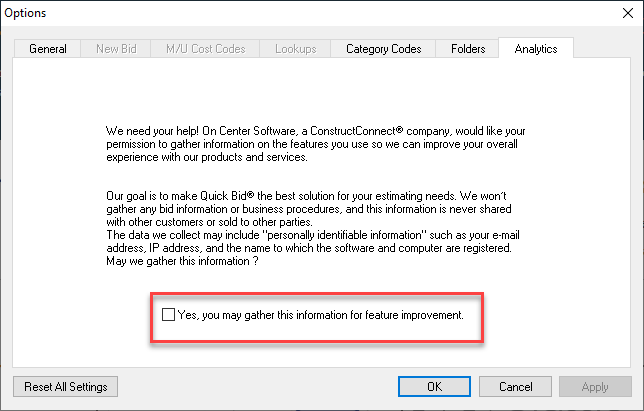
Analytics and Your Privacy
ConstructConnect never gathers your Bid/Project or Masters data - we only gather information about how you use Quick Bid (what features you use, how you use them) so we can concentrate our development efforts on what matters to our customers the most. Your information is never sold or shared with any other parties or customers and is only shared within ConstructConnect in aggregate (anonymously).
 System Requirements and Installation Instructions System Requirements and Installation Instructions | How to Use Keyboard Shortcuts to Navigate Quick Bid More Efficiently  |
Related Articles