

Publish a Project from Bid Management to ConstructConnect Project Intelligence
- How to publish a project to CCPI
- Publish an existing project
- Publish during project creation
- What happens when you publish a project
- View bidder activity
- Add engaged subcontractors to your list
- Publish status reference
Looking to increase visibility for your projects or attract more bidders? Use Publish to ConstructConnect in ConstructConnect Bid Management (CCBM) to submit a private project to the ConstructConnect plan room network, also known as ConstructConnect Project Intelligence (CCPI).
Once your project is linked, the Bidder Activity Report shows subcontractors who have viewed the project, downloaded documents, or opened takeoff, so you can select the ones you want to invite directly to bid.
How to publish a project to CCPI
You can publish projects from CCBM to CCPI in two situations:
- An existing CCBM project you want to publish to CCPI
- A new CCBM project you want to publish to CCPI as you create it
Publish an existing project
If you’ve already created a project in CCBM, you can submit it to CCPI from the Project Details page.
- Open the project in ConstructConnect Bid Management.
- Go to the Project Details page and click on the Information tab.
- Select the Publish to ConstructConnect button.
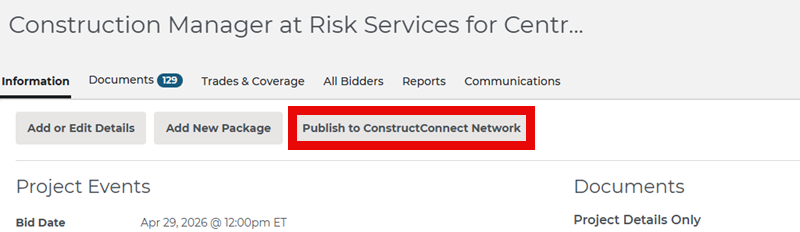
- In the modal, review the explanation of what publishing means, select the option that applies to your project, and then select Publish Project.

Publish during project creation
You can also submit a project to CCPI during its initial project creation.
- To start a new project, select the plus (+) icon in the left navigation menu.
- Select either Create Project or Create Project with Bid Package.
- Before entering the project details, select the Publish Project to ConstructConnect Network checkbox. Hover over the information icon next to the checkbox to learn more about publishing your project to the ConstructConnect network and increasing its exposure.
- Complete the remaining project-creation steps, such as entering project details, adding documents, and selecting trades. Then select:
- Save & Exit if you selected Create Project.
- Save and Add Bidders if you selected Create Project with Bid Package.
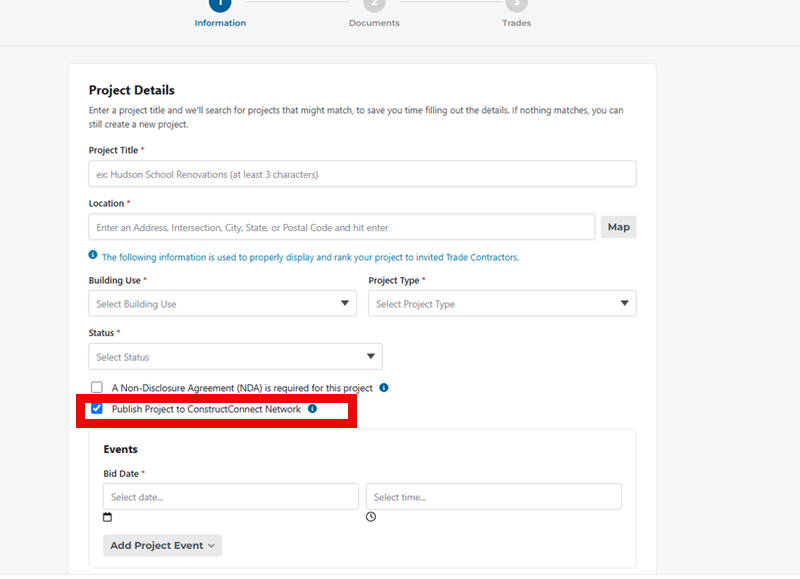
If you do not select the publish checkbox during project creation, you can publish the project later from the Project Details page. Follow the steps in Publish an existing project above.
What happens when you publish a project
After you submit your project, the ConstructConnect content team reviews it and connects it to CCPI. When you select the publish checkbox during project creation, saving the project submits it automatically. The button shows Pending Publish while this is in progress, and you do not need to take any action. The content team typically completes this process within 48 business hours. Once the connection is complete, the button changes to View Published Activity.


Projects that originate in CCPI and are copied into CCBM are connected automatically. They do not require content-team review, and the Bidder Activity Report is available immediately with activity from the original CCPI project.
View bidder activity
After your project is linked, select View Published Activity on the Information tab to open the Bidder Activity drawer.
The report shows subcontractors who have engaged with the project on CCPI, including subcontractors who have:
- Viewed the project
- Downloaded project documents
- Opened takeoff
The Bidder Activity drawer also includes an Activity Level indicator with three bars. The bars show whether a subcontractor has viewed the project, downloaded project documents, opened takeoff. or done all three. You can see the activity description, count, and date for each level.
The report groups subcontractors by trade and updates as new activity occurs on the linked CCPI project.
Add engaged subcontractors to your project
You can invite subcontractors directly from the Bidder Activity Report.
- In the Bidder Activity drawer, select one or more subcontractors.
- Select Add Selected to Bid Package.
- Use the existing invitation workflow to issue bid invitations. For more information on how to send bid invitations through CCBM, see Working with Invitations in Bid Management.

Publish status reference
To quickly check your project’s publishing status, look at the wording on the button. The table below explains what each status means.
| Button status | What it means |
| Publish to ConstructConnect | The project has not been submitted. |
| Pending Publish | The project was submitted and the ConstructConnect content team is linking it. |
| View Published Activity | The project is linked and bidder activity is available. |
 Working with Prequalification in Bid Management Creating and Sending Bidder Communications in Bid Management
Related Articles
Creating a Project in Bid Management
Working with Managed Projects in Bid Management
