
The reports feature lets you view detailed information on specific activity for each of your managed projects. This lets you see the degree of activity on a project for each bidder.
Accessing the reports feature
The reports feature tab is at the top of the Managed Projects window. All report options are available from this section:

The Non-Disclosure Agreements report only appears when NDA is turned on for the project.
Printing and exporting reports
You can print or export any of the reports as either an Excel spreadsheet or a PDF document.
To print or export a report,
- with the report displayed in the window, select from following:
- Print - The report opens in a new window in PDF format. From here you can print and save the file using your local device.
- Export - The export runs and you are prompted to download the file. Follow the instructions on your system to save the file.bm viewarsdrps
Viewing reports
The following table describes the activity reports you can view for a project.
| Report | Description | |
| Change History | Displays the changes to the project, such as adding trade codes and uploading project documents.
Information includes the details and date and time of the change, the event triggering the change report, the user making the change and any notes about the change. | |
| Project View Activity | Displays a list of who has viewed the project. Information includes the company name and contact, the date and time and the action performed. | |
| Document Activity | Displays a list of who has viewed documents for the project. Information includes the company name and contact, the date and time and the action performed. | |
| Bidder Audit | Displays the details of changes to the project along with the date, time and name of the changing event, the company and contact, the person making the change, the invite status and any processing notes. | |
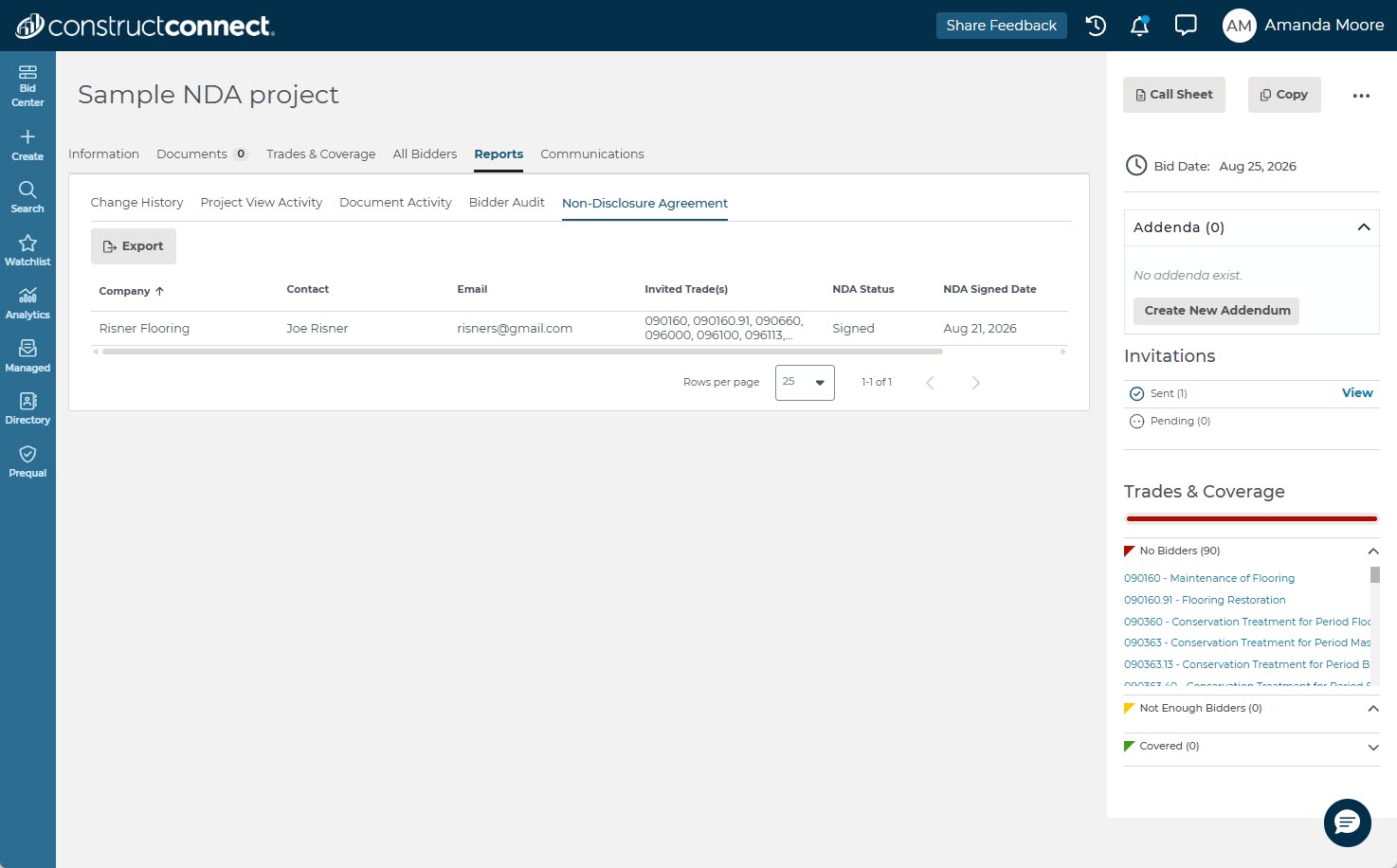
| Non-Disclosure Agreements | Displays which invited bidders have signed the project's NDA. Information includes each bidder's NDA status, the date and time the agreement was signed, and the company, contact, email and invited trade(s). This report only appears when NDA is turned on for the project. |
View in the Non-Disclosure Agreements report
If your project requires bidders to sign an NDA, use the Non-Disclosure Agreements report to see who has signed, without tracking signatures manually. The report gives you a record of NDA activity for the project's invited bidders.
From this report you can:
- See each bidder's NDA status and the date and time they signed.
- See the company, contact, email and invited trade(s) for each NDA record.
- Export the report data to keep for your records or share outside of Bid Management.
To learn more about turning on and managing NDAs, see Working with an NDA (Non-Disclosure Agreement) in Bid Management.
Related Articles