

Keyword Highlighting in Document Viewer
When you run a keyword search in Project Intelligence, Document Viewer highlights matching terms directly in your project documents.
This article explains how highlighting works, so you can quickly understand:
- Why certain words are highlighted
- Where matches appear
- How different search types affect what you see
Where highlights appear
From the Search page, you can search within:
- Name – project name
- Details – description, location, status, etc.
- Documents – plans, specs, addenda, and more
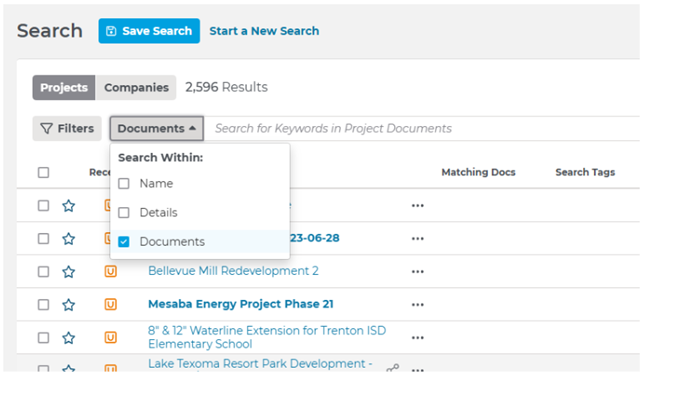
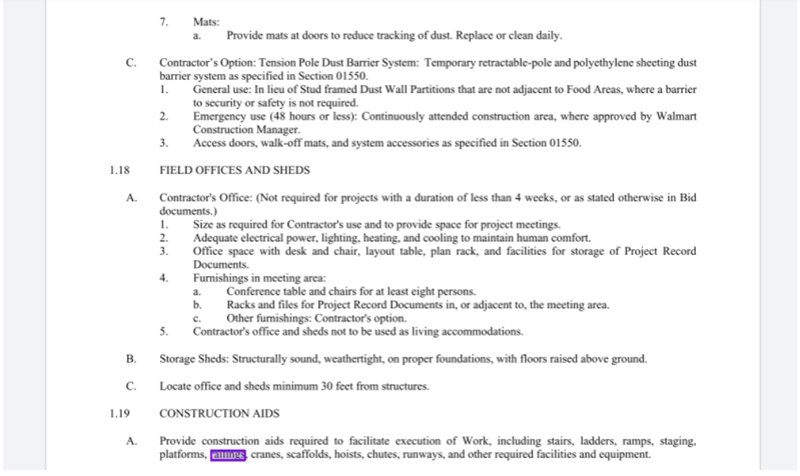
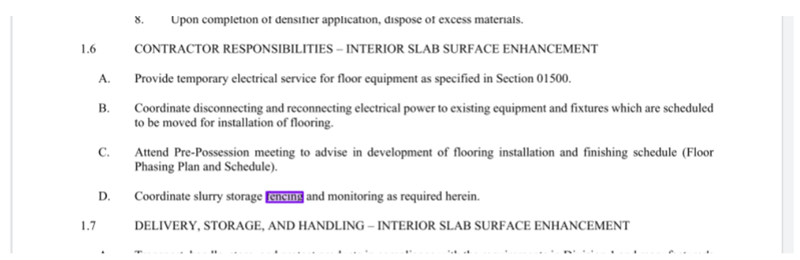
When Documents is selected, matches are highlighted in purple in Document Viewer.
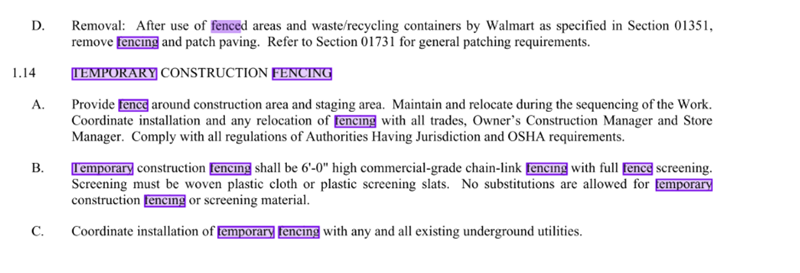
Key rules for highlighting
- Purple highlights show where your search terms appear
- Highlighting is not case-sensitive (for example, ‘Concrete’ and ‘concrete’ are treated the same).
- Matches are highlighted across all pages of a document
- Search type affects what gets highlighted:
- Unquoted terms → broader matches (Smart Search)
- Quoted terms → exact matches (Exact Search)
How search types affect highlighting
| Search type | Example | What is highlighted |
| Single keyword (Smart) | fence | Related forms (fence, fences, fencing) |
| Single keyword (Exact) | "fence" | Exact word; may also appear within longer words |
| Multiple keywords | temporary fencing | Each word highlighted independently |
| Exact phrase | "temporary fencing" | Full phrase only, in that order |
| Wildcard | fenc* | All matching word variations |
| AND | fence AND rail | Both terms highlighted |
| OR | fence OR railings | Any matching term highlighted |
| NOT | fence NOT railings | Only included term(s); excluded terms do not appear |
Wildcards and highlighting
Wildcards match multiple versions of a word.
- Example: fenc*
- Highlights fence, fences, fencing, etc. wherever they appear
- Do not use wildcards inside quotation marks.
- Not valid: "temporary fenc*"
In Document Viewer
- All matching variations are highlighted
- Highlights may appear frequently in documents with repeated term
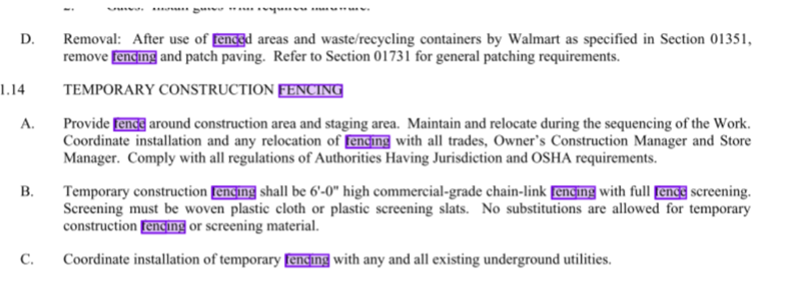
How operators affect highlighting
Operators control which documents appear, which in turn determines what you can highlight.
AND
All terms must appear.
Example: Fencing AND railings returns documents that contain both words and both will be highlighted.
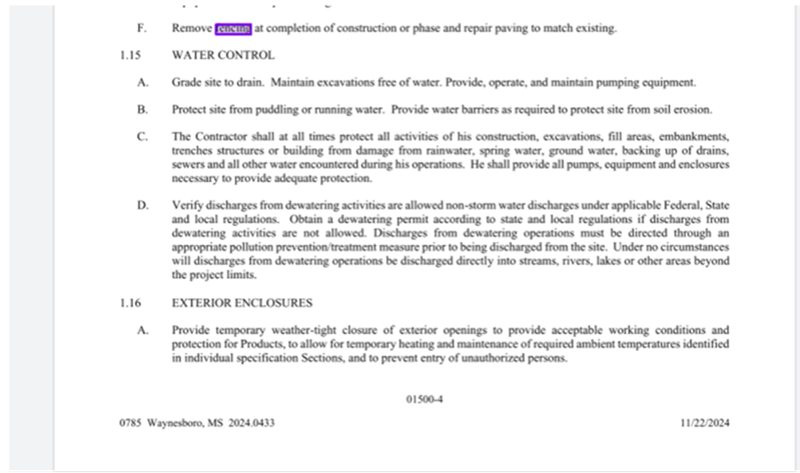
OR
Any of the terms can appear.
Example: concrete OR flooring returns documents that contain concrete, flooring, or both, and any instances of either will be highlighted
NOT
Excludes documents that contain a specific term.
Example: Fencing NOT railings returns documents that contain fencing but do not contain railings. Only fencing will be highlighted.
Rules
- If a term is excluded by NOT, (i.e. flooring NOT concrete) no documents containing concrete will be shown, even if they contain flooring.
- Leading with NOT is not supported. For example, using NOT flooring, instead of concrete NOT flooring, is not valid.
- Operators must be uppercase (AND, OR, NOT)
Tips for reviewing highlights in Document Viewer
Start broad, then narrow
Begin with a single keyword, then add operators (AND, OR, NOT) if you need to refine your results.
Use quotation marks when you care about exact wording
If you only want to see an exact phrase, put it in quotes, such as "temporary fencing".
Use wildcards for partial numbers or variations
For SKUs or non-standard codes, enter the known portion plus *, for example ABC1*.
Check the page count
If a document has many matches, use the page thumbnails and sidebar to navigate quickly between highlighted areas.
 Working with the Document Tree in Document Viewer Sending Project Documents from Document Viewer to Our Takeoff Apps
Related Articles
Keyword Search in Project Intelligence
Using Search Operators in Project Intelligence
