

Both trade subcontractors and general contractors can now add themselves to a project from the project details page if they don’t see themselves listed as one of the potential bidders. General contractors will see an Add as Bidder button (shown below), whereas trade contractors will see an Add as Interested button (shown below).
Once added, the general contractor or trade contractor can check to see if they are listed as one of the project contacts, as well as add that project to their Bid Center so that they can track its advance through the bid pipeline. To get started using this functionality, see the following section for more details.
Add as a Bidder to a Project
General Contractors who subscribe to Project Intelligence can add themselves to any subscription project by clicking on the Add As Bidder button, either at the top of the Project Details Page.

After clicking on the button, a new window will open, revealing a form with almost all the needed information prefilled except for First and Last Name and Phone Number fields. Add your name and phone number (highlighted below), then click Submit.
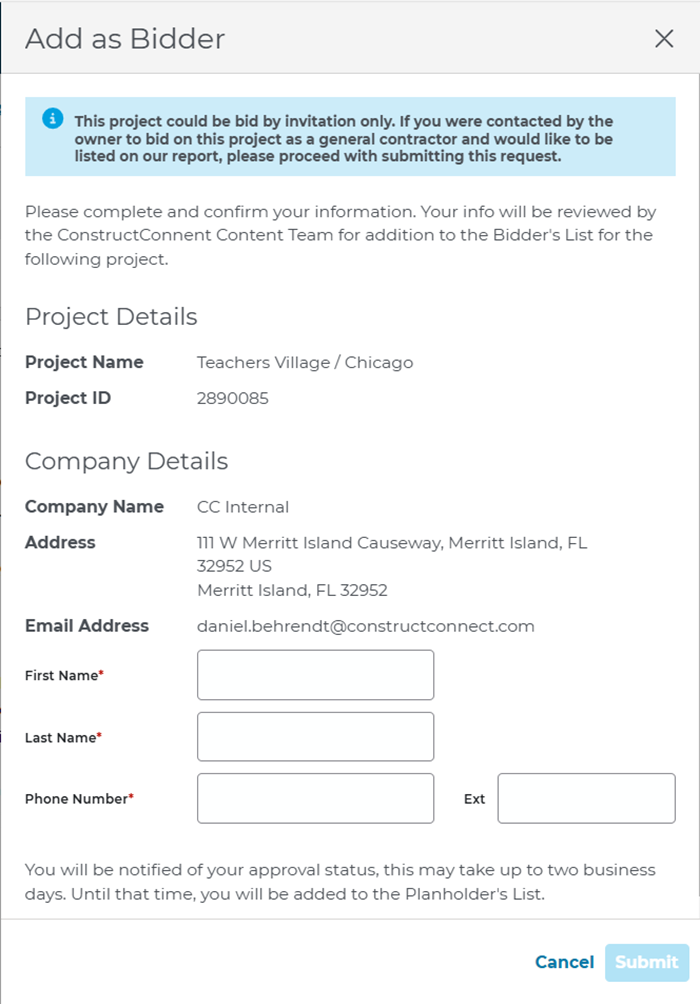
After clicking submit, you’ll get an email confirming your request has been received. You will also appear as a Planholder for the project in the list of Contacts associated with the project.
Within two business days, you’ll be notified of your approval status. When approved, you’ll now appear in the Bidders list for the project.
Add as an Interested Party to a Project
Trade contractors with a Project Intelligence subscription can also add themselves as an interested party on any project by clicking on the Add as Interested button in the Contacts section of the Overview tab.
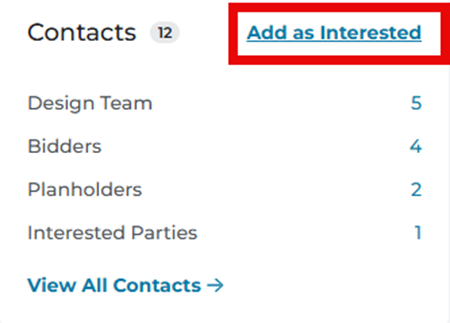
Once you click on the Add As Interested button, you will be immediately added to the Contacts table under the Interested Parties tab for the project.

Once you have been successfully added to the Interested Parties tab, the text in the Contacts section of the Project Details Page will say ‘Interested’ with a check mark next to it.
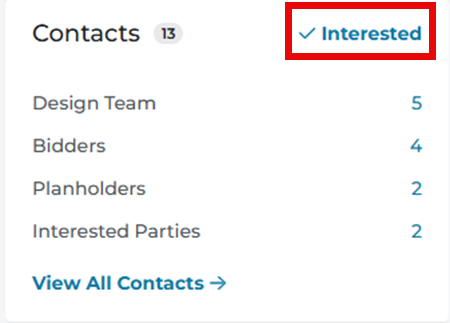
In case you want to withdraw your name from those interested in the Project, click on the ‘Interested’ text in the Contacts section of the Overview tab. The text will go back to saying ‘Add as Interested.’
Related Articles
