
Document Viewer Keyword Search
Document Viewer now has an additional feature that makes it easier for users to find documents that match their keyword searches and respond to bids more quickly.
In Document Viewer, you can:
-
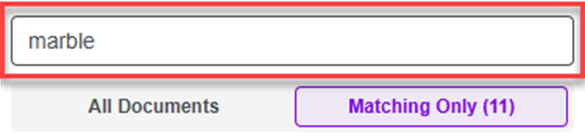
Type a keyword into the search bar at the top of the sidebar. You’ll instantly see how many documents match that particular keyword or keyword phrase.
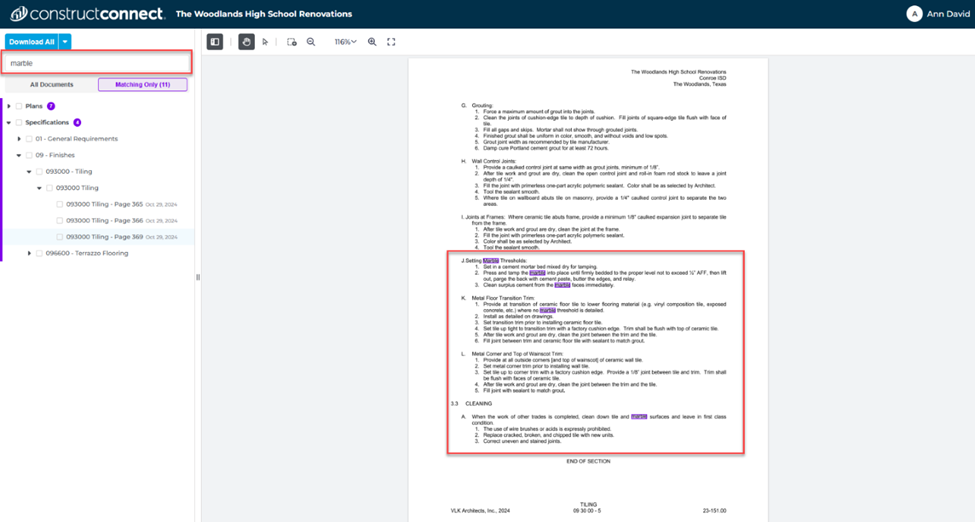
- Next, you will see a list of those documents with your keyword highlighted in purple wherever it appears within the document.
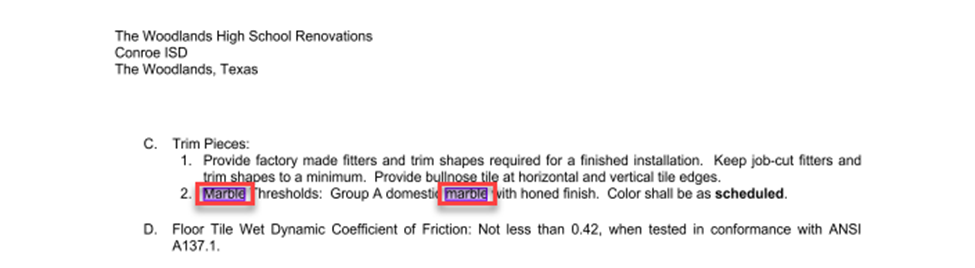
- Use Document Viewer’s improved navigational tools to zoom in on specific details within your document to ensure that it’s a correct match for you’re looking for.
Smart Search vs. Exact Search
-
By default, your search will be a Smart Search. This means your results will include variations of the keyword you searched for and the exact keyword.
-
Example: Searching for “floor” will show results that include "floor” and variations like “flooring” or “floors.”
-
If you want to search for an exact keyword or phrase, put it in quotation marks. This will only show results for the same keyword or phrase without variation.
-
Example: Searching for "floor” will only show results that contain the exact word “floor" without any variations.
To learn more about search operators and how to use filters to find projects that are a perfect fit for your business, read this article.