
Project Intelligence Pro Users Access to Modernized Search
June 3, 2025
Starting June 6th, some Pro users will get access to Modernized Search, but not everyone will see it right away.
The new feature is being released in stages. Different groups of users will get access at different times throughout June. Everyone should have it by the end of the month.
Modernized Search helps you find project and company information quickly and with less effort. With a simple keyword search, helpful filters, and faster results, getting what you need is easier than ever
Better tools now include:
Improved Filters
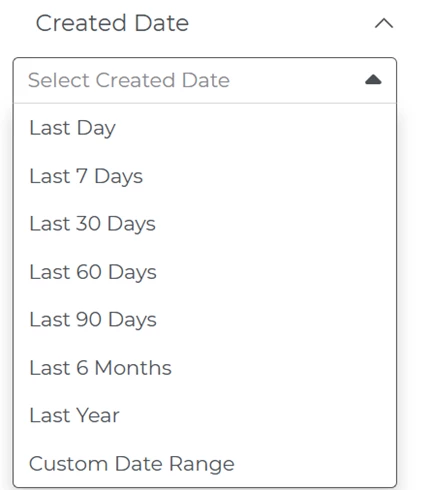
New Date Filters: New date filters let you narrow your search by picking specific dates, like the bid date, pre-bid meeting date, or when the project was added. You can also choose time ranges like the past 7 or 30 days.
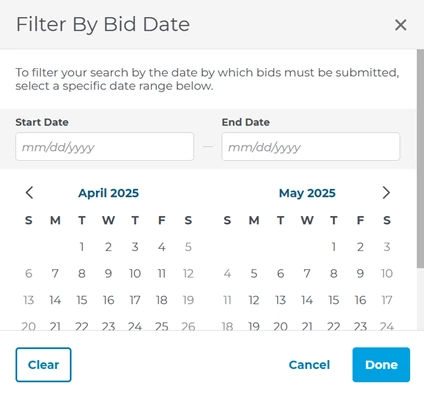
- Custom Date Ranges: You can also choose custom date ranges. Use the calendar or enter dates yourself to narrow your search to the exact timeframe you need.
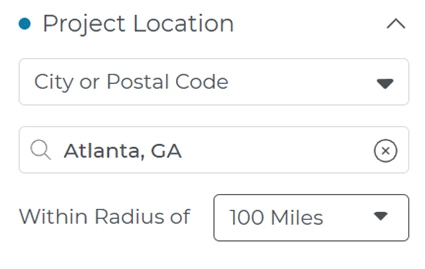
City Radius: When you filter by location, you can now search around a city instead of just using a zip code. If your business is in a big city, this makes it easier to find projects nearby.
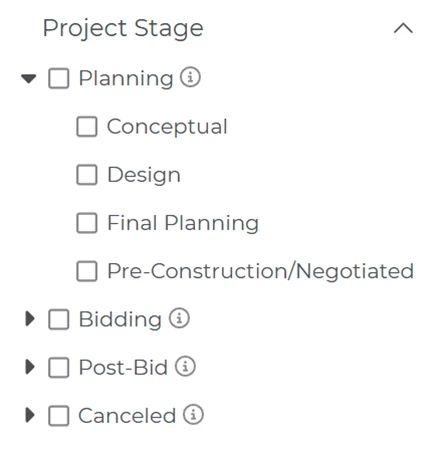
New Grouping Options: Project Stage and Project Category are now grouped into simpler sections. You can pick several related options with just one click, so it’s faster and easier to find what you’re looking for—no more scrolling through long lists.
In addition to these improvements, some generic filter names have been changed.
Smarter Keyword Search
- Default Smart Search: When you search, your results will also include similar words, so you get more helpful matches. This is known as a “smart” search (see screenshot below)
- If you’re looking for results to reflect the exact version of the word you type in the search bar, put the word into quotation marks (i.e., “flooring” will not display results for projects containing “floor” or “floors”).
- This will be referred to as an “exact” search.
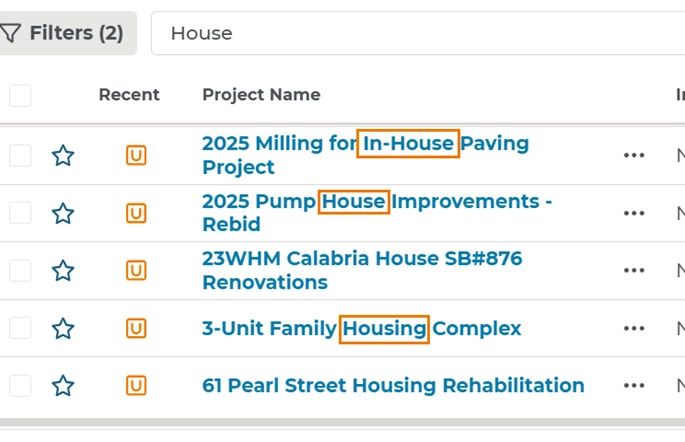
For more information on Smart vs. Exact Search, check out this article: Keyword Search
Document Viewer Keyword Search and Navigation Toolbar
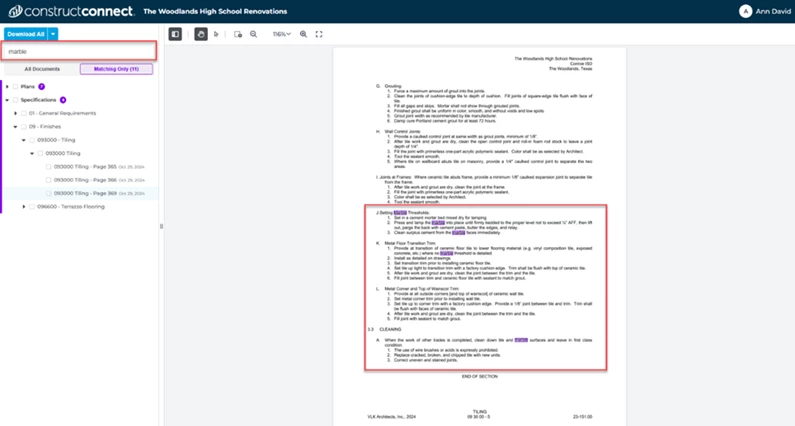
The same “smart” and “exact” search tools used for keyword searches are now built into the Document Viewer so that you can search directly within documents just as easily.
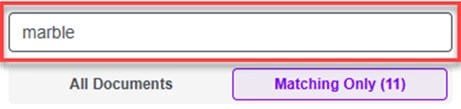
Type a keyword into the search bar at the top of the side bar. It will show how many documents have the word and highlight it wherever it appears in the document.
Navigation is also easier. A toolbar in the top-left corner lets you move through a project's documents, pan left or right, highlight text, and zoom in or out using different zoom options.
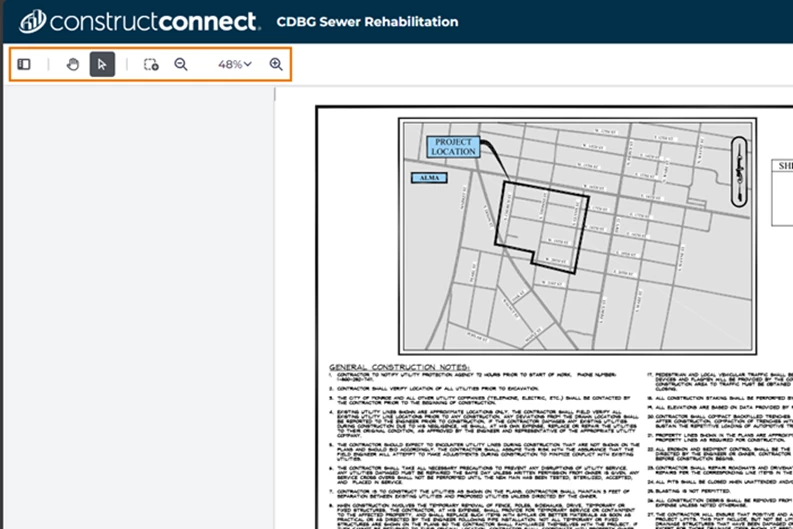
To learn more about our Document Viewer feature, check out this short article: Document Viewer Overview.
Save Search and Start a New Search Buttons
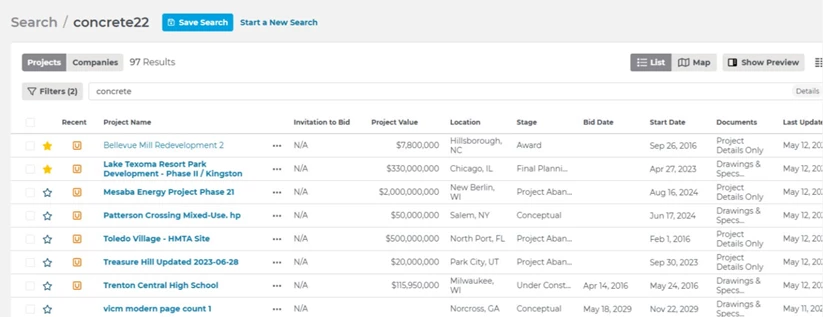
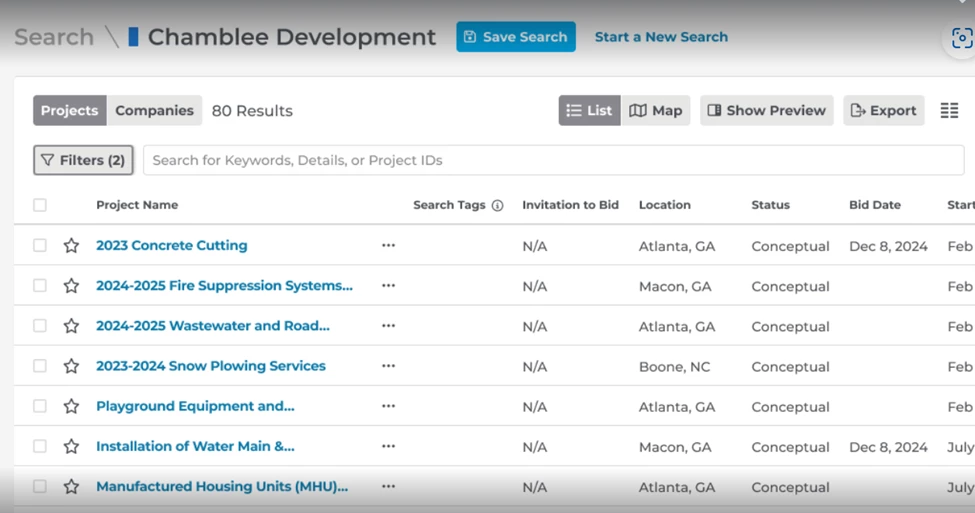
Our Saved Search feature has been streamlined. On the Projects tab, at the top of the Search page, near the center, you will see two buttons: Save Search and Start a New Search.
The Start a New Search button lets you pick the filters you want to use in your search (see the Improved Filters section above), and the Save Search button saves those choices.
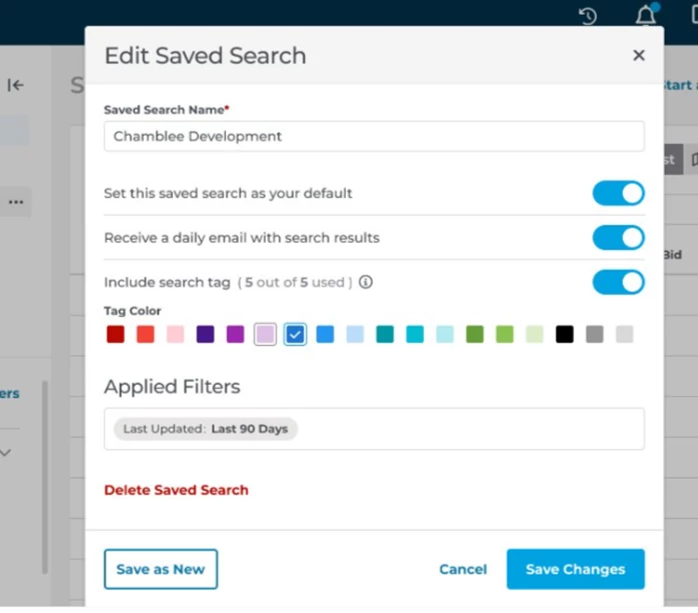
After clicking Save Search, a dialog box will appear, prompting you to include a Saved Search Name. You will also be shown three toggle switches asking whether you’d like to do the following:
- Set the search as your default
- Turn on email notifications for the search
- Add a search tag
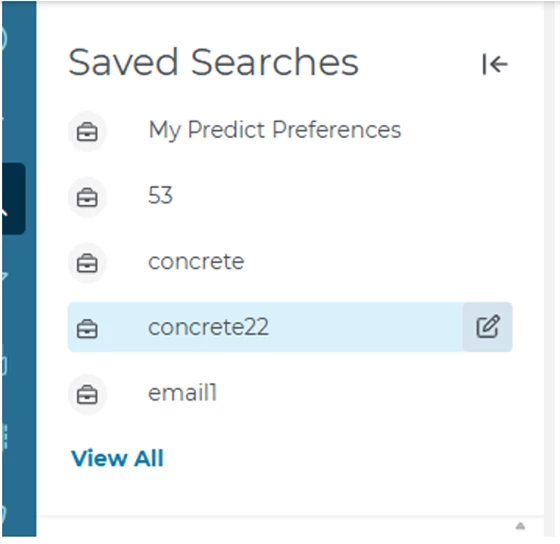
You can see your saved searches in the Saved Search section on the left side of the screen. The last five searches you used will show up there automatically. Below those, you can click the View All button to see the rest of your saved searches.
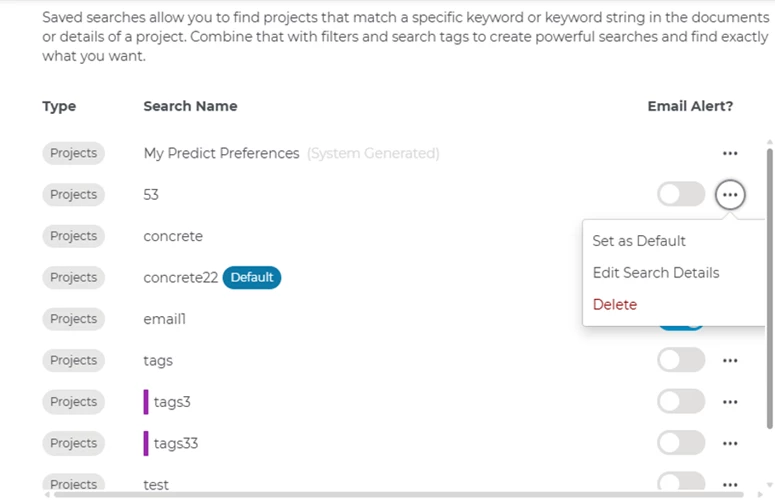
By clicking View All, a dialog box showing all your saved searches will pop up in the center of the screen.
From this menu, you can also see which saved searches have a tag associated with them (see the purple stripe to the left of the ‘tags3’ and ‘tags33’ searches below).
When you have a particular saved search open, you will see the name of that search (as well as a color stripe matching its associated Search Tag) at the top of the page in the center next to the Save Search and Start a New Search buttons (see below).
For more information on saving, loading, and clearing searches, see Modernized Search.
For answers to some common questions about Modernized Search, visit our Modernized Search FAQs .
Related Articles