
On-Screen Takeoff supports using digital photos in your bids; allowing the photos to be used for reference, or to enhance a presentation.
Adding a Photo to a Project
In On-Screen Takeoff create a new Bid or open the Cover Sheet for an existing Bid.
- Click the Add New Image Page button

You can add files with these extensions to an On-Screen Takeoff project:
 .
.
Most digital photos are saved in JPG, PNG, or GIF formats - if your file format isn't supported, try changing the extension to ".tif" and load them into On-Screen Takeoff. If that doesn't work, open in any photo viewer and save a copy as a TIF file. See Supported / Compatible Image File Types for more details.
On-Screen Takeoff no longer supports adding BMP files to the Plan Organizer, they must be re-saved as a TIF or some other supported image file type.
- In the Add Images window, browse to the folder where the photo is stored, then select it
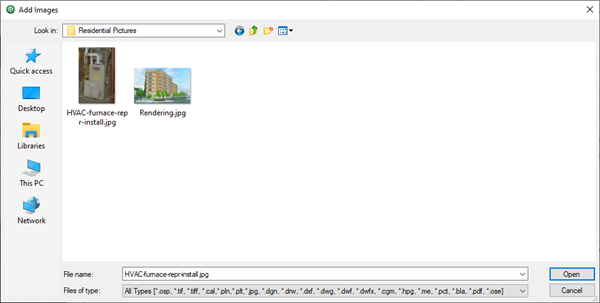
- Click Open to link that file to the Bid
A link to the photo is added and shows in the Pages Grid in the Cover Sheet (just like any other image/plan file).
- Open the Bid, select the photo from the Pages drop down on the Takeoff Tab
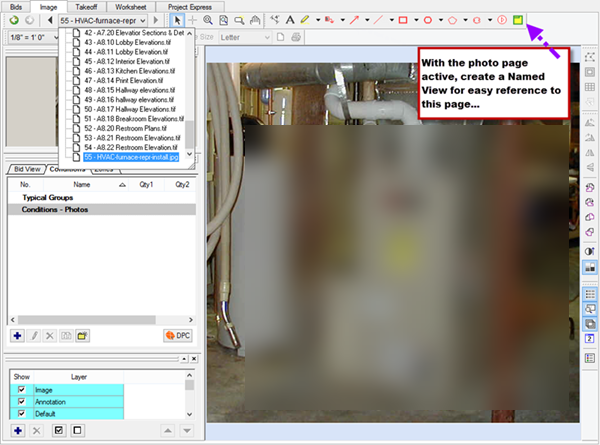
See How to Create a Hot Link to a Photo in On-Screen Takeoff for details on creating Hot Links (shortcuts) to this Photo.
You can change how Hot Links and Named Views open in Tools > Options.
Related Articles
