

Issue
- When you are set up a Condition/Takeoff Item and enter a value greater than 999 for Height, Width, or Depth, the field shows a "1" instead, or,
- As you are draw takeoff, quantities over 999 display as a "1" in the Condition/Takeoff Item list and on the Summary and Estimate Tabs in On-Screen Takeoff and in the Takeoff Items panel in Classic ConstructConnect Takeoff (desktop).
Discussion
The values are being stored correctly in the database, however, the way that Windows is configured causes the apps to display the values incorrectly. The programs is designed to use the "English (United States) Regional and Language Options" located within Microsoft® Windows® (meaning commas are used as thousands separators).
You can use Regional settings other than US-English, however, you must make a minor modification to those Regional Settings to work properly with OST and CCTO. By default some Regional settings use a space, instead of a comma to separate the "Digit grouping". This causes the apps to only display characters in front of the space - everything after the space is hidden (the correct values are stored in the databases, they are just displayed incorrectly in the apps).
Examples
In the Condition Properties window a Height can be assigned, but when changing fields the height changes to the first digit.
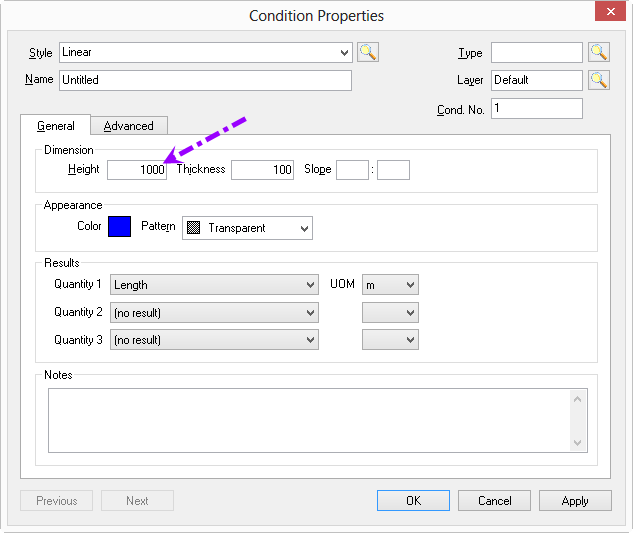
Example 1 - Height set to 1000mm before leaving field
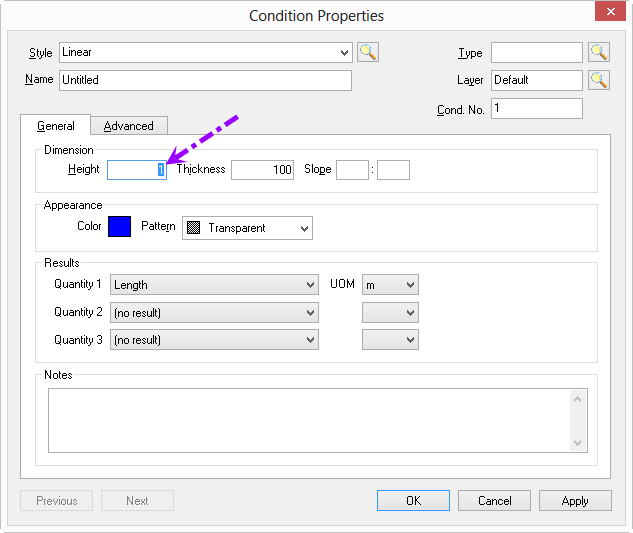
Example 2 - Height "changes" to 1mm
In the Classic ConstructConnect Takeoff Items panel:
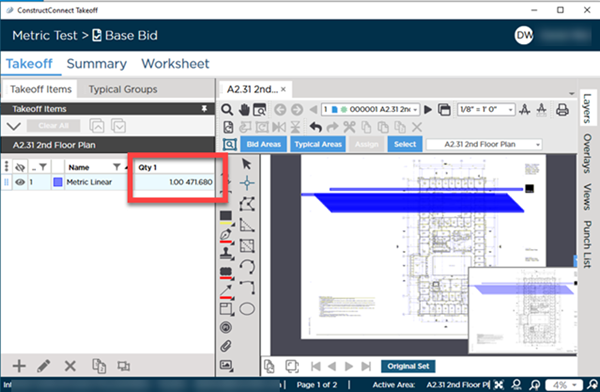
(All other places in Classic ConstructConnect Takeoff show metric quantities correctly.)
Resolution
Your computer's Language and Region > Numbers settings must be modified to use commas for "digit grouping".
Review Window’s online help for instructions on modifying your Region Settings, specifically your Digit Grouping Symbol, it must be set to a comma for OST and CCTO to display Metric quantities properly.
When you are done using On-Screen Takeoff or ConstructConnect Takeoff, you can set this back to a space, however, be sure to adjust it before using the application again.
If you don't want to change this setting every time you use On-Screen Takeoff, you can create a 2nd Windows User (maybe named "takeoff"), install OST or CCTO, set the Regional Settings, and then use that profile to do your takeoff work. You can switch between Windows Users fairly easily in Windows 11. We understand this is not ideal and apologize for the inconvenience.
