Question
How do I copy just some of the saved Styles from the Sample Projects database into my database?
Resolution
In the Sample Projects database,
- Open the Style Library and Sets dialog by clicking Master > Style Library and Sets
- Highlight the Condition Styles you want added to your new Style Set
- Click the New Set button
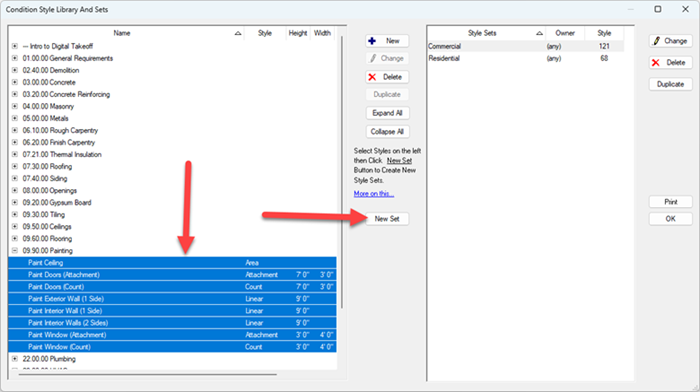
- Name the new Style Set and then press OK
- Next, create a new, blank Bid
- On the Takeoff Tab, in the Conditions window, right-click and select Insert Style Set
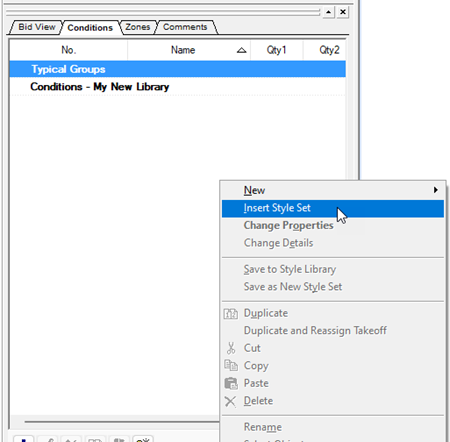
- Choose the Style Set you just created - new Conditions are created in this Project
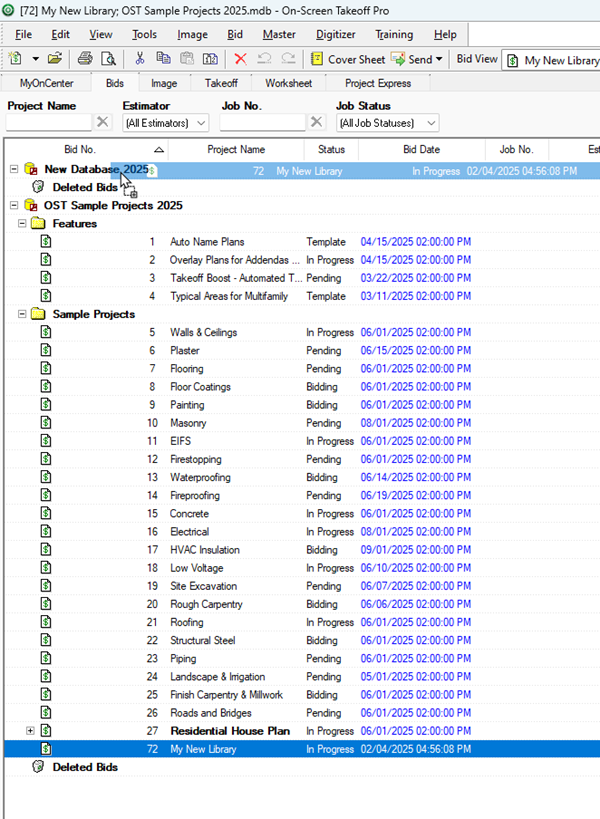
- Return the Projects Tab and copy that Project into the database into which you want to copy those Conditions (to save as Styles)
In your new database,
- Open the Takeoff Tab for the Project you copied over
- Highlight the Conditions and then right-click and select Save as New Style Set
- Enter a name for your Style Set and click OK
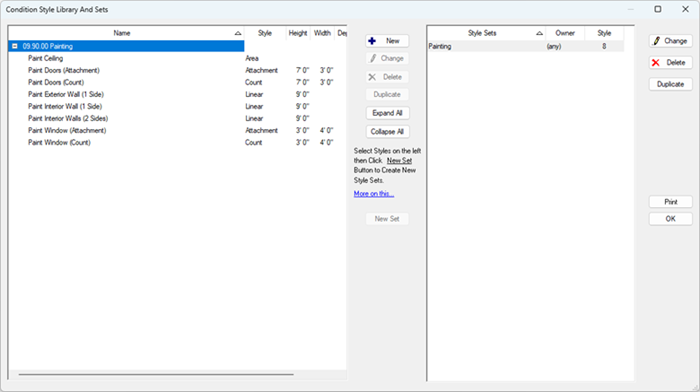
Now you’ll see all those styles and the style set in the Master > Style Library and Sets dialog box.
Related Articles
